How can you preserve crisp edges when removing backgrounds from images? A guide to PixPix’s transparent PNGs and white‑background images.
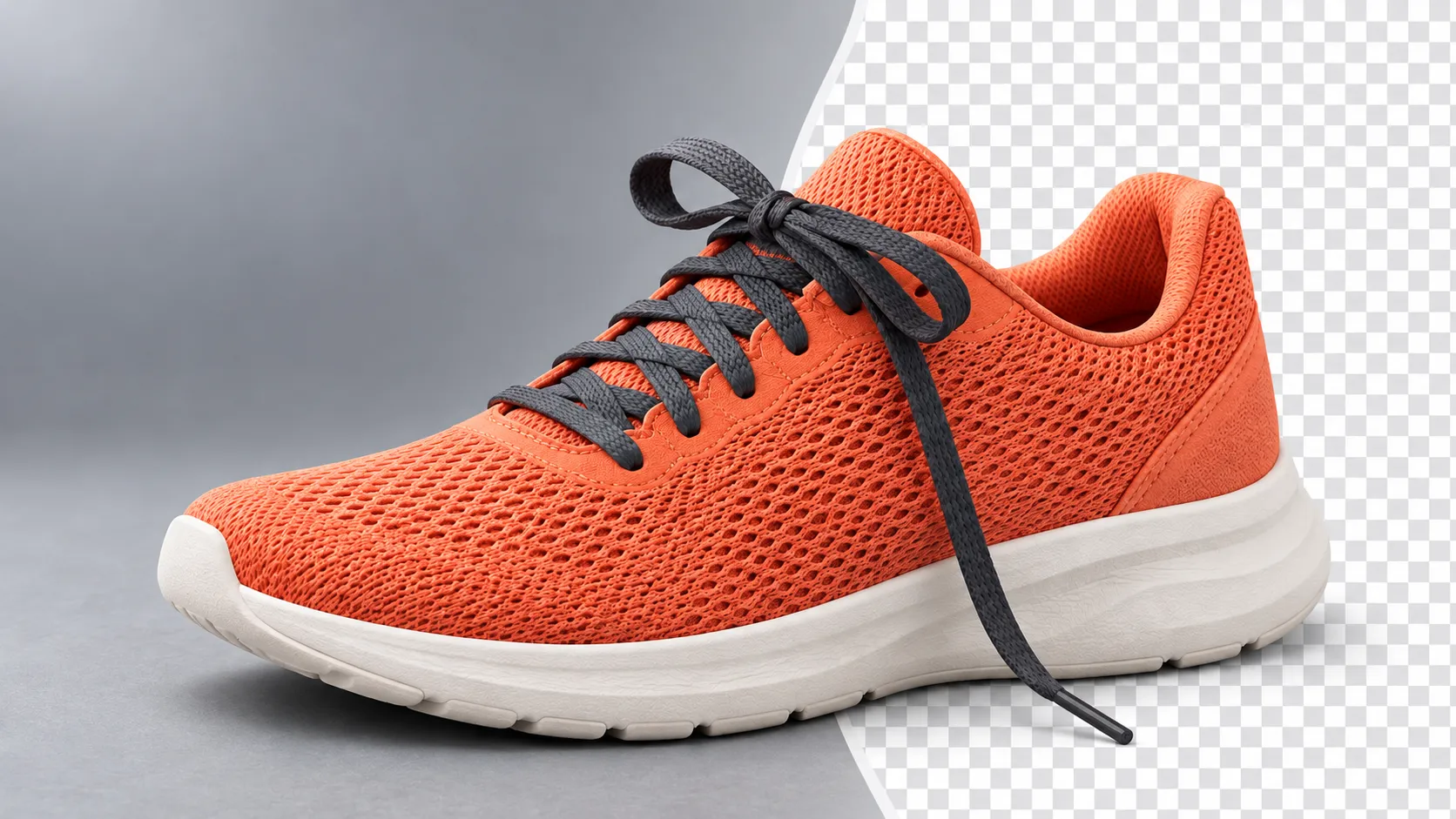
After removing the background from the image, the shoe upper remains, but one section of the shoelace is missing. When placed on a white background, it looks fine, but when used on a dark poster, a light-colored border appears around it. To address these issues, don’t just check whether the background has disappeared—also verify that the main subject hasn’t been accidentally deleted, ensure any gaps have been properly cleaned up, and confirm that the exported file can still be composited.
This article uses a coral orange mesh running shoe as a teaching example to demonstrate how to prepare the original image, select an appropriate output background, inspect the edges, and apply the processed product in subsequent design work.
First, decide: Do you need a transparent asset, or a product image with a white background?
These two objectives determine the inspection methods that follow.
Transparent assets are suitable for inclusion in posters, product detail pages, and design layouts with various backgrounds. White‑background images are ideal for directly showcasing the product, where the background has already become part of the image itself. Don’t assume the downloaded file lacks transparency simply because the preview area appears white, nor mistake grayish‑white checkerboard patterns for actual transparency.
Using the target | Suggesting delivery | Key checks |
|---|---|---|
The same product used across multiple design backgrounds | PNG master asset with transparency | Is it truly transparent, and are there any edge residues? |
Directly displaying a clean product | White‑background rendering | Product integrity, negative space, and background color |
Creating lifestyle scenes | Saving the master asset and scene render separately | Product structure, proportions, and contact shadows |
PNG supports transparency information and lossless compression, but not every PNG file contains transparent areas. Saving the original image as a PNG will not automatically remove the background or recover details that may have already been lost. For format capabilities, refer to the W3C PNG specification.
Preparing the original image: First, separate the running shoe from its background
In this case, we’re working with a left‑foot running shoe featuring a coral orange mesh upper, dark gray laces, and an off‑white thick sole—without any text or logos. Our goal is to preserve three key identifying features: the connection between the laces and the upper, the outer contour of the mesh, and the curved sole line from toe to heel.
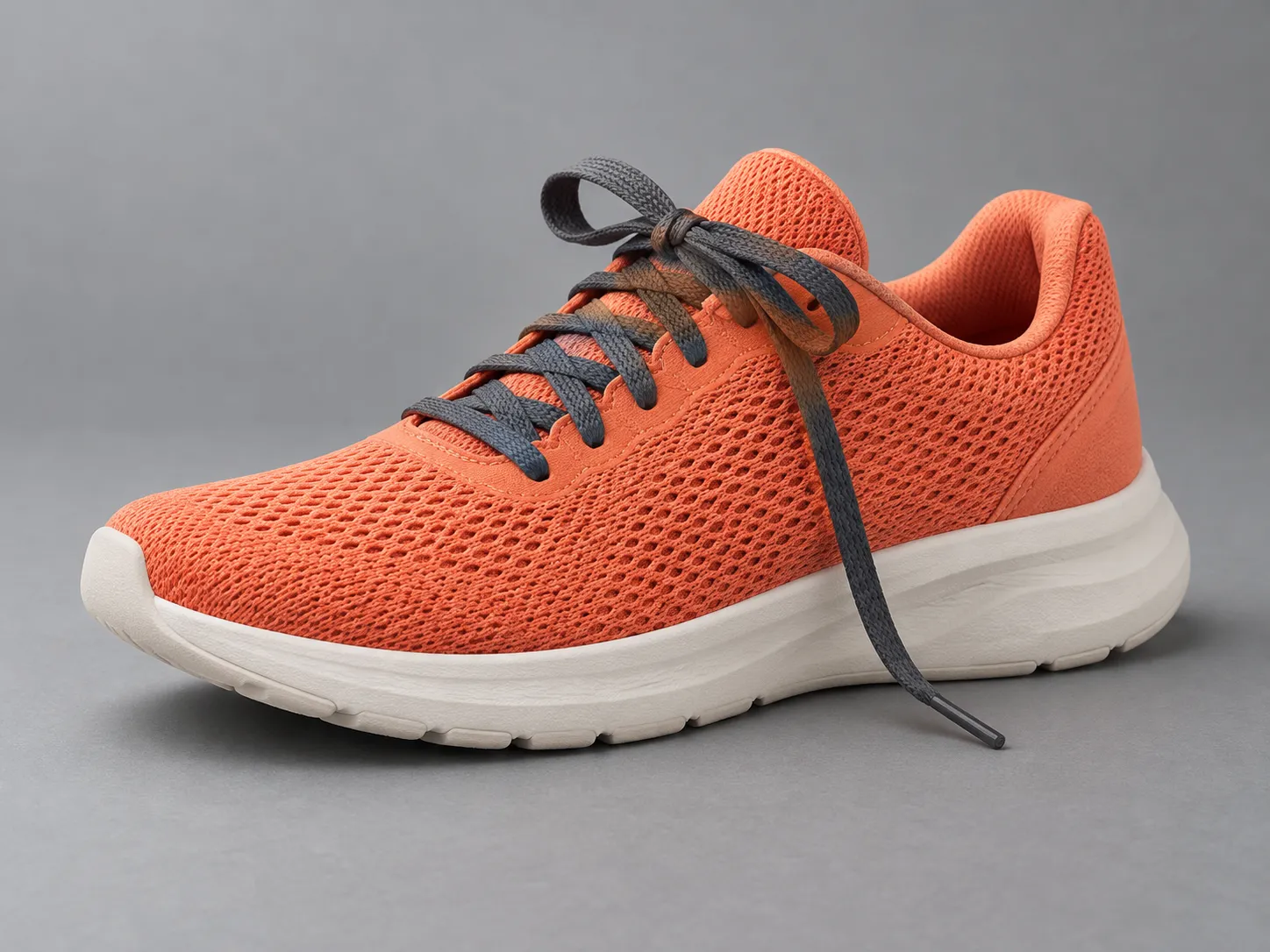
Caption: An AI‑generated original instructional input image, used to examine the shoe’s shape, mesh texture, lace ends, and sole outline.
When photographing or selecting reference images, consider the following arrangement:
Use a neutral gray background to highlight the coral orange upper, avoiding colors that closely match either the background or the dark gray laces.
Leave a visible gap between the naturally drooping lace end and the shoe body, without using props to conceal it.
Retain the entire toe, heel, sole, and lace ends, ensuring the main subject doesn’t cling too close to the frame’s edges.
Use the original file, minimizing reliance on chat app‑compressed images or screenshots as the starting point for editing.
Check the focus position, ensuring that the mesh edges and shoelace ends are also clearly visible.
If the shoelaces in the source image are already blurred to the point where their boundaries cannot be determined, it is recommended to first find a clear original image or retake the photo. Zooming can alter pixel dimensions, and generative enhancement may also add details; however, these newly generated details must be verified against the actual product and should not be directly treated as part of the original product structure.
Complete background removal at the PixPix-related entry point.
PixPix’s AI Image and Video Generator has an “Remove Background” option listed on its public page. It is suitable for continuing to edit images within your existing creative workflow; specific operations and download options are subject to the current interface.
If you wish to perform independent background removal first, you can open the PixPix tool site’s AI Background Remover. This page is branded under IMG.DIY and provides a return link to PixPix’s main creative interface. The following instructions regarding import, modes, and background selection apply specifically to this standalone tool and cannot be directly applied to all image-editing features on the PixPix main site.
Import an image, then select a processing mode.
According to the tool page’s instructions, after adding one or more images, you will need to load the model the first time you use it. The page lists two modes: Fast and High quality; it is recommended to start with the mode best suited for simple outlines, and if fine edges do not meet expectations, switch to the other mode afterward.
For running shoes, do not rely solely on the overall silhouette of the shoe body. After each reprocessing, check whether the dangling shoelaces remain intact, whether their ends have been truncated, and whether any remnants of the old background remain between the laces and the shoe body.
The mode name indicates the available processing method but does not replace careful inspection. Another mode may still mistakenly delete light-colored edges or misidentify shadows as the main subject.
Choose a background according to your intended use.
This tool page introduces transparent, white, and custom solid-color backgrounds. When further compositing is required, select a transparent output; when a clean final image is needed, choose a white background or the desired solid color.
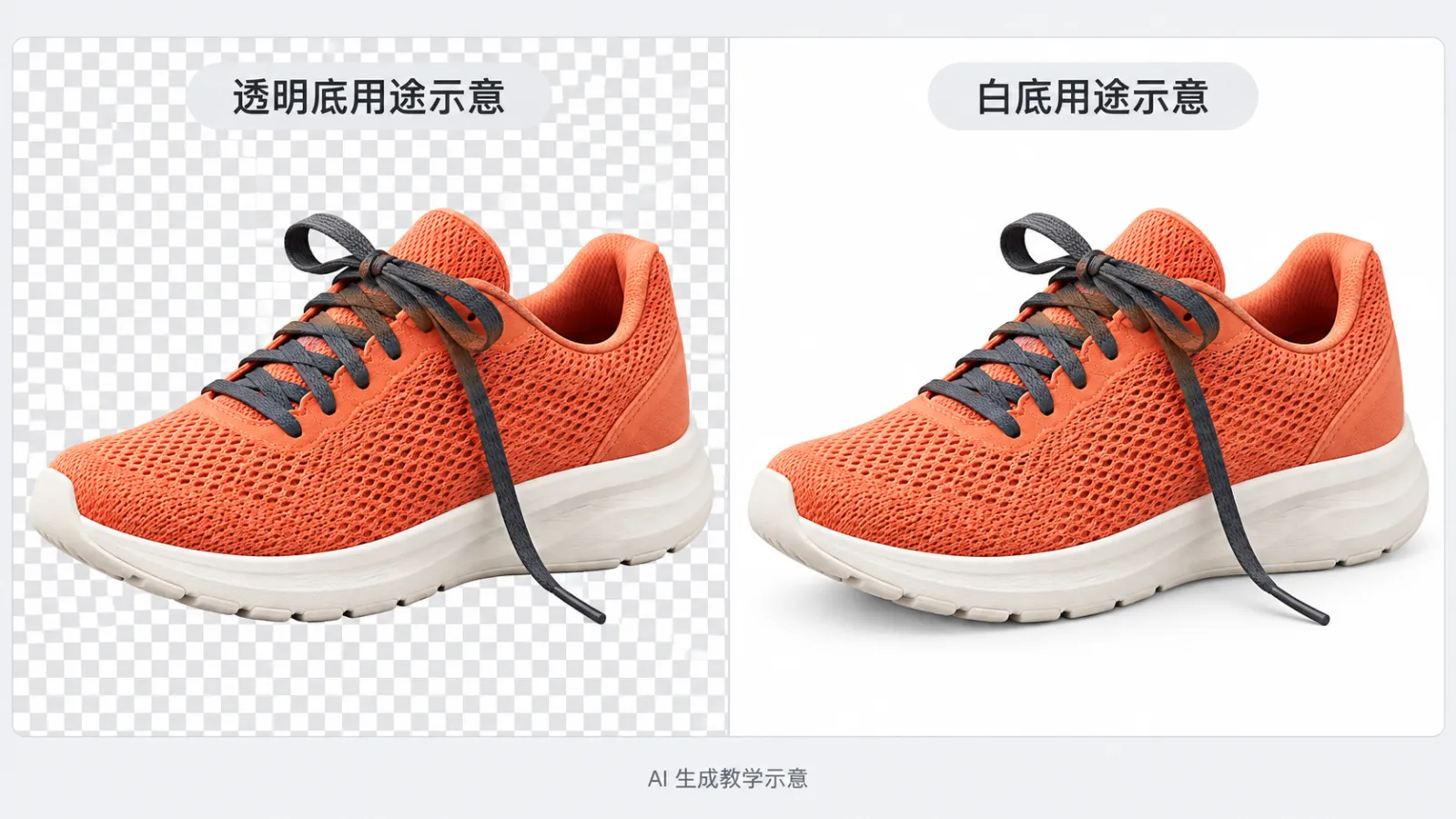
Caption: AI-generated instructional illustration. The checkerboard pattern on the left represents the preview method for transparent areas; this comparison image is a standard finished image and is not a transparent subject file ready for direct compositing.
After downloading, reopen the file for verification—not just confirming in the tool’s preview area. It is recommended to keep a copy of the transparent subject and save another version for display purposes, so that when changing the design background later, you won’t need to re-trace from a white-background image.
Use three different backgrounds to inspect the shoelaces, mesh, and sole.
An image that looks good against a light-colored background does not necessarily appear natural when placed into any design layout. It is recommended to place the same asset sequentially onto white, dark gray, and highly saturated colored backgrounds in an editor that supports transparent layers, to assess its appearance.
White background: Check for accidental deletions.
Observe whether the toe, heel, dangling shoelaces, and sole curves remain intact. Compare the outline with the original image, and avoid accepting a narrowed shoe shape, thinner laces, or cut-off mesh edges simply to make the edges look “cleaner.”
Dark gray background: Check for faint residual edges.
If noticeable bright edges appear on the outer side of an off-white sole, first confirm against the original image: they may be genuine highlights that should be retained, or remnants of old background mixed into the edge. Do not indiscriminately erase white pixels, as this could damage the light-colored product itself.
High-saturation background: Inspect holes and semi-transparent pixels.
The gap between suspended shoelaces and the shoe body should reveal the new background. If that space still shows the old background color, it means the background was not completely cleaned up. The mesh texture on the shoe upper belongs to the product itself and should not be entirely removed just because it appears as a hole. Localized remnants of the original background color may also persist along the edges, making them easier to spot once the background color is changed.
During inspection, balance both 100% pixel view and the final display size. Use zoomed-in views to identify issues, while actual dimensions help determine whether those issues affect usability.
Common issue: First determine where the mistake lies, then correct it.
Problems observed | Prioritize troubleshooting | Recommendations for handling |
|---|---|---|
The drooping shoelace is missing a section | Is the original image clear, and are the colors close to the background? | Replace with a clear original image and compare another mode; if still unsuccessful, manually edit the mask |
There is still old background between the shoelace and the shoe body | Are external gaps being recognized as part of the main subject? | Clean up the gaps separately without erasing the shoelace or the shoe upper |
A white outer ring appears on the deep sole | Is there residual old background or genuine product highlights? | Adjust the edges locally against the original image to preserve the true highlights |
The shoe sole appears to be floating | Has the original contact shadow been removed? | Create a separate shadow in the final scene that matches the ground and lighting conditions |
Checkerboard squares appear in the background | Have the squares been painted into the image? | Test on a solid-color background; if the squares remain, re-export the transparent asset |
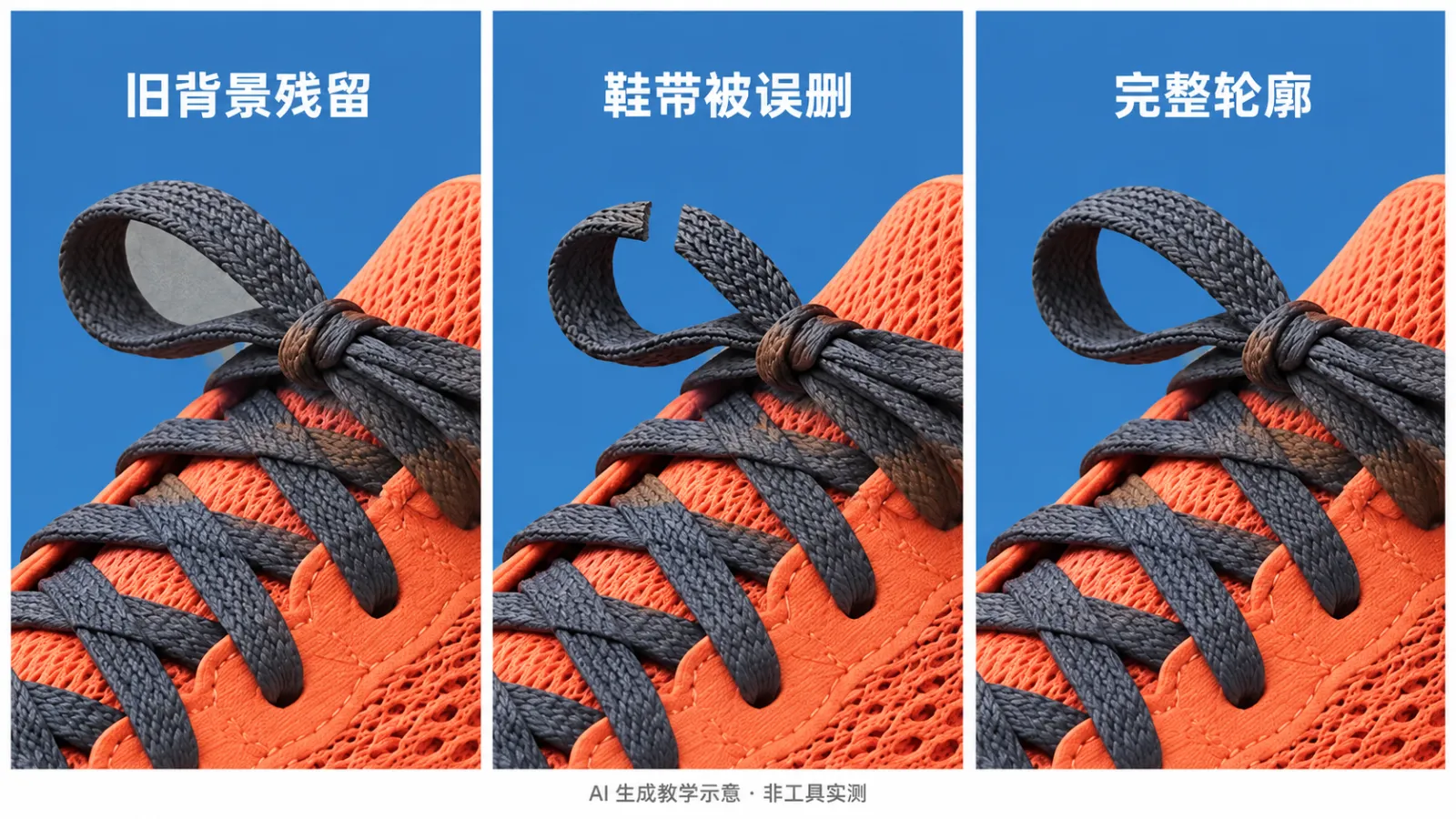
Caption: AI-generated instructional illustration, using the shoelace loop area to explain three edge states; failure cases are artificially set examples and do not reflect any specific tool or mode.
When encountering glass, sheer fabric, or complex reflections, do not simply apply the same processing standards used for mesh running shoes. These materials require preserving some translucency and reflection relationships; when automatic results are unsatisfactory, localized masking and post-processing compositing may be more appropriate.
Continue building the product scene from the transparent asset
Background removal addresses separating the subject from its original environment. After placing it into a new scene, you must also consider light direction, placement proportions, and contact relationships.
If you want to explore creative scene designs, you can use PixPix’s image-to-image generation or photo-editing capabilities; if you plan multiple e-commerce images, you can further check out the product image suite tool. Always verify each generated result individually, especially regarding the shape of the toe, thickness of the sole, path of the shoelace, and color of the shoe upper.
Below is a general template designed around this case, intended to illustrate scene constraints—not instructions for background removal, nor pre-tested prompt suggestions:
Use the provided reference image of the left-foot running shoe as the primary basis. Retain the coral orange mesh upper, dark gray laces, and off-white thick sole—preserving their structure and colors. Place this running shoe on a light gray sports display stand, illuminated by soft light from the upper-left, creating natural contact shadows that closely match the sole. Keep the gap between the drooping shoelace and the shoe body clearly visible, maintain the mesh texture, and refrain from adding logos, text, extra laces, or a second shoe; do not alter the proportions of the toe, heel, or sole.
If the task requires keeping the product’s pixel-level details intact, we recommend using a workflow that fixes the main subject layer and composites it with a new background. Relying solely on prompts cannot guarantee that the generative model will fully preserve all product details.
What else should you confirm after downloading?
Before delivery, you can check the running shoe assets according to this checklist:
The toe, heel, sole, and laces are all intact, with contours matching the original image.
There is no residual old background between the floating laces and the shoe body, and the mesh texture has not been mistakenly removed.
When placed against both light and dark backgrounds, there are no noticeable edge artifacts.
The transparent file indeed contains transparent areas; the checkerboard pattern is not part of the image content.
The main subject material and the final output image are saved separately, with filenames clearly distinguishing versions and purposes.
In the new scene, proportions, lighting, and shadows are appropriately balanced.
If used for product listing, verify the specific image requirements of the target platform separately—do not assume compliance solely based on a white background.
It is recommended to start with a clear‑outlined product image, use the AI Background Remover to perform basic processing, then place the same downloaded file onto three different backgrounds for inspection. Once you confirm the reliability of the main subject, proceed to extend the scene or create a set of images using PixPix.
Frequently Asked Questions
Why is the downloaded file in PNG format, yet the background remains white?
PNG can store transparency as well as fully opaque images. First ensure that a transparent background was selected during export, then open the file in an editor that supports transparent layers to verify.
Can the product’s shadow still be retained after background removal?
This depends on the intended use of the material. For primary assets meant for repeated compositing, environmental shadows can be handled separately; for final presentation images, appropriate contact shadows should be added. Avoid having the original scene’s projection clash with the lighting of the new scene.
Will switching processing modes always yield better results?
Not necessarily. It is advisable to compare the original image with the intended purpose, paying particular attention to challenging areas such as joints, gaps, and fine edges. If needed, consider using clearer input data or manually refining the result.

AI Image Tool Built for E-commerce Teams
For new product launches, advertising, and promotional campaigns, use AI to generate product images, scene visuals, ad creatives, and short video assets — making content production faster.