10 Old Photo Restoration Prompts: GPT Image 2.5
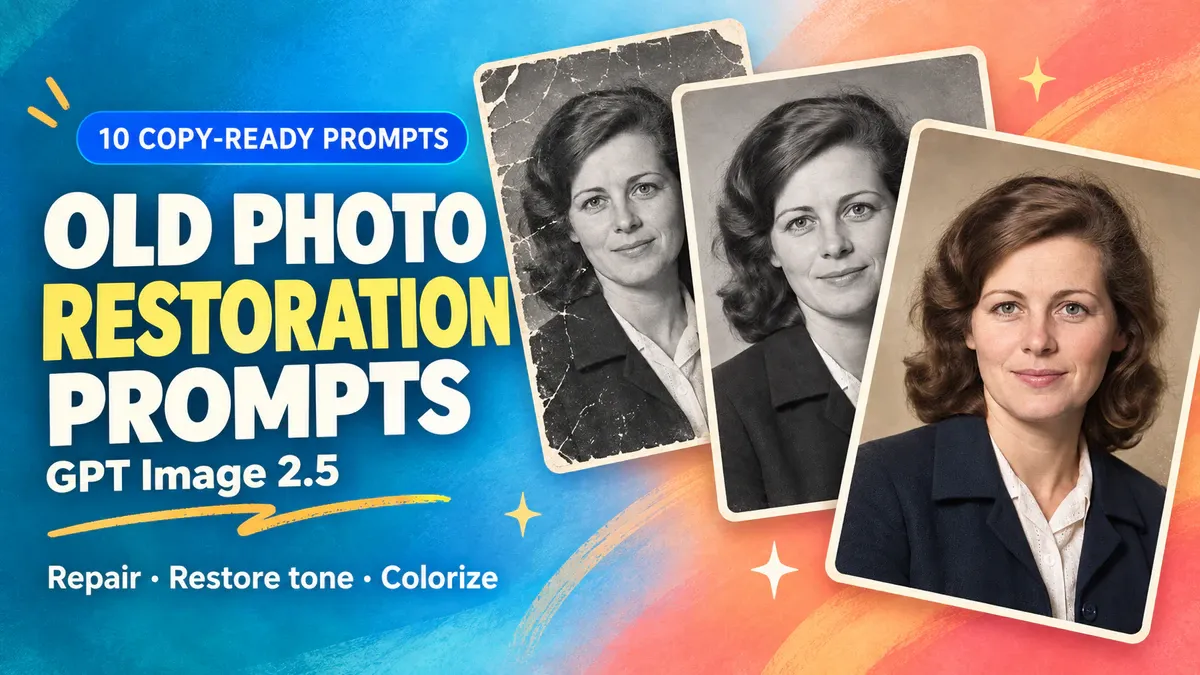
Scratches can go. The wrinkles on someone's face usually deserve to stay. A restored portrait that makes its subject look ten years younger may be a disappointing result, however polished it looks. Good old photo restoration prompts spell out both the damage to remove and the details to keep. These 10 GPT Image 2.5 templates cover dust, scratches, folds, missing corners, color casts and colorization, with separate instructions for group photos and over-smoothed faces.
Use them to make edited copies for viewing and sharing. If a face is already unreadable or half the print is missing, generated features and scenery are not recovered historical information. Keep the original scan, and save restored and colorized versions separately.
Before you upload an old photo, keep an untouched original
A clear, flat scan is a useful starting point for a paper photograph. If you photograph the print with a phone, hold the camera square to it and avoid reflections and hand shadows. Retake a shot when glare covers a face; do not ask the model to guess what is underneath. If a photograph is stuck to glass or the paper is damaged, do not pull it apart to scan it. Seek advice from a photograph conservator when needed.
A simple folder system is enough. Keep one untouched original, add “restored” to edited filenames, and label colorized copies “inferred color.” Replace a compressed messaging-app copy with the original file whenever you can.
Open GPT Image 2.5 on PixPix, enter the workbench, select the model and upload a photograph you have permission to edit. Copy the prompt that matches the damage, replace the bracketed descriptions, check the aspect ratio and submit. The links beside each prompt open the model page. They do not upload a photo or start generation. Compare each result with the source before making another change.
“Keep unchanged” is an editing instruction, not a pixel-perfect guarantee. You still need to check the result against the original.
Main problem | Start with | Leave out of this pass |
|---|---|---|
Small white spots, fine scratches or folds | Prompts 1–3 | Skin smoothing, face changes and colorization |
A missing corner with the person intact | Prompt 4 | New people or objects |
Yellow cast, fading or flat tones | Prompts 5–7 | Crack repair and stylized filters |
A cleaned black-and-white photo you want to colorize | Prompt 8 | Claims that inferred colors are historically accurate |
A group photo or an over-smoothed face | Prompts 9–10 | Making everyone look alike or changing their age |
The images below are original illustrations of simulated old photographs and editing choices. They are not family archives or GPT Image 2.5 test results. People, clothing and backgrounds should correspond before and after an edit; sharpness alone does not show that a restoration is accurate.
Remove scratches and folds without erasing details in the photograph
1. Remove dust spots while keeping moles and film grain
Scattered white specks may be easy to identify. A dark dot on someone's face is less clear-cut. Leave uncertain moles, freckles and clothing patterns alone. Film grain is the fine, fairly evenly distributed texture across a photograph; it does not need to be smoothed into flat patches.
Edit the uploaded old photograph. Remove only obvious scanning dust and white spots on the print, focusing on [scattered spots on the background wall and clothing]. Preserve the person's face shape, eyes, nose, mouth, hairstyle, age and expression. Do not remove moles, freckles, clothing patterns or small accessories. Leave any spot unchanged if it cannot confidently be identified as dust. Preserve the original black-and-white or color state, overall tones and fine film grain. Do not smooth skin, sharpen, colorize or repaint the background. Keep the original aspect ratio and crop. Output a single cleaned photograph.
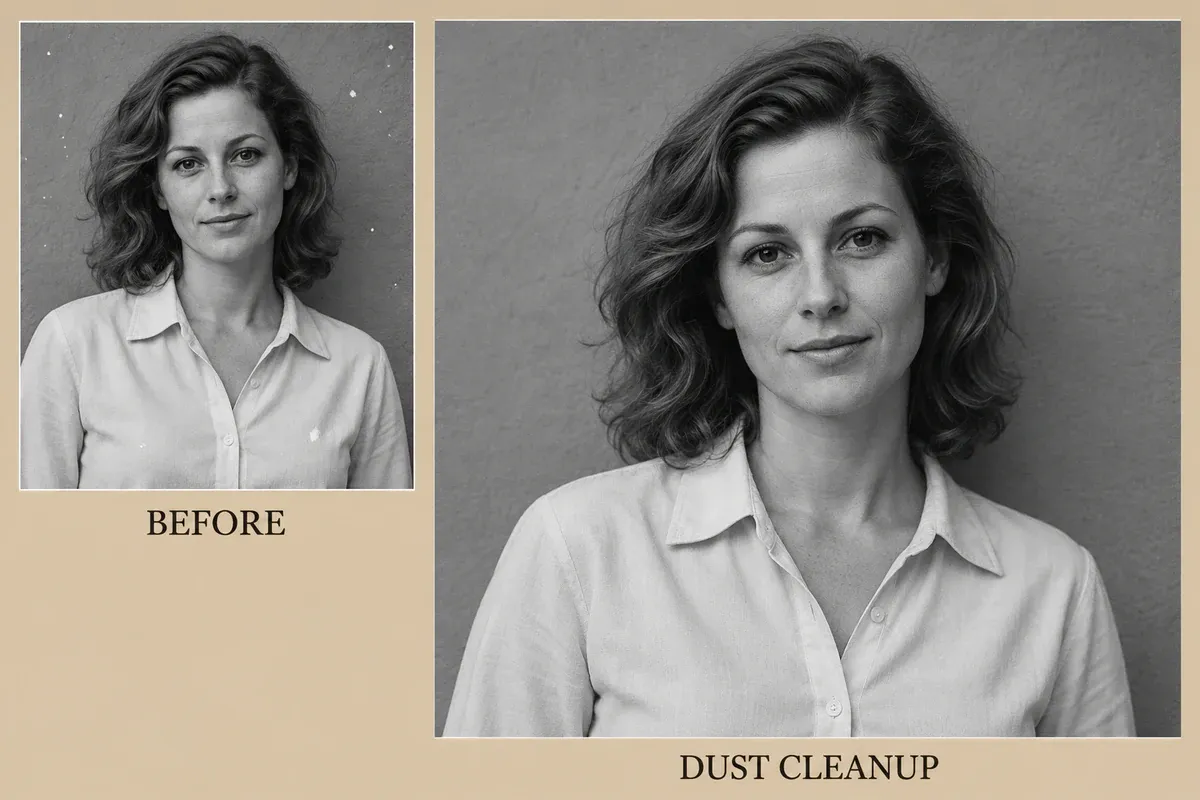
Dust-cleanup illustration: fewer white spots on the wall, with corresponding facial and collar details
2. Remove a fine scratch from clothing without changing seams
When a thin bright line crosses a background or a broad area of fabric, describe its location. If it runs through an eye or lip and there is too little surviving detail to guide the repair, do not ask for a fully reconstructed face.
Remove the fine white scratch running [from the outer right shoulder down across the coat chest] in the uploaded photograph. Edit only the narrow area covered by the scratch. Connect the visible fabric color and texture on either side without moving the shoulder line, collar, pocket or seams. Keep content outside the scratch visually unchanged, especially the face, hair and background. Do not add fabric patterns, alter the overall tone, smooth skin, beautify the subject or change their age. Preserve the original aspect ratio and crop. Output one restored copy.
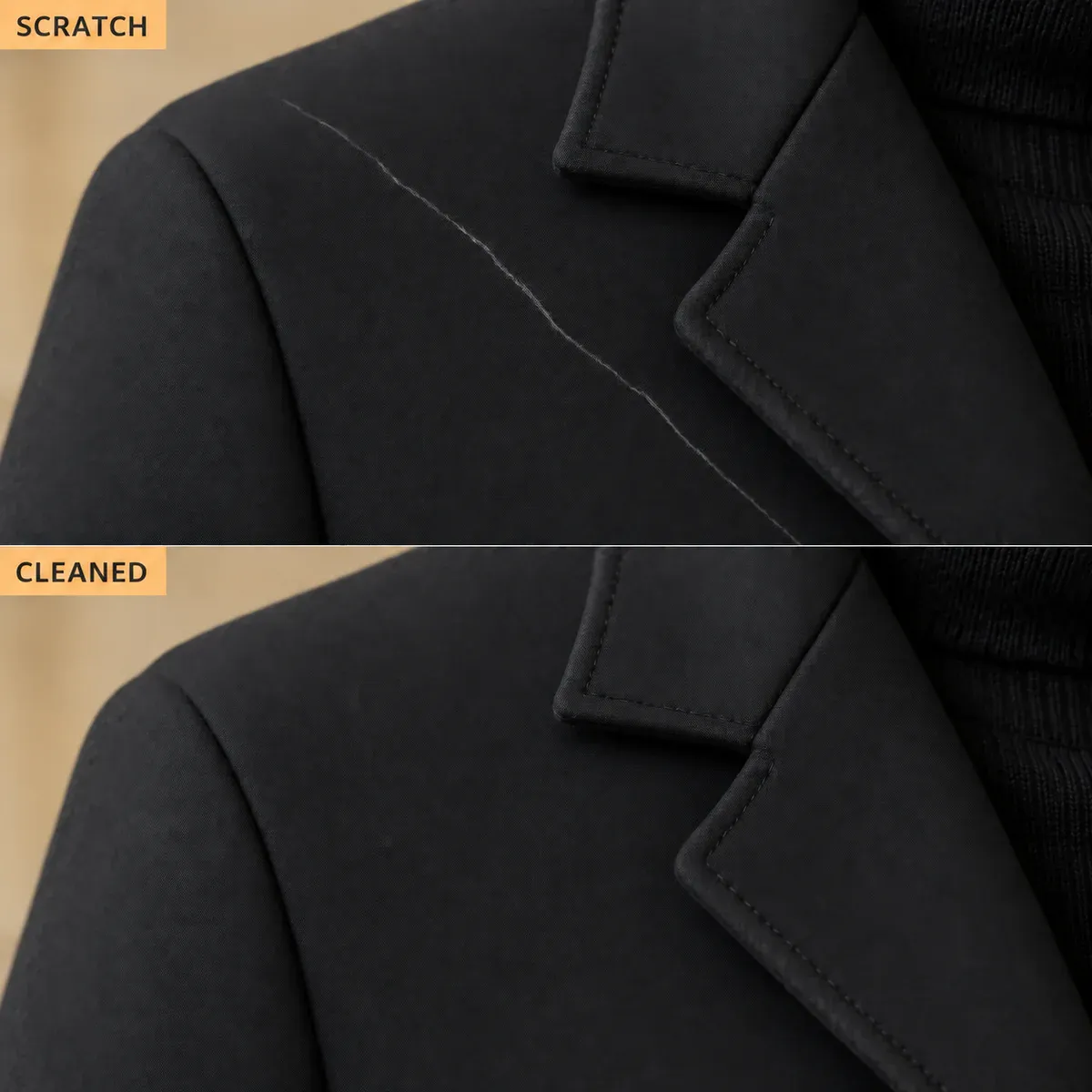
Coat-detail illustration: the bright scratch is removed while the seam continues in its original direction
View both versions at the same scale. Check for a seam that suddenly bends or a repeated patch of fabric where the scratch used to be. A cleaner coat with an extra pocket is a reason to return to the original.
3. Reduce a paper fold and reconnect lines that are still visible
You need visible lines around a crease to judge whether the repair joins them correctly. An area that has flaked away entirely is a different problem from a narrow fold in the paper.
Repair the horizontal paper fold [running from the background across the lower shirt] in the uploaded photograph. Reduce only the bright line, dark edges and small interruptions caused by the fold. Use lines still visible above and below it to reconnect the background and fabric. Preserve the person's pose, face, hands, button count, seam direction and original grain. Do not repaint the whole shirt, change tones elsewhere, or invent text and objects that cannot be established from the source. Keep the original black-and-white state, aspect ratio and framing. Output a single photograph.
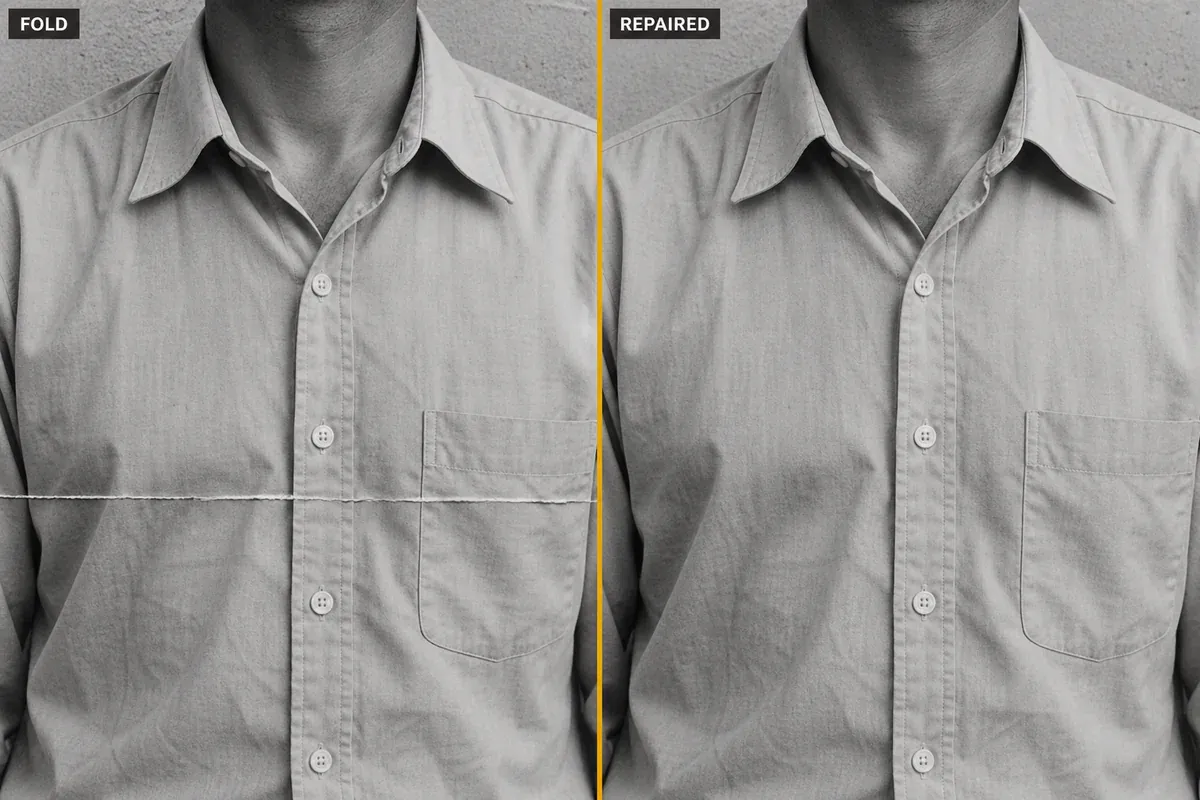
Fold-repair illustration: the horizontal crease across the shirt is reduced, with buttons and seams retained
4. Fill a missing corner only when it contains unimportant background
A small missing corner of plain wall or sky can be filled in a display copy. If it includes a face, hand, sign or other important detail, leave the loss visible or ask a retoucher to assess it with other reliable photographs.
The uploaded photograph has a missing [upper-left corner] containing only plain wall behind the person. Extend the nearby visible wall tones and subtle texture into this small corner, retaining the original rectangular framing. Do not widen the scene or add furniture, text, decorations or people. Preserve the person's outline, hair, clothing and all other background content. Do not clean unrelated marks or colorize the image. Output one restored display copy. Treat the filled area as a plausible continuation of the background, not as recovered historical detail.
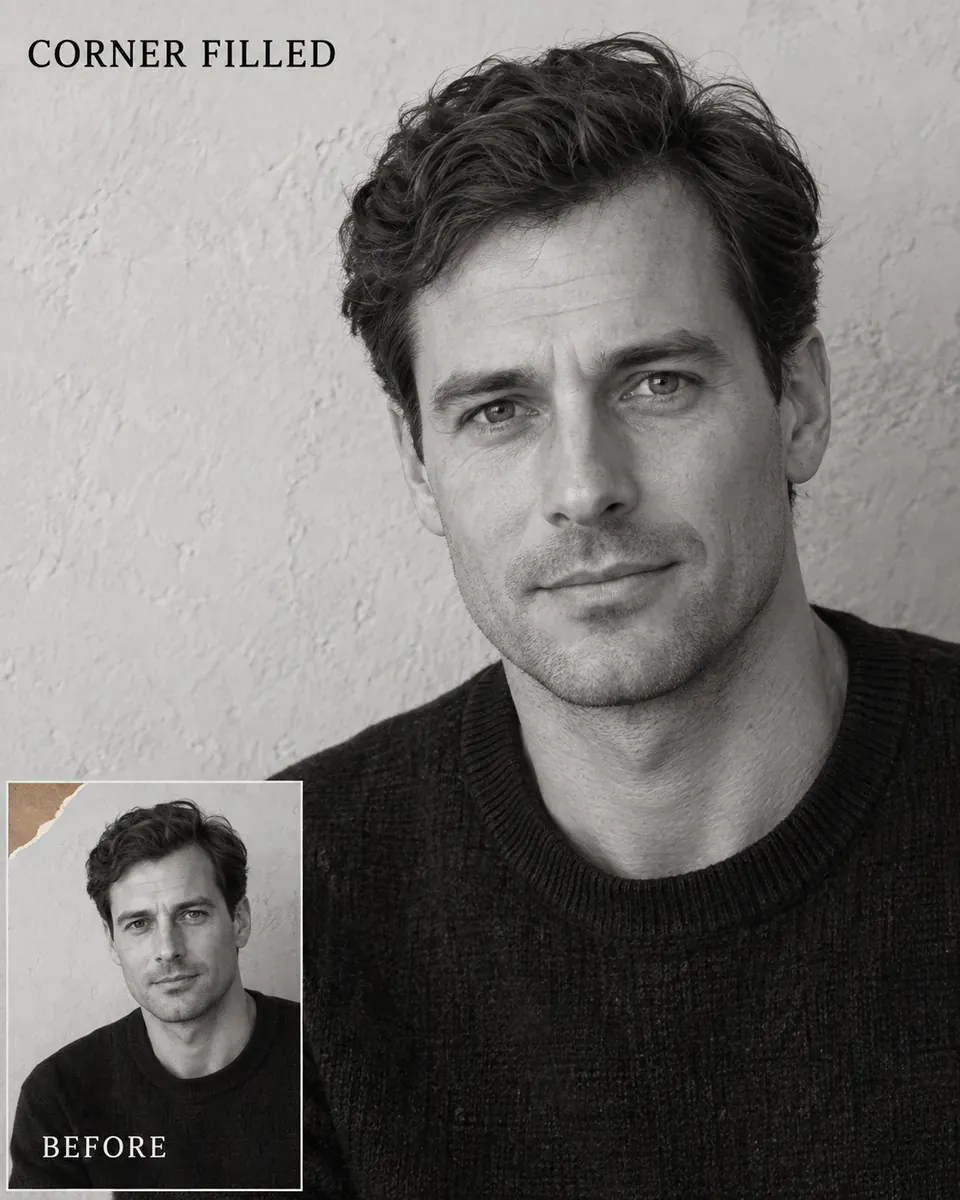
Missing-corner illustration: only the upper-left wall is extended; the person and original framing remain
Adjust faded colors and tones, then save colorization as a separate version
5. Reduce a yellow cast without making skin gray
Warm lighting, yellowed paper and scanning color casts can look similar in the finished image. Use a neutral object as a reference only when you reliably know its original color. Without that evidence, make a mild correction instead of forcing every light area to pure white.
Replace the neutral-reference phrase below only if you know the object's color. Otherwise, delete “Use [a coat known to have been gray] as a neutral reference” and keep the request for gentle correction. An object that is already discolored in the photograph cannot establish its own original color.
Gently reduce the obvious overall yellow cast in the uploaded color photograph. Use [a coat known to have been gray] as a neutral reference. Preserve natural skin color rather than making the face gray-white or pink. Keep facial features, hairstyle, pose, clothing design and background content unchanged. Adjust color balance only; do not increase saturation, contrast or sharpness, repair scratches, or change the lighting direction. If the reference color is insufficient to judge the correction, retain some warmth rather than forcing a fully neutral result. Keep the original aspect ratio. Output a single photograph.
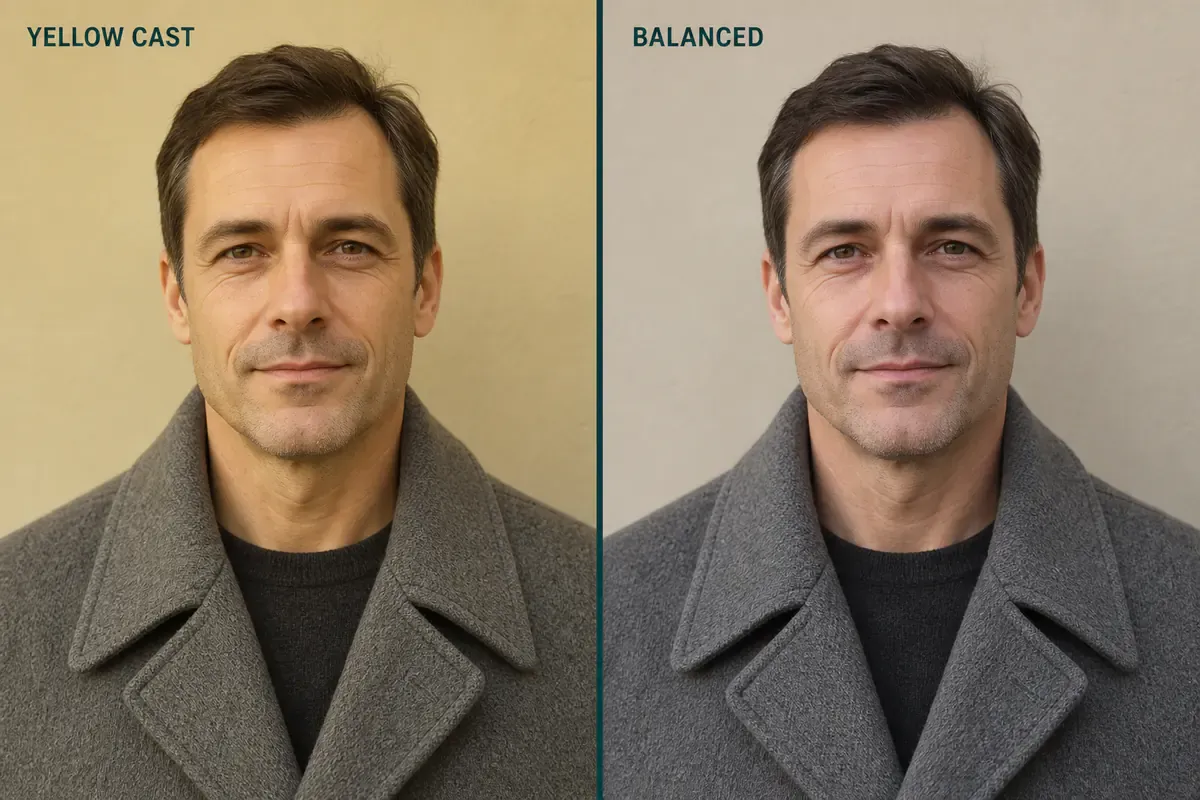
Yellow-cast illustration: less yellow overall, with warm skin and a neutral gray coat rather than a blue one
6. Improve faded colors using hues that are still visible
A faded photograph with surviving color information can be worth a gentle adjustment. If a garment has faded almost to black and white, a prompt cannot establish whether it was blue or green.
Gently improve the faded colors in the uploaded photograph. Use the surviving color information to moderately increase color separation and midtone definition. Preserve the existing hues of [the blue shirt, green plant and beige wall]; do not recolor them. Keep face shape, age, expression, skin texture and composition unchanged. Avoid fluorescent colors, strong orange skin and crushed shadows. Do not invent pores, hair strands, text or objects. Retain the natural character of the old photograph and its original aspect ratio. Output one restrained color-restoration copy.
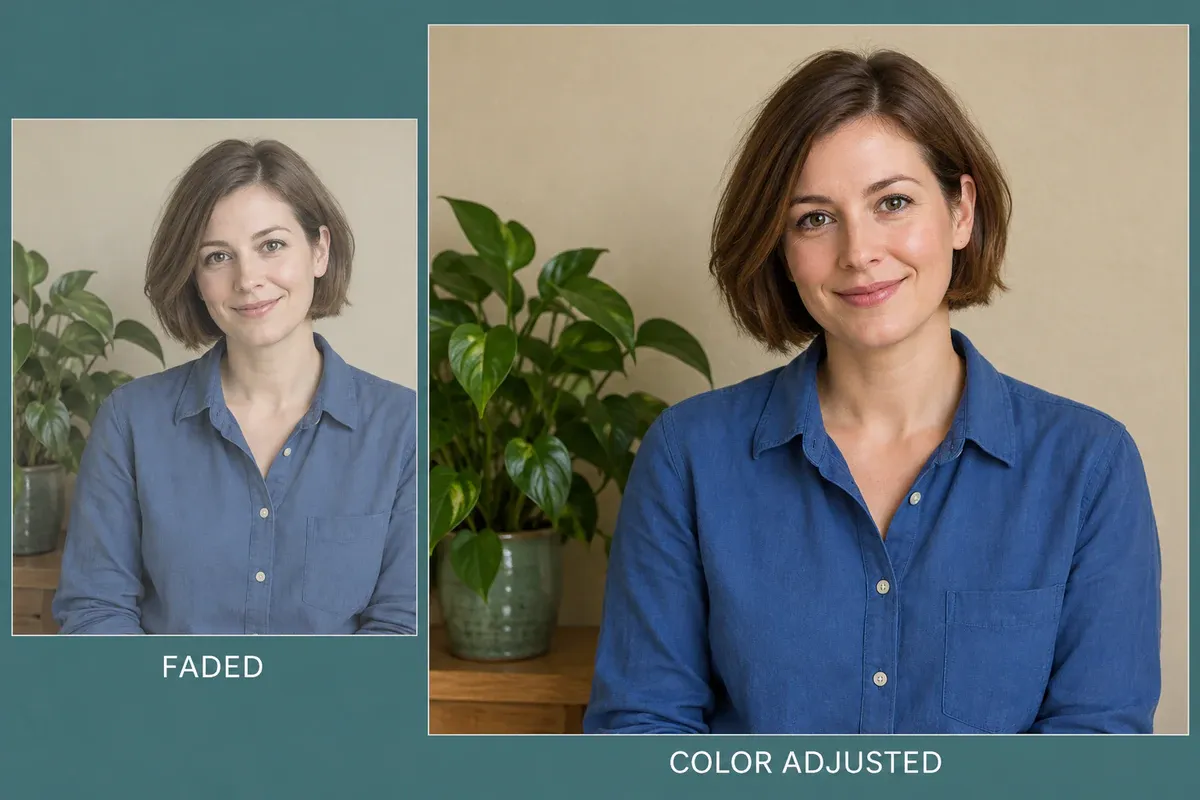
Faded-color illustration: the shirt, plant and wall become easier to distinguish without being recolored
7. Improve flat black-and-white tones while keeping highlight and shadow detail
Look at the white blouse first: can you still see its folds? Then check that dark hair has not become a solid black shape. More contrast does not automatically mean more useful detail.
Adjust the flat, gray appearance of the uploaded black-and-white photograph. Moderately separate the midtones so the person stands out more clearly from the background, while preserving folds in white clothing and visible detail in dark hair. Keep the photograph black and white. Do not add sepia, colorization, exaggerated local contrast or sharpening halos. Preserve facial features, age, skin texture, clothing and background. Do not draw in information absent from the original. Keep the original aspect ratio and crop. Output one tone-adjusted copy.
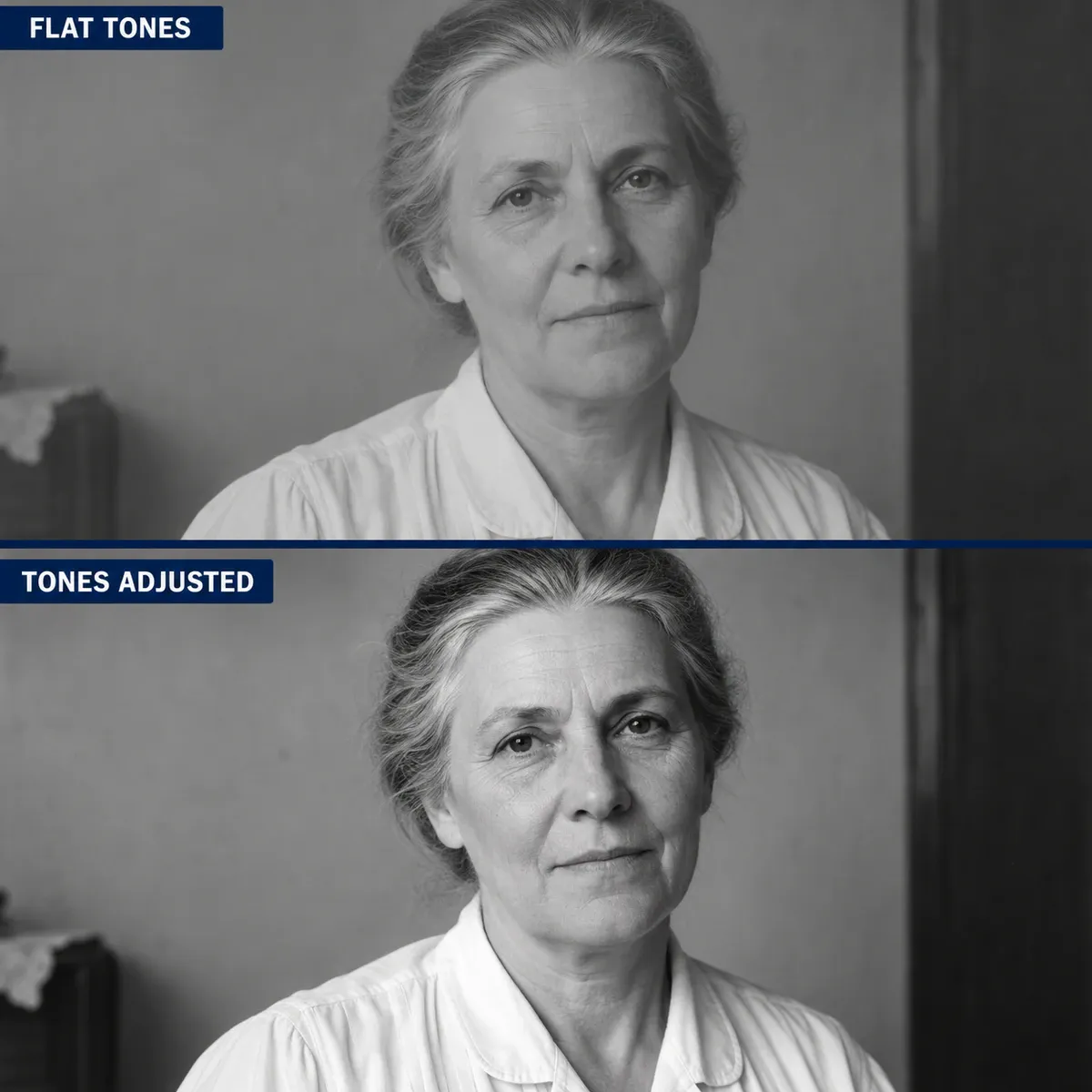
Black-and-white tone illustration: stronger separation from the background while white-blouse folds remain visible
8. Colorize a black-and-white photograph and identify inferred colors
Save a black-and-white version you are happy with before trying colorization. Include clothing colors you know; treat the rest as inferred. Adobe's automatic colorization guidance also describes colors as choices that can be selected and adjusted, not proof of the colors in the original scene.
If you do not know any original colors, remove “Known colors are…” below and replace it with “All colors are inferred for this display version.” The navy jacket and ivory blouse are examples, not a required palette.
Create a natural, low-saturation colorized display version of the uploaded black-and-white photograph. Preserve face shape, age, hairstyle, expression, pose, fabric texture and background objects, along with the original light-and-dark relationships. Known colors are [a navy jacket and an ivory blouse]. Infer other skin and background colors conservatively; do not present them as recovered historical colors. Do not add modern makeup, jewelry, patterns or hair colors, change the person's appearance, or remove wrinkles and film grain. Keep the original aspect ratio. Do not add text inside the photograph. Output one colorized copy.
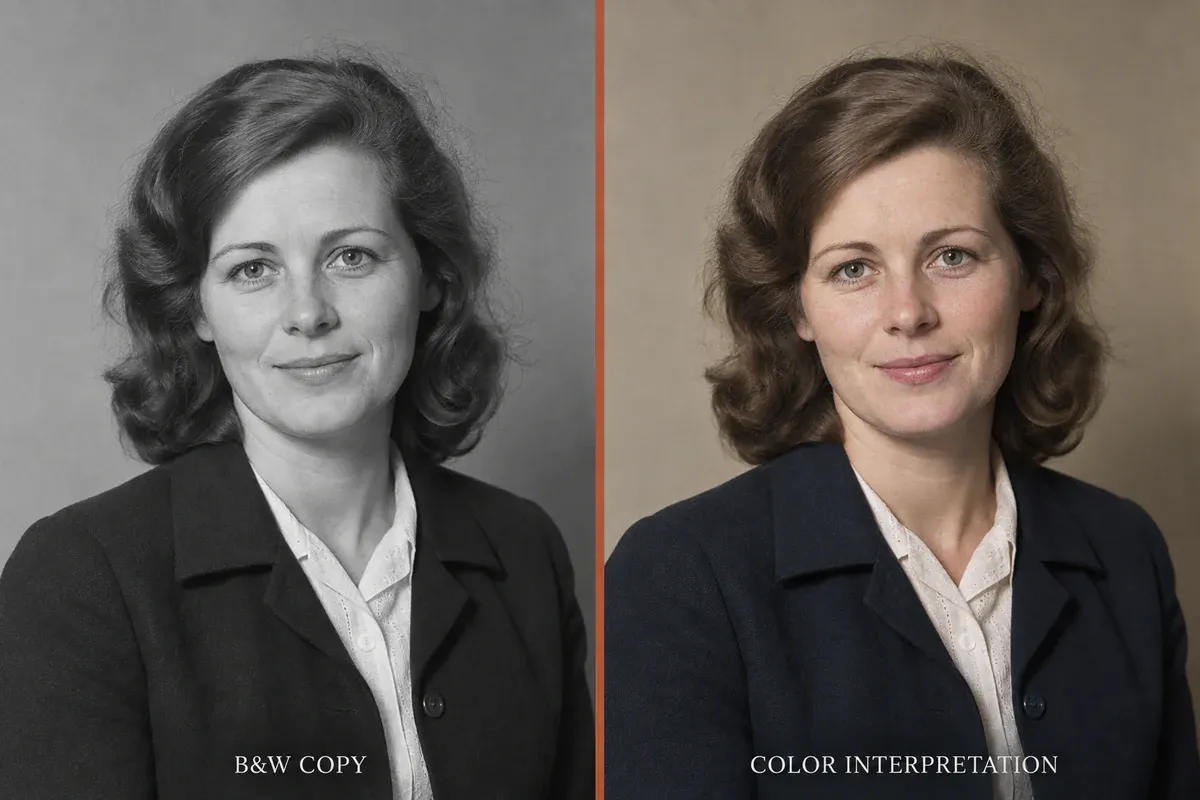
Colorization illustration: matching pose and clothing texture in black-and-white and inferred-color versions
Keep people recognizable in portraits and group photographs
9. Clean a group photo without making faces look alike
Do not judge a group restoration by its clearest face alone. Compare people in the back row, glasses, adjacent shoulders, the number of people and their positions with the original.
Clean the uploaded group photograph by reducing only background dust and light stains. Preserve the original number of people, their positions, spacing and overlaps. Keep each person's individual face shape, age, eyes, nose, mouth, hairstyle, expression, glasses and clothing from the source. Do not apply uniform beautification or make neighboring people look alike. Where facial information is insufficient, retain the existing softness instead of generating new sharp features. Preserve the black-and-white state, tones, framing and photographic grain. Output one cleaned group-photo copy.
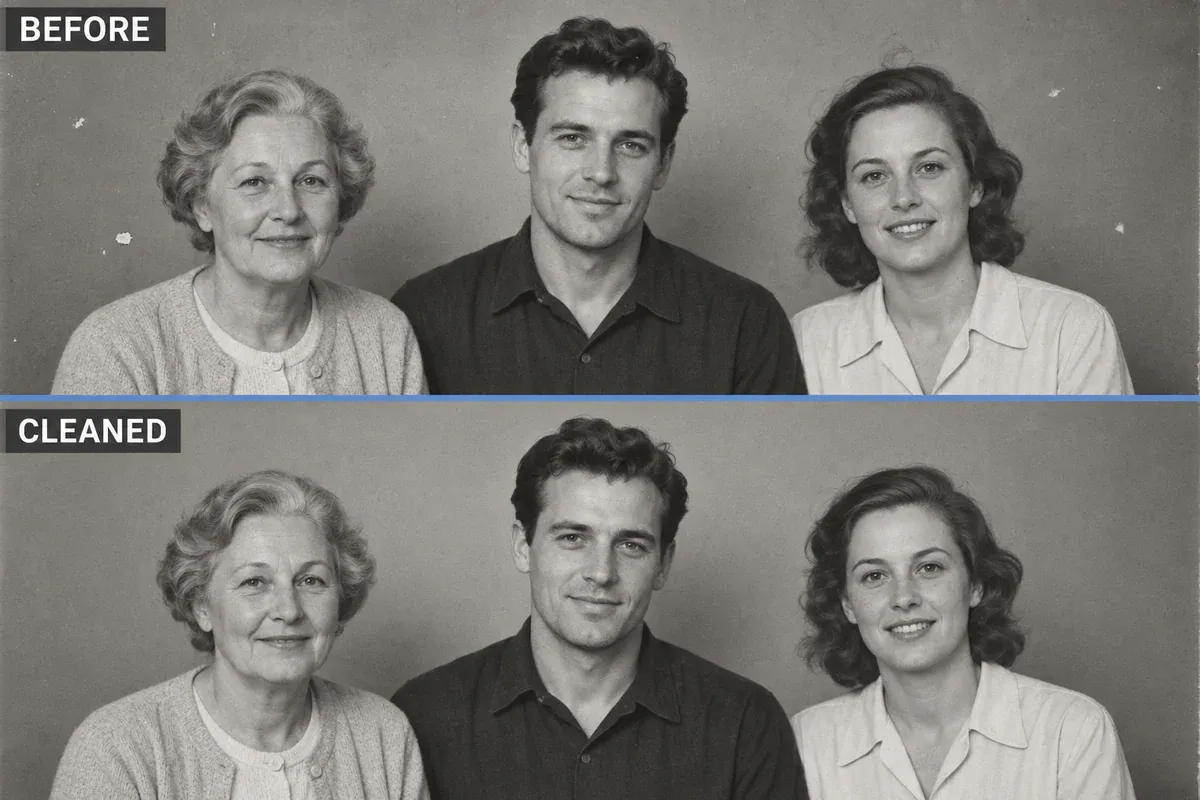
Group-cleanup illustration: fewer background marks, with the three people's individual ages, positions and clothes retained
10. Undo over-smoothing by returning to visible texture in the original
If a previous edit has made a face look like plastic, asking for “realistic pores” can add another layer of invented detail. Upload the original again and ask to retain the wrinkles and shading already visible there.
To rework an over-processed portrait in PixPix, upload the original photograph and use the instruction below. Keep the earlier edit beside you for comparison rather than supplying it as the new input. This makes the original the reference instead of asking the model to continue from an altered face.
Use the original old photograph uploaded for this edit as the sole reference for the person's appearance and visible skin texture. Create a lightly cleaned copy. Reduce only obvious dust and spots outside the person. Preserve visible wrinkles, skin shading, under-eye areas, moles, hairline, age and expression from the source. Do not smooth skin, slim the face, enlarge eyes, or draw in pores or hair. Keep originally unclear facial areas soft without guessing details. Preserve the original black-and-white or color state, composition and lighting. Do not carry over any new facial features from a previously generated version. Output a single photograph.
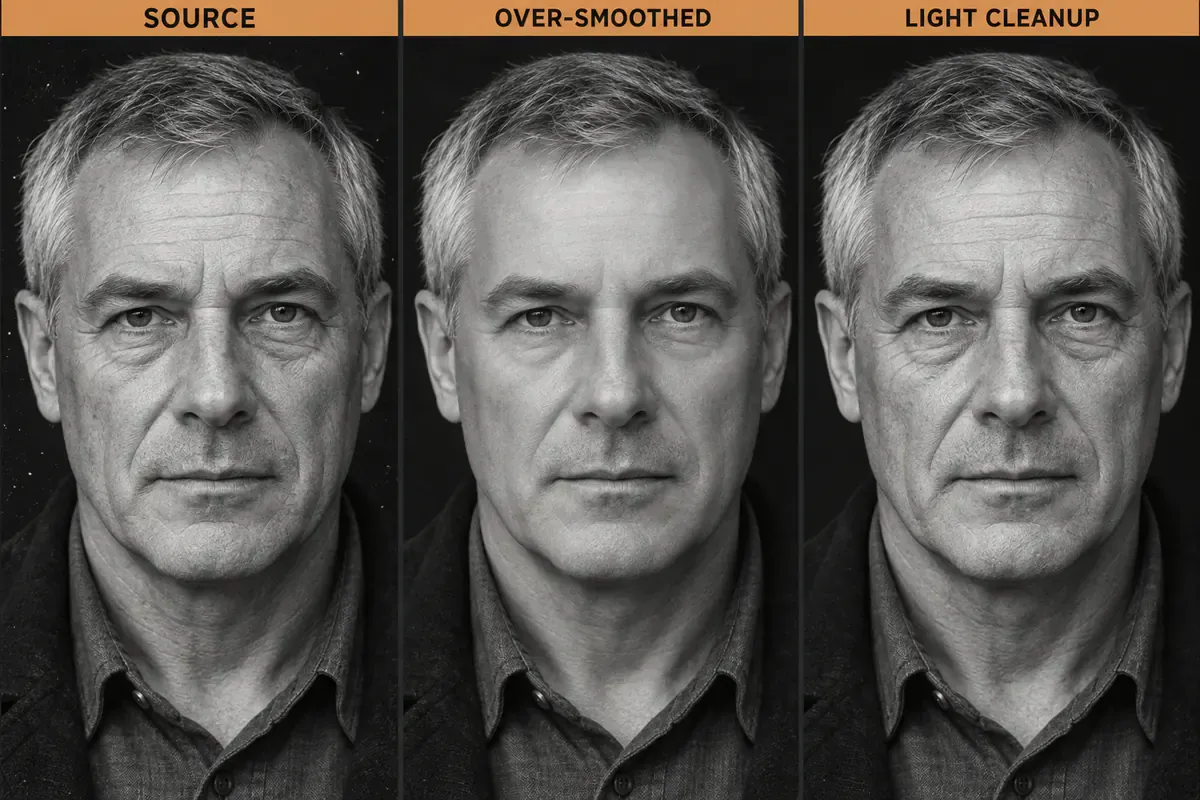
Face-editing illustration: source, over-smoothed and lightly cleaned copies, with visible wrinkles retained in the light cleanup
Before sharing a copy, toggle between it and the source at the same size. If an eye corner, mouth corner, ear or hairline has moved, go back a step. A scratch repair that changes a seam, text or the number of people also needs to be rejected before further editing. Save the original, restored copy and inferred-color version with clear filenames so they do not get mixed up.
Old photo restoration FAQ
Can I try restoring a small photo saved from a messaging app?
You can make a viewing copy, but first ask the photo's owner for the original file or a new scan. Generated output cannot verify faces or text that are unreadable in the small image. If no better source exists, keep both the original and a lightly edited copy, and do not use newly generated details to establish identity or historical facts.
Can I print the restored copy straight away?
Choose the print size, then check the file's actual pixel dimensions and how it looks enlarged. Writing “4K” or “8K” in a prompt does not give the output those dimensions or establish that new details are real. Make a small test print and inspect faces, fabric and text. Keep the original scan separately; never replace it with a small sharing copy.
Is it okay to upload family photographs to an online editing tool?
Obtain appropriate permission from the photograph's owner and the people concerned, and read the tool's terms for handling, retaining and deleting uploaded content. Remove unnecessary ID numbers, addresses and other sensitive information first. For photographs that should not go to an online service, use local editing software or a trusted human restoration service.
References on photo restoration and preservation

AI Image Tool Built for E-commerce Teams
For new product launches, advertising, and promotional campaigns, use AI to generate product images, scene visuals, ad creatives, and short video assets — making content production faster.