Image to Prompt: A Practical Reference Photo Guide
An image-to-prompt workflow turns the visible subject, composition, lighting, and colors in a reference photo into a description you can use to generate a new image. It is useful when you like how a photo was shot and want similar lighting for your own product—but cannot quite put that look into words.
Using a coffee-cup still life, this guide shows how to analyze a reference image, remove unsupported guesses, and adapt the description into a generation prompt for a different product. Copy the analysis instructions below or work through the image yourself. The result is a new visual description, not a way to recover the creator’s full original prompt, random seed, or generation settings from the finished image alone.
I. How to Start an Image-to-Prompt Workflow: Choose and Upload a Reference
Choose an image with a clearly visible subject, unobstructed by website buttons or large watermarks. Use the full image to assess composition and detail crops to inspect materials; uploading only a crop loses the relationship between the object and its surroundings. Use images you own or have permission to use. Do not upload unreleased client designs, private personal information, or portraits you are not authorized to use.
Enter gemini.google.com in your browser’s address bar and sign in. Select the option to add a file beside the chat input, upload your reference image, and paste the analysis instructions in the next section. Before sending, check that the image thumbnail has appeared and explicitly ask for “text only; do not generate an image.” If your current tool does not accept images, switch to a chat tool with image-understanding capabilities. A text-only image-generation field cannot inspect a photo you have not uploaded.
The coffee cup and the variations shown below are original AI-generated illustrations of the method, not a record of consecutive tests with a particular model.
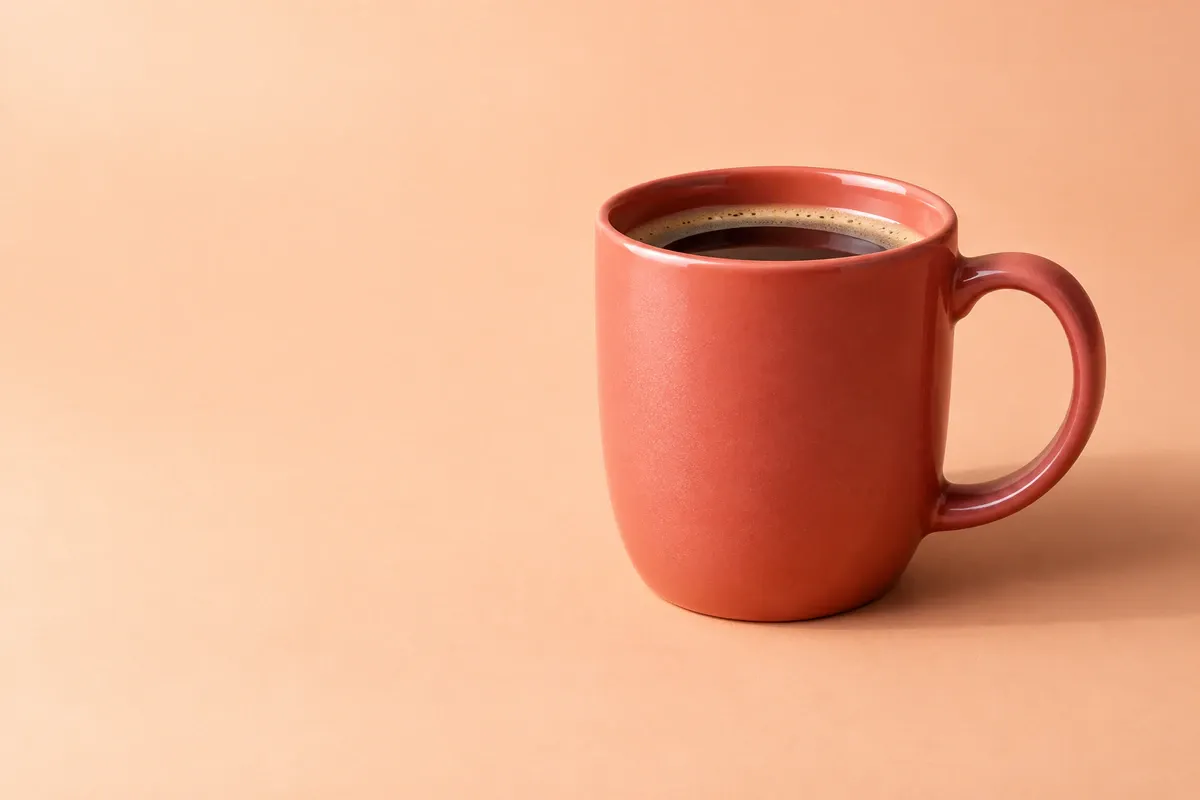
A coral-red coffee cup sits on the right with open space on the left; side lighting casts a shadow behind it to the right
II. Copy These Image-to-Prompt Analysis Instructions
Use these instructions in a chat that can analyze images. They ask the tool to separate visible details from guesses, instead of returning a long list of camera settings you cannot verify.
Analyze the reference image I uploaded. Output text only; do not generate an image. First, list the visible information under these categories: subject and quantity; position and framing; light direction and shadows; main colors; material details; text and logos. Do not guess the brand, product specifications, a person’s identity, exact focal length, aperture, random seed, or original model. Write “Cannot determine” for anything that is unclear. Next, turn the composition, lighting, and color palette that can be used as inspiration into one natural-language image-generation prompt, replacing the specific product name with [MY PRODUCT]. Finally, list separately any product information that the reference image cannot confirm and that I need to supply. Do not copy the reference image’s brand logos, a person’s identity, or original advertising copy.
Do not copy the entire answer straight into a generation tool. If the photo shows only one side of the cup but the analysis claims “an embossed logo on the back,” delete that claim. Soft shadows are visible evidence; the exact model of softbox used to make them is not.
1. Replace “Premium Look” with Details You Can Point To
For this illustration, a useful description is: one coral-red ceramic cup, positioned on the right, on a pale apricot surface, lit from the upper left, with its shadow extending back and to the right. The handle points right, and both the rim and the cup’s outline are clearly visible. The empty space on the left could accommodate text added later.
“High-end,” “cinematic,” and “award-winning photography” do not describe those relationships. A few style words can help, but they should not replace the subject’s position or the direction of the light.
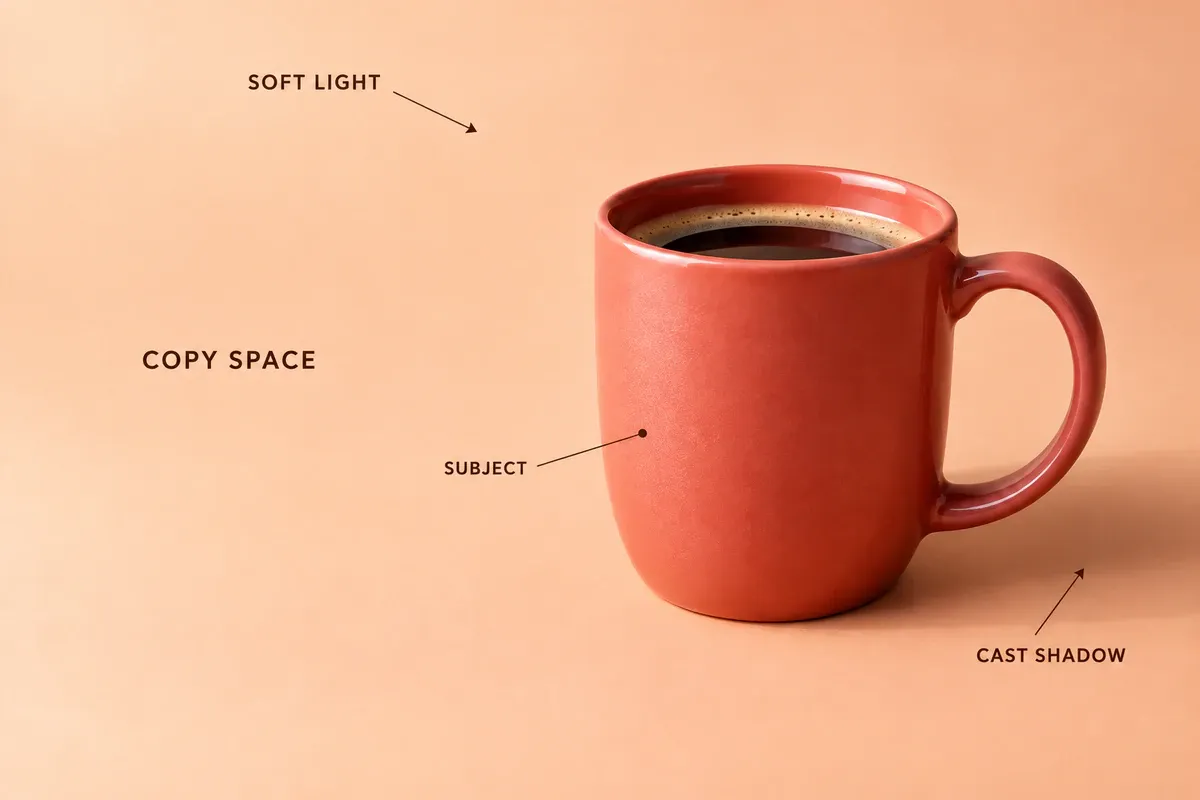
English annotations identify the cup’s position, open space on the left, light direction, and cast shadow
The labels identify four parts of the composition: SOFT LIGHT marks the gentle lighting, COPY SPACE is the area reserved for text, SUBJECT points to the cup, and CAST SHADOW marks its projected shadow. Their spatial relationships matter more than memorizing the terms.
In this analysis, “coral-red ceramic cup” describes the original subject. The right-hand placement, pale apricot surroundings, and soft side lighting describe the photographic approach worth borrowing. Separate the two so that changing products does not carry over the cup’s shape as well. If you only want the palette, you can discard the placement and camera angle too.
III. Adapt the Reference Photo’s Look to Your Own Product
Here, a cobalt-blue glass perfume bottle replaces the cup. Its color, cap, and bottle shape come from the new product; the pale apricot setting, right-hand placement, and soft side lighting come from the original still life. The material description must change with the product. The cup’s rim and handle have glazed ceramic reflections, while the blue bottle needs transmitted light and highlights along its glass edges.
Prepare your own product photo and adapted prompt, then open PixPix’s GPT Image 2.5 image-generation page to enter the workspace. Upload the product photo, select the corresponding model, paste the prompt, and set the aspect ratio to match it. After generating, check the cap, shoulders, base, and label—not just whether the background looks similar.
For your own product, replace “perfume bottle,” “cobalt blue,” “black cylindrical cap,” and “no label” below with accurate details. If your product has a label, write “preserve the original label.” A “three-quarter view” means that both the front and one side are visible, giving you something concrete to check rather than just a photography term.
Using my uploaded product photo as the reference, generate a commercial still-life photograph of a cobalt-blue glass perfume bottle. Preserve the bottle’s outline, black cylindrical cap, and color. This example bottle has no label; do not add a label or decoration. Place the bottle in the right half of a pale apricot surface, fully visible, in a three-quarter view from slightly above the surface. Use soft lighting from the upper left, with a natural contact shadow extending back and to the right. Keep the highlights along the glass edges restrained and the bottle blue; do not turn it into ceramic or metal. Leave space on the left for text to be added later. Keep the background clean, with no added props or copy. Landscape 3:2 aspect ratio.
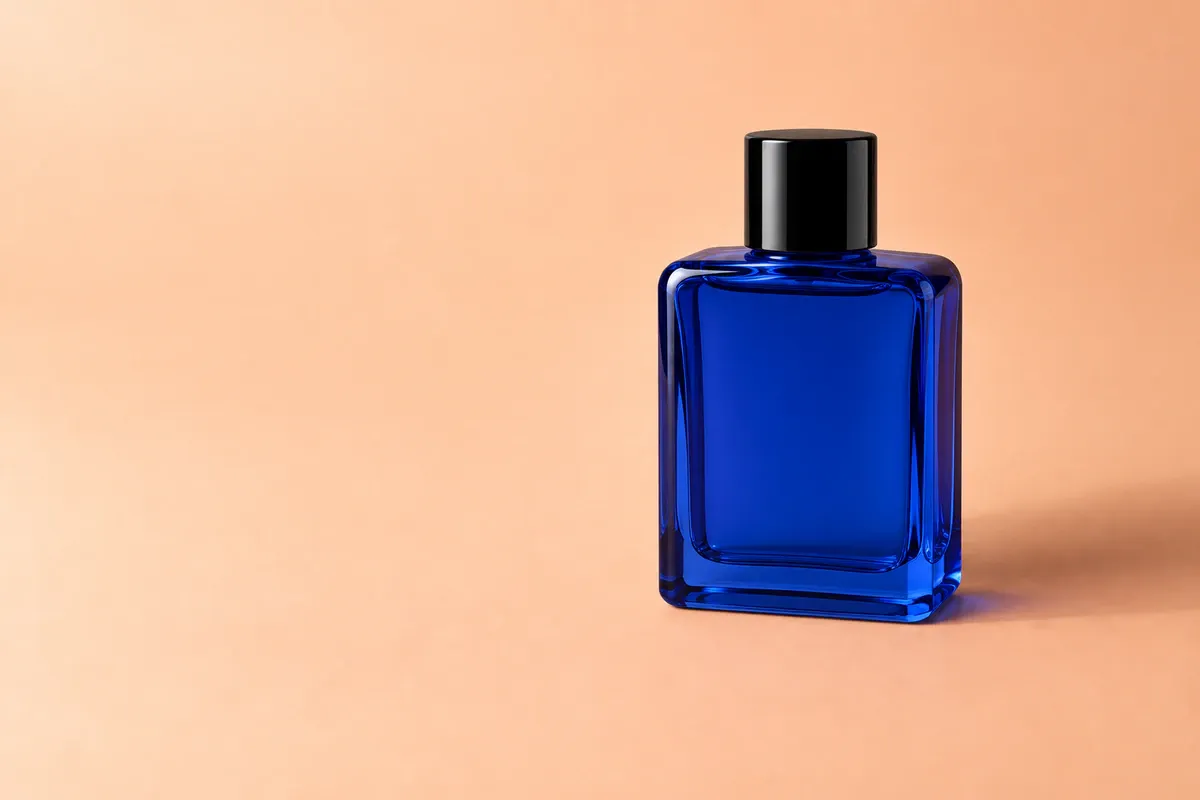
A cobalt-blue glass bottle uses the pale apricot setting and right-hand composition, with transmitted light and edge highlights showing the glass material
If you upload both a style reference and a product photo, specify their roles: “Use Image A only for lighting and layout. Use Image B to determine the product’s appearance.” Without that distinction, objects from the style reference may also appear in the result.
For ecommerce images, another starting point is to create an original product image using a bestseller image as a visual reference. This is for borrowing presentation ideas. It is a different task from producing an image-to-prompt text description, so keep the two operations separate.
IV. Which Part of the Prompt Should You Change When the Result Is Off?
A common problem with reverse-engineered descriptions is that they list every desired effect without saying which details matter most. Compare the result with the style reference and product photo, then address one visible difference at a time.
Problem in the result | What to change | A sentence to add |
|---|---|---|
The background is close, but the product shape has changed | Make the product photo’s priority explicit | Use only the product reference photo for the product’s outline, structure, and label. |
Part of the glass looks opaque | Revise the material description | Preserve glass edge highlights and blue light transmission; do not change the material to matte ceramic. |
The product is cropped or squeezed against an edge | Specify framing and full visibility | Keep the entire product in frame with a little space around it, maintaining its right-hand placement. |
The light is too harsh and the shadow looks like black paper | Specify a larger light source and softer shadow edges | Use a large, soft light source with gentle shadow edges, retaining a darker shadow where the product meets the surface. |
Flowers, hands, or decorative text have appeared | Remove vague scene descriptions | Include only the product, surface, and background; add no props or text. |
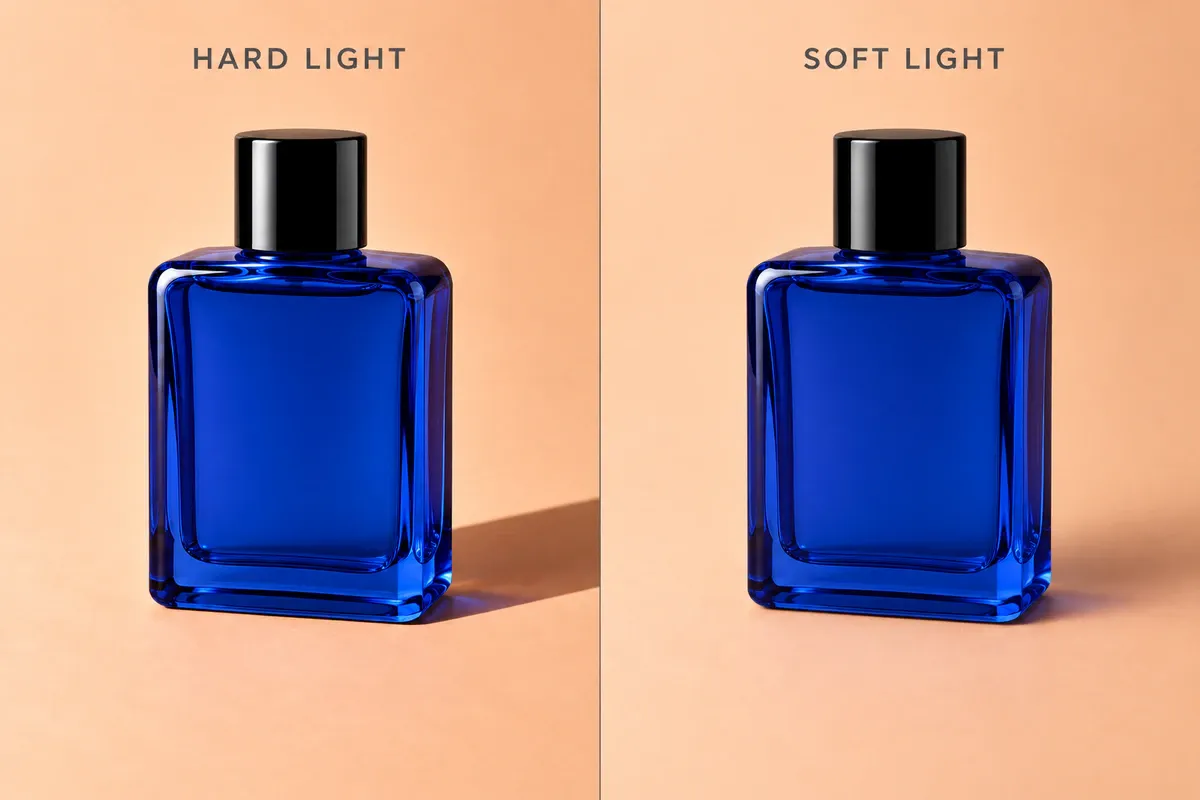
Two lighting illustrations of the same blue bottle: harder shadow edges on the left and softer shadow edges under soft lighting on the right
This comparison shows a lighting difference, not a universal flaw in the left-hand image. Choose the direction on the right when you want a softly lit still life. If your advertising concept calls for hard light, keep the crisp shadow.
V. Frequently Asked Questions
1. Do Image-to-Prompt Instructions Have to Be in English?
No. Start in a language you can use to check the subject and lighting accurately. If you need English, translate the description you have already checked and ask for product names, colors, quantities, and spatial relationships to remain unchanged. Do not add camera settings that were absent from the original description.
2. Can an Image-to-Prompt Tool Recover a Product’s Actual Dimensions?
Not from a photo without a reliable scale reference. Perspective and cropping change how large an object appears. When dimensions are needed, use product specifications or physical measurements, not numbers guessed by an image-analysis tool.
3. Should You Describe Every Object in a Complex Reference Image?
That depends on what you want to retain. If you only want the lighting and palette, explicitly ask the tool to ignore people, decorations, and brand text. If you need the layout, retain the spatial relationships between its elements. Start with a short description you can check, then add only details that genuinely affect the result.
VI. Sources

AI Image Tool Built for E-commerce Teams
For new product launches, advertising, and promotional campaigns, use AI to generate product images, scene visuals, ad creatives, and short video assets — making content production faster.