How to write prompts for GPT Image 2.5: From product main visual to single-item editing
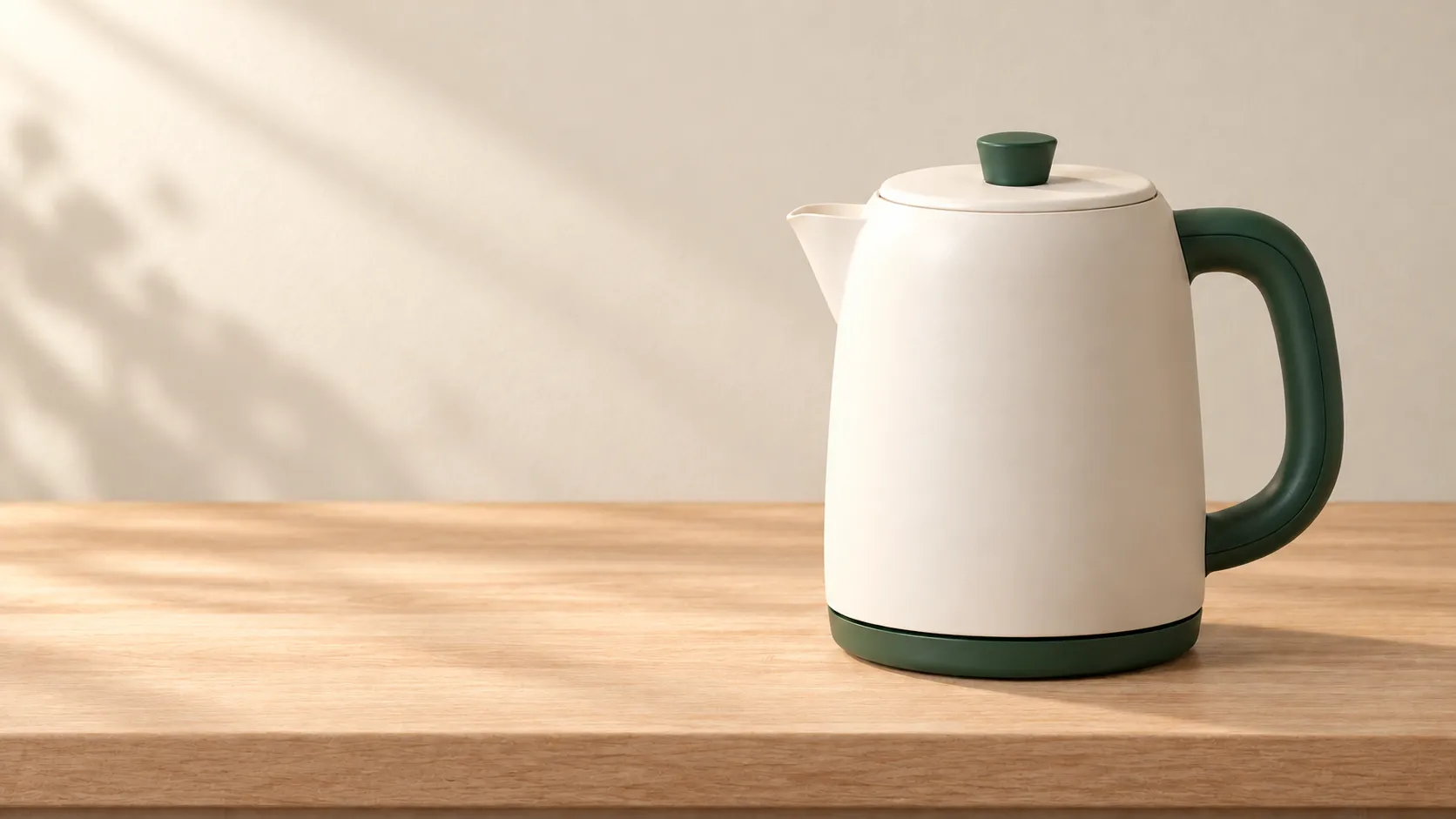
When writing prompts for GPT Image 2.5, the most challenging part is often turning “I want a beautiful image” into a clearly defined, evaluable task. Is the product still the same? Does the banner leave enough space for the title? After modifying the background, do the handle and spout deform together?
This article uses an original electric kettle to outline a workflow suitable for creating product main visuals in PixPix, providing replicable templates for generation and editing. The case study is designed for instructional purposes; the accompanying images were generated using the built-in image‑generation tool and have not been tested with specific models in PixPix. The article does not provide conclusions regarding success rates, speed rankings, or costs.
First, decide what makes this image acceptable.
Before starting to write your prompt, list three acceptance criteria: where the image will be used, which product features must be accurate, and which area of the composition should contain information.
For example, the current task is to create a new‑product page banner for an electric kettle. Acceptance conditions are: the product must occupy the right half of the image; the left half should allow for a superimposed title; and the spout, handle, lid, and base must be clearly visible. The banner does not need to generate text directly—copy can be added during the layout stage.
This way, when reviewing results, you won’t simply decide whether to proceed based on “how good it looks.” Even if the material appears stunning, if the left side is completely filled with decorative elements, the task remains unfinished.
What to confirm before starting in PixPix
The public page for PixPix’s GPT Image 2.5 demonstrates a workflow that begins with a reference image or scene description, followed by filling out creative requirements, and then focusing on refinements after reviewing the results. From this page, users can access the creation interface and check the actual models and settings available on the workspace.
This article does not log into the workspace to verify the current account’s model list, number of reference images, quality options, or pricing. The public introduction page cannot replace checking availability within your account, nor should you directly apply button names from other platforms to PixPix.
When preparing real‑world product materials, prioritize photos with clear outlines, trustworthy colors, and visible key structural details. If certain parts are obscured and textual descriptions cannot accurately convey their true appearance, supplement with additional angles.
How to arrange Flare and Sunburst
Official OpenAI announcement introduces GPT Image 2.5’s Flare and Sunburst modes: the former is suited for a wide range of tasks, including rapid prototyping, while the latter targets more precise visual work requiring stricter editing control.
It’s recommended to first define acceptance criteria, then test the models actually available in the workspace using the same task. Don’t assume that a model sounds more advanced will necessarily be better suited to your product, text, or compositional needs just because its name suggests higher sophistication.
Original case study: A creamy‑white electric kettle
To ensure each round of review has a clear focus, this article establishes a fictional product called the “Morning Arc Electric Kettle”:
A matte white cylindrical body with a gently tapered shoulder;
A short spout on the left side and a deep green curved handle on the right;
A round lid featuring a small, deep green knob;
A thin, round, dark green base;
No brand logo, digital display, or decorative patterns.
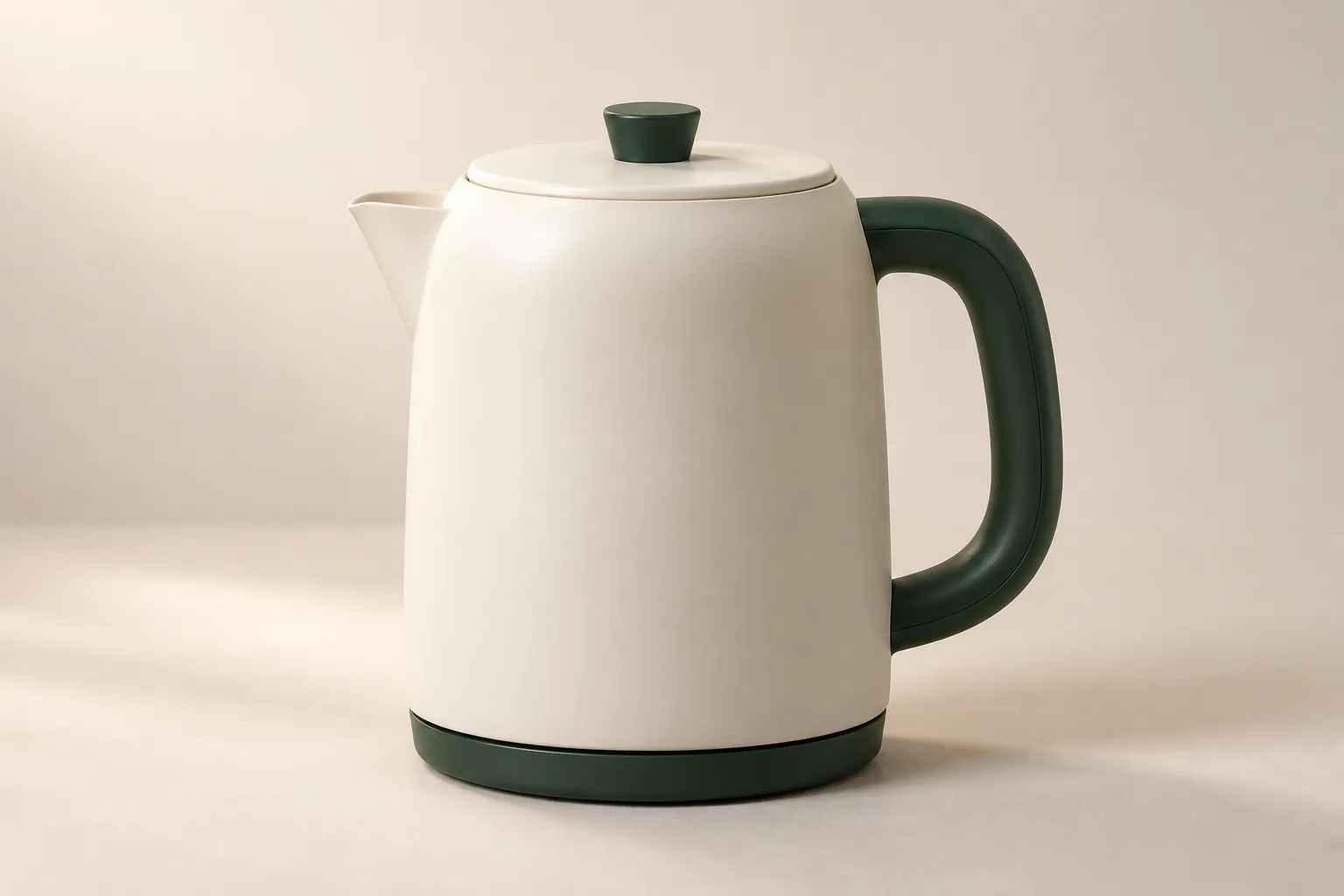
Caption: The product reference image fixes the item’s silhouette, color scheme, and component count for later scene comparisons—this is an original instructional visual.
These characteristics are provided to illustrate how to establish evaluation standards and do not correspond to any actual commercial product. When creating your own work, please replace these settings with photos of your uploaded product and its real structure.
Generation template: Write requirements as a checklist for itemized verification
Below is the text written for this case.General template, which is neither the original prompt from the reference article nor a verified generation record.
用途:新品页面的横版主视觉,左半边用于后期叠加标题。

主体:一台晨弧电热水壶。米白哑光圆柱壶身,肩部轻微收拢;左侧短壶嘴,右侧深绿色弧形手柄;圆形壶盖上只有一枚深绿色提钮;薄圆形深绿色底座。无品牌标志和显示屏。

场景:浅米色厨房墙面,水壶放在浅橡木台面上,周围不摆放餐具、食物或绿植。

布局:平视略偏三分之四视角,壶嘴和手柄都能辨认;水壶与底座完整落在画面右半边,底座下方保留台面;左半边是连续、干净的墙面,避免亮斑和强烈纹理。

视觉:商品摄影效果,左上方柔和窗光,机身有细腻哑光质感;深绿色手柄保持实色,台面接触阴影自然。

限制:只有一台水壶和一个底座,不增加按钮、刻度、显示屏、电线、文字或水印。所有部件连接自然,不悬浮,不裁切壶嘴或手柄。
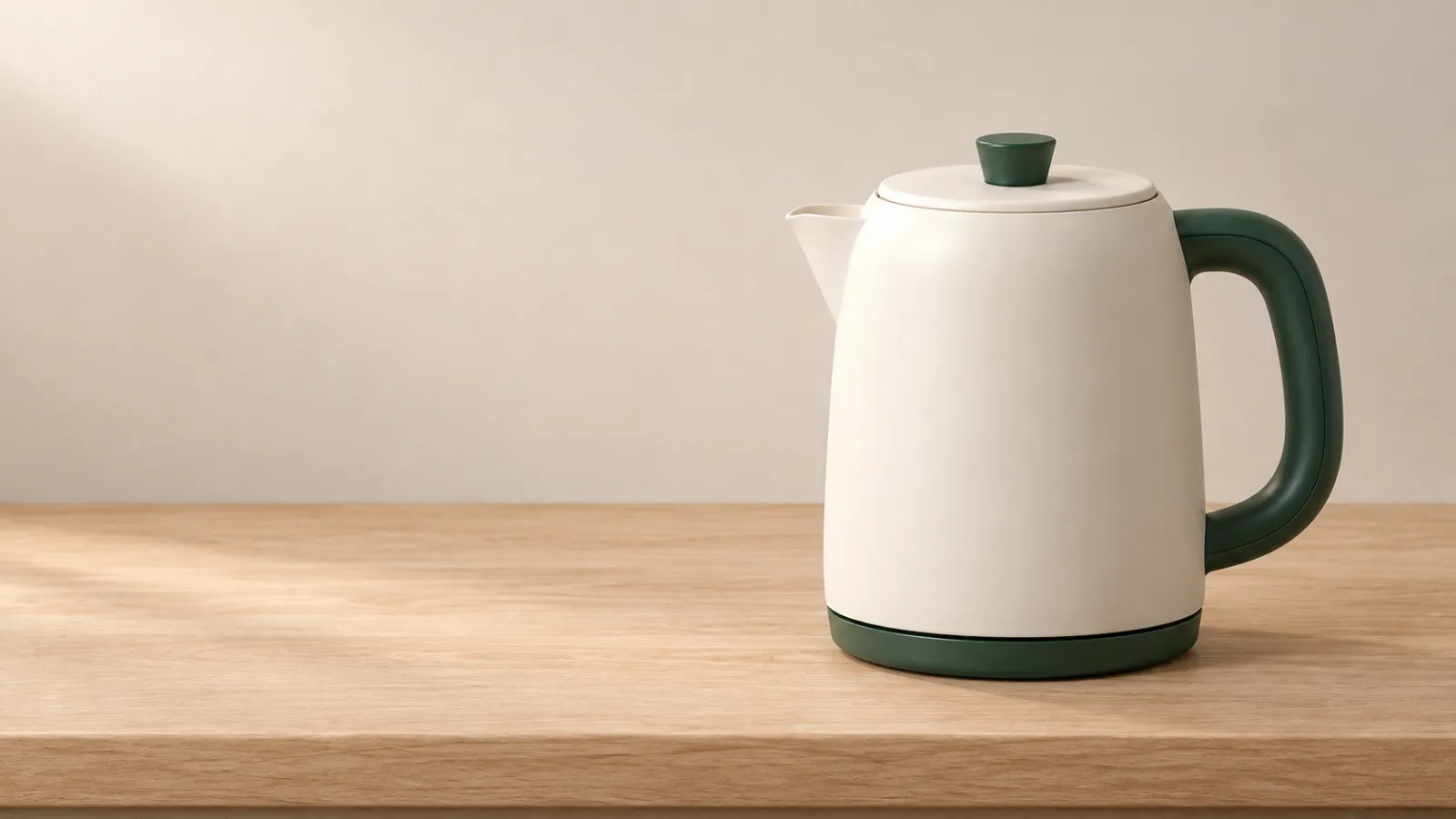
Caption: This banner was created using the product reference image as an identity guide, showcasing the product’s placement and intended negative space—it does not represent the actual output produced by any specific PixPix model.
The aspect ratio and output size must be confirmed against the settings actually supported. The term “landscape” in the prompt expresses a compositional intention but does not guarantee that the file dimensions already meet page requirements.
In the first round, only verify whether the task is feasible.
It is recommended to check in the following order:
Structure: Ensure that the spout, handle, knob, and base are all present, with correct quantities and proper connections.
Position: Verify that the product is fully positioned on the right half of the image and that the base has not been cropped off.
Layout space: Place the actual title on the left side for a test layout and check whether it overlaps or obscures the product.
Texture: Check if the off-white tone leans toward yellow, whether the handle appears metallic, and whether shadow interactions look natural.
If the structure is already incorrect, fix the structure first; if the structure is correct but there isn’t enough white space, adjust only the layout. There’s no need to rewrite all requirements just to address one issue.
Begin modifications from the baseline image.
Once you obtain a usable version, keep it as your baseline. Compare each subsequent change against this baseline to confirm the scope of modifications, rather than simply judging whether the new image looks good.
Single-item editing template
In this example, we’ll only modify the wall color while keeping the original lighting conditions intact, avoiding simultaneous changes to both background and lighting.
只将背景墙面从浅米色改为浅灰绿色,保持墙面的明度、纹理强度和原有光照方向。

保留水壶的轮廓、米白机身颜色、壶嘴长度、深绿色手柄、提钮、底座,以及它们的位置和比例。保持摄影机视角、商品在画面中的大小、浅橡木台面和接触阴影不变。

不添加物体或文字,不更换商品材质,不改变壶嘴和手柄的连接。
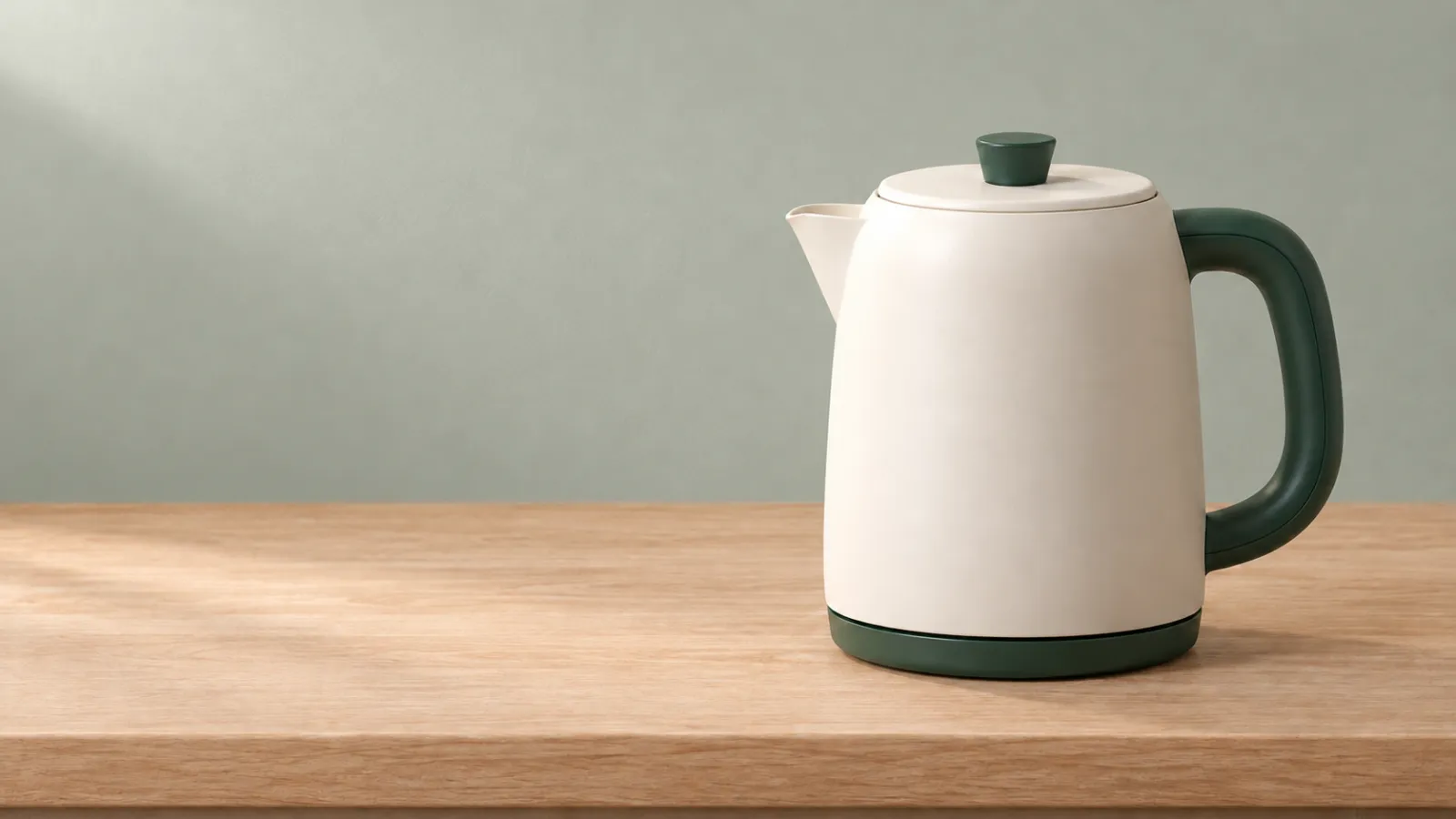
Caption: With the horizontal banner as the editing target, request only changing the wall color; maintain visual continuity between the product’s outline, position, and countertop, without implying that pixels remain entirely unchanged.
During inspection, focus on two key aspects: whether the wall color has been altered as requested, and whether the product’s edges, colors, or components have undergone any unintended changes. Retained elements represent editorial constraints, not guarantees of pixel-perfect consistency.
In the next round, if you need to move the product further to the right, adjust its position separately and restate the retained items accordingly. If modifications result in structural drift, consider reverting to the baseline image and starting over, to avoid accumulating further errors on an already flawed version.
How can multiple reference images avoid interfering with one another?
When your workstation supports multi-reference-image tasks, clearly define each image’s role upfront. For this case, break down the materials into three distinct roles: product photos, kitchen space, and color palette samples.
General template:
图 1 负责商品身份:采用水壶轮廓、部件连接和真实颜色。
图 2 负责空间关系:只参考墙面与台面的关系,不复制其中的电器、餐具或装饰品。
图 3 负责背景配色:只参考背景颜色,不改变图 1 中的商品颜色。
将图 1 的水壶放在图 2 的台面上,并保留左半边的标题空间。
If the final result ends up painting green from the color sample onto the teapot body, first tighten the responsibilities assigned to Image 3 instead of adding yet another long list of stylistic descriptors.
How should text within images be handled?
This case assumes post-editing typesetting. If you wish to experiment with model-generated text, you can initiate a separate poster task, clearly specifying the exact copy, placement, and hierarchy.
General template:
在左上方加入主标题“把清晨慢下来”,下方加入副标题“从一杯热水开始”。主标题较大,副标题较小,两行左对齐,深绿色无衬线字体。只出现这两句文字,不添加品牌名、价格、日期或其他字符。
保留水壶结构、颜色和原有位置,文字不遮挡商品。
After output, carefully review punctuation, missing words, repeated words, and line breaks word by word. Once the size is reduced, perform another readability check. For materials requiring subsequent copy edits, it’s advisable to retain an editable text layer.
How to document a meaningful test?
If you plan to compare different models, first lock down the input conditions: use the same set of reference images, the same prompt, and identical available frame sizes and output quantities. If quality levels cannot match exactly, record the differences to avoid presenting results as strictly comparable under identical conditions.
Don’t just note “which image I like.” Instead, document specific issues for each output: an extra button appearing, a change in handle color, the title area being occupied, or the spout becoming shorter when modifying the wall. Also, record how many rounds of adjustments were needed to reach a usable draft.
These records will help you decide whether to supplement materials, revise briefs, or switch models next. This article has not yet conducted such tests, so no rankings or comparative scores are shown.
Pre-submission product image review
The product’s appearance matches the reference materials, with no additions or subtractions to its components.
The aspect ratio, pixel dimensions, and file format meet the requirements of the intended usage context.
After typesetting with the actual title, the main subject remains intact and the information is clear.
Each round of revisions carefully checks areas that were not requested to be altered.
The text in the images has been verified word-for-word, and all commercial information is sourced from authentic materials.
Generated examples, instructional illustrations, and actual model test results are clearly distinguished.
Once you’ve prepared your product photos and this briefing, you can proceed to the creation portal via the PixPix GPT Image 2.5 page, first completing an acceptable baseline image, then making adjustments item by item.

AI Image Tool Built for E-commerce Teams
For new product launches, advertising, and promotional campaigns, use AI to generate product images, scene visuals, ad creatives, and short video assets — making content production faster.