How to Write Gemini AI Photo Prompts: 12 Original Templates and PixPix Editing Techniques
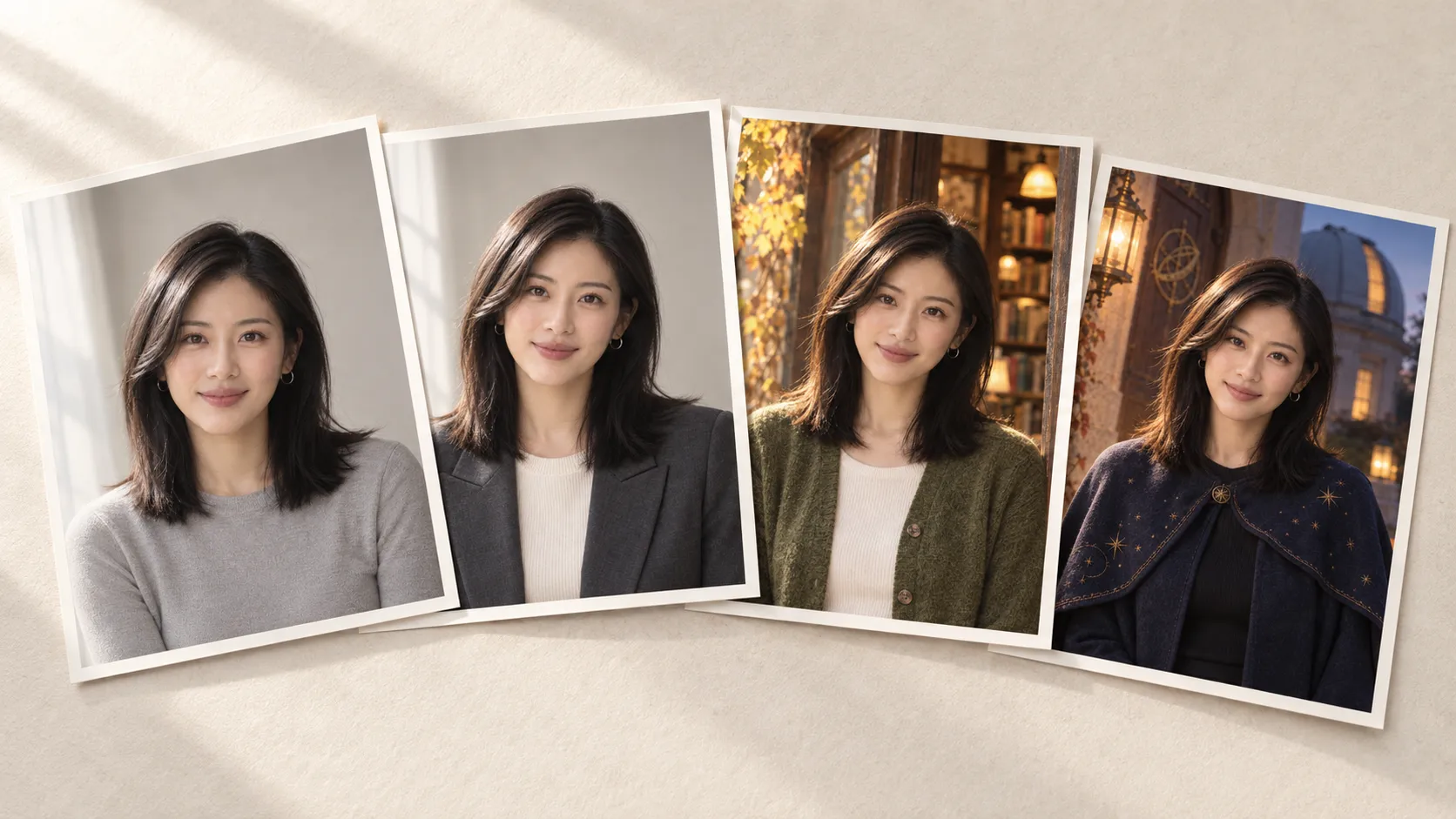
Gemini AI photo prompts don’t just describe a style. To transform an ordinary photo into a professional headshot, an autumn travel shot, or a festive look, you also need to specify which facial features must be preserved, what elements can be modified, and how to determine whether the result is acceptable.
This article provides 12 original, versatile templates, and uses an original character named “Lin Yao” to demonstrate how to prepare reference images in PixPix, define editing boundaries, and make iterative adjustments. You can replace the templates with your own photos and maintain both personal characteristics and visual details through each round of review.
What is the relationship between Gemini photo editing and Nano Banana?
Google uses the term “Nano Banana” to name Gemini’s native image-generation capabilities. It supports generating and editing visual content by combining text and images; for specific models and their abilities, please refer to Google Image Generation Documentation.
When using PixPix, it’s important to distinguish between Google’s official model list and the options actually available on the platform. PixPix Nano Banana Page currently showcases Nano Banana 2, Nano Banana Pro, and Nano Banana 2 Lite—this does not mean that every new Google model has been launched on PixPix.
When selecting a model, first confirm whether your current workspace supports your reference image and editing task, then verify the results using the same input.
Before you begin, write a brief photo-editing brief.
Don’t rush to cram all your style descriptors into the prompt. First answer these four questions: Where will this photo be used? Which facial features are most important? What exactly do you want to change this time? And what kind of changes would make you discard this result?
Original Case Study: Three Autumn Photos of Lin Yao
This article takes the original character Lin Yao as an example: black shoulder-length straight hair parted slightly to the left, dark brown eyes, an oval face, and delicate silver round earrings. The reference portrait is a chest-up shot wearing a gray crew-neck top, with clear eyes, hair that doesn’t obscure the face, and a natural expression.
This time, we’ll create three versions for different purposes: a headshot for professional materials, an autumn travel photo for personal sharing, and a light fantasy-style image for Halloween events. All three images share the same reference photo; the everyday version keeps the original hairstyle and earrings, while the festive version leaves the subject’s facial features unchanged.
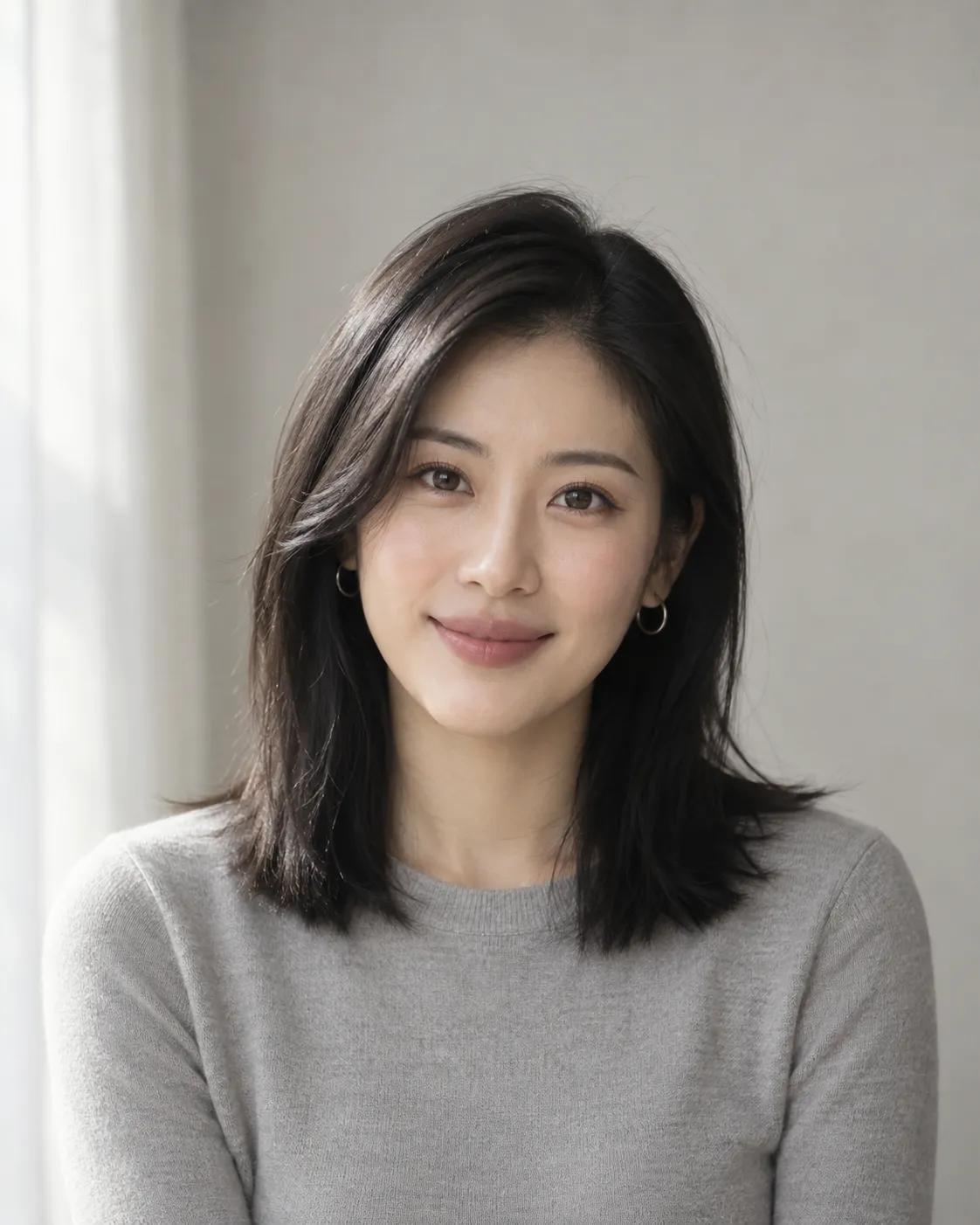
Caption: A gray top, black shoulder-length straight hair, and silver round earrings form the shared identity reference for these three looks.
What should you check first in the reference image?
Face: Are the eyes, nose, corners of the mouth, and jawline clearly visible?
Lighting: Are there heavy filters, strong colored lighting, or large areas of underexposure?
Scope: For headshots, use a clear chest-up portrait; if full-body clothing is needed, prepare a photo that clearly shows body proportions.
Multiple people: Confirm each face is clear, note the number of people, and record their positions from left to right.
It’s recommended to choose photos you’re authorized to use. When trying this for the first time, keep the original pose and camera angle to minimize changes that require simultaneous verification.
Your prompt should clearly define the editing scope.
Below are editable, original, general-purpose templates. Square brackets indicate sections that need to be filled in according to your actual photo.
以已上传的照片为编辑基础,用于[用途]。
人物身份参考原照片,优先保留[可辨认的五官、发型、肤色与饰物]。
本次仅修改[服装、背景或光线中的指定内容],保留[姿势、表情或镜头方向]。
将场景设为[主体与环境的位置关系],光线为[方向、软硬与色温]。
构图为[景别、主体位置与留白];目标画幅为[比例]。
保留自然皮肤质感,不增加[与本次任务有关的多余元素]。
“Preserve the person” requires specifying particular features. “Only change the background” also means avoiding adding requests for costume changes, slimming effects, or turning the head. The easier it is to verify each instruction step by step, the easier it becomes to spot deviations.
The target aspect ratio should be confirmed within the settings supported by your workstation. Terms like “high-definition,” “4K,” or “suitable for printing” in the prompt cannot substitute for an actual pixel check of the exported file.
12 Editable Original Photo Prompts
The following are 12 original, versatile templates. Templates 1, 4, and 8 continue the Lin Yao case study, while the rest supplement common editing tasks. Since real photos may differ from the case scenarios, be sure to replace the corresponding identity descriptions accordingly.
Everyday Headshots and Natural Portraits
Template 1: Professional Headshot for Work Materials
编辑上传的林遥参考胸像,制作工作资料头像。保留原照片的椭圆脸、眼距、鼻形、嘴角、肤色、黑色齐肩直发及细银色圆形耳饰,保留原有头部方向和自然表情。只把上衣改为深灰色简洁西装外套与米白内搭,把背景改为浅暖灰无纹理墙面。左前方大面积柔光,双眼清楚,胸像居中,上方保留适量空间,目标为1:1画幅。保留皮肤纹理,不瘦脸,不增加工牌、文字或其他饰物。
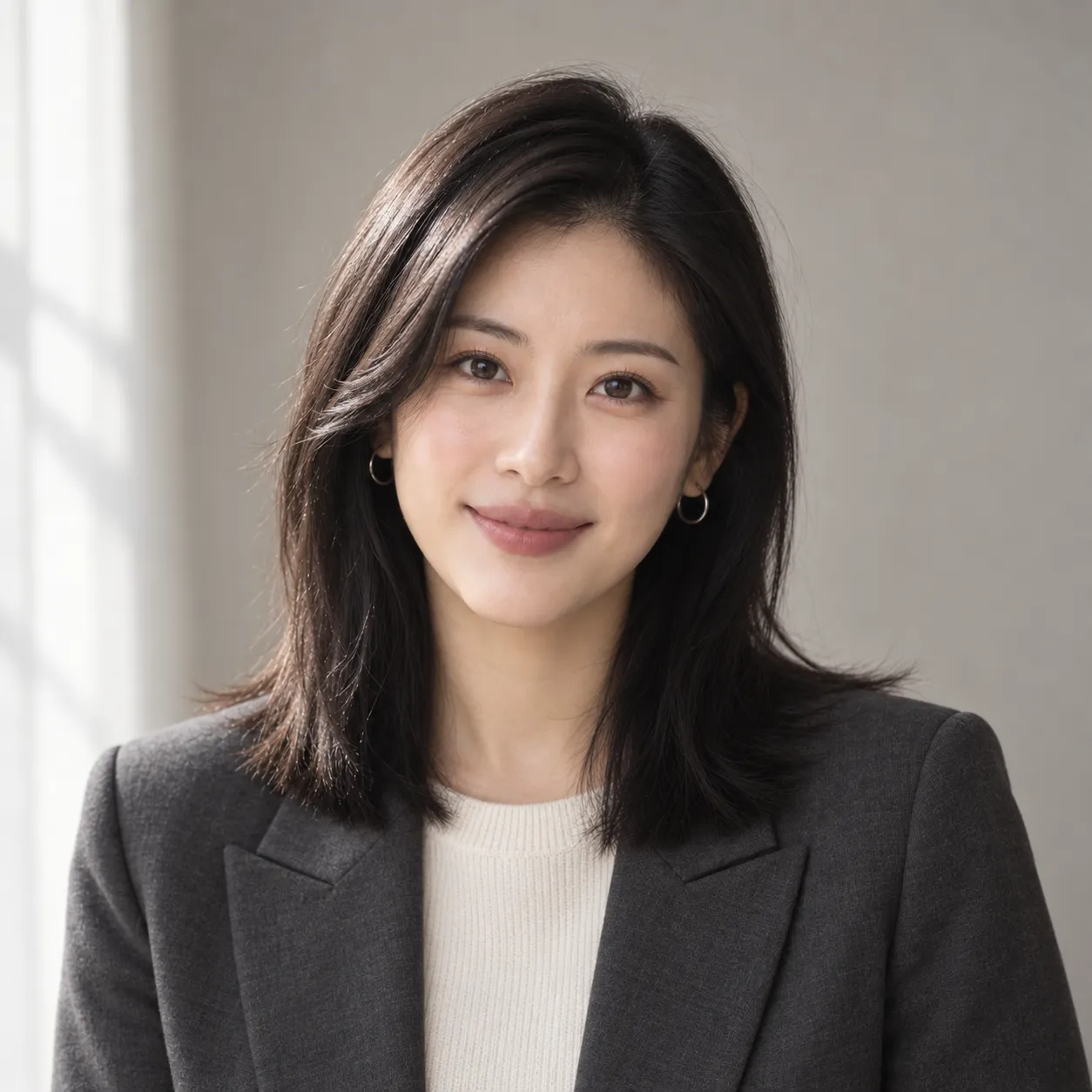
Caption: Although the clothing and background have changed, the subject still uses the same reference portrait; focus on checking the face, earrings, and head cropping.
Check whether the top of the head and shoulders remain intact after cropping, and whether the face still matches the reference image. This is a showcase of the headshot, not a promise of compliance with ID photo standards.
Template 2: Natural Light by the Window
以上传的人物照片为基础,保留原五官、肤色、发型、衣服和姿势。仅调整环境为浅色房间的窗边,人物位于窗户右侧,左侧柔和日光照亮脸部,另一侧仍保留细节。背景简洁,胸像构图,目标为4:5画幅。不加入窗框投影到眼睛上,不增加眼部高光数量,不磨平皮肤。
Template 3: Black-and-White Portrait Against a Dark Background
编辑上传的胸像,保留人物身份、头部角度、发型和衣服轮廓。转换为黑白摄影,深灰背景,右前方柔和侧光,脸部暗侧仍能辨认,眼睛和嘴唇不被阴影吞没。保留头发层次和真实皮肤细节,目标为4:5画幅。不要把高对比处理变成轮廓剪影,不添加烟雾或夸张皱纹。
Autumn Travel and Everyday Scenes
Template 4: Lin Yao’s Autumn Bookstore Photo Shoot
以林遥参考照片为人物依据,保留椭圆脸、五官比例、深棕眼睛、黑色齐肩直发和细银色圆形耳饰,保留原表情与头部方向。衣服改为苔绿色针织开衫,背景改为旧书店门口,侧后方有少量金黄树叶,门框与肩膀不重叠。左前方柔和下午日光同时照亮人物和书店门口,发丝带有细微暖色边缘光,皮肤保留自然暖色反射,颈部与开衫阴影方向一致。胸像构图,人物位于画面偏右,左侧留出环境空间,目标为4:5画幅。不新增帽子、眼镜、手持书本或其他人物。
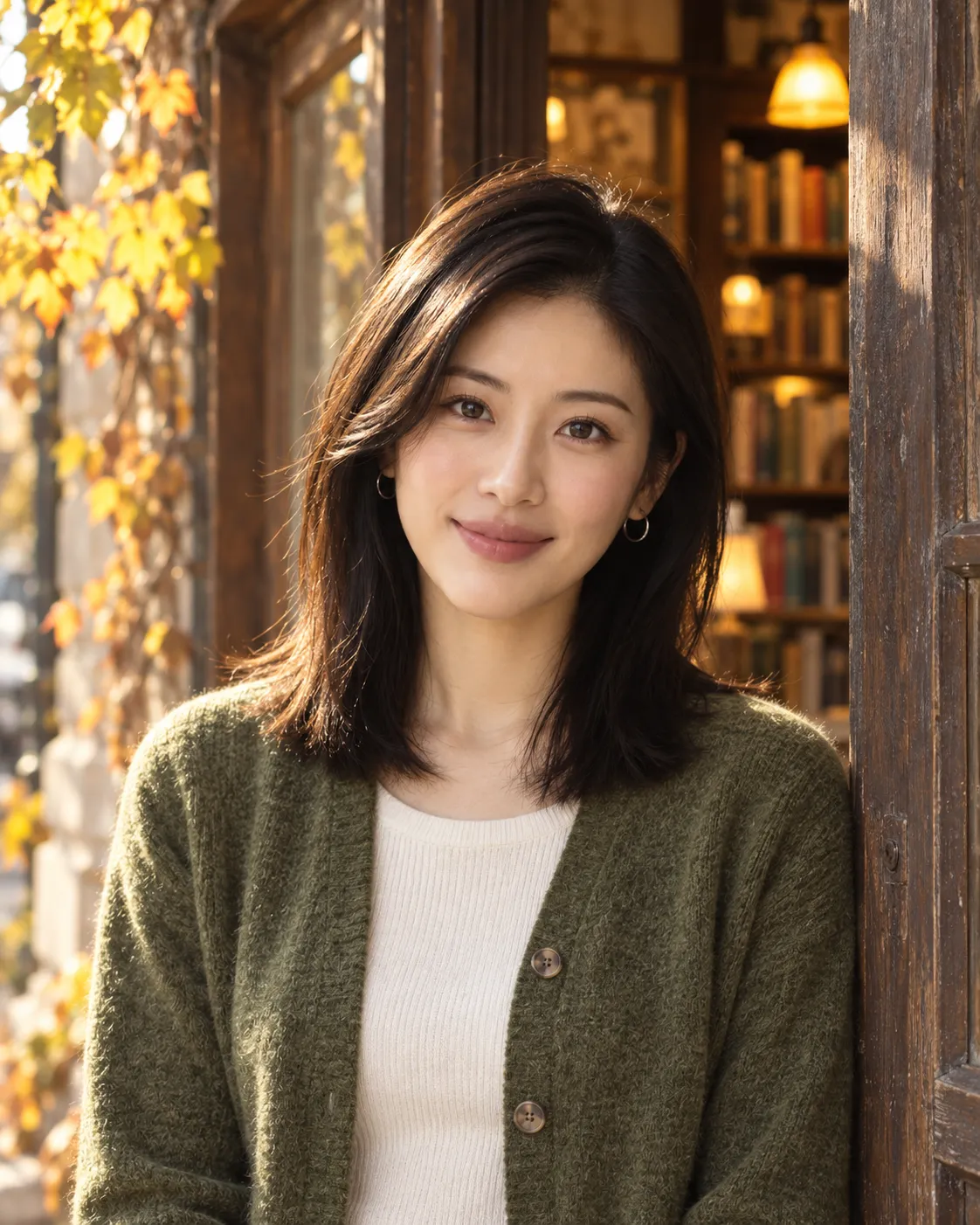
Caption: A moss-green knitted cardigan paired with fallen leaves in the bookstore creates an autumnal scene, while sunlight, hair‑edge highlights, and clothing shadows together establish the overall atmosphere.
Template 5: Seaside on an Overcast Day
编辑上传的人物照片,保留人物五官、肤色、发型、表情和身体朝向。背景改为阴天海边的石阶,远处海平线保持水平,不穿过眼睛;将外套改为雾蓝色薄风衣,领口不遮下颌。使用柔和漫射光和低饱和色彩,中近景,目标为3:4画幅。不增加强烈夕阳、风吹变形的头发或额外首饰。
Template 6: Urban Street Corner After Rain
以上传照片为基础保留人物身份、服装、姿势和头发轮廓,仅更换背景与环境光。场景为雨后的步行街,人物面部保持干燥且清晰,湿地反射集中在画面下方,远处只有少量暖色店灯。脸部由柔和中性光照亮,不被灯光染成橙色。目标为4:5画幅,不新增雨伞、车辆、行人或可读招牌。
Festive Creativity and Style Transformation
Template 7: Autumn Group Photo
编辑上传的双人照片。保留画面左侧与右侧各自的脸部、肤色、发型和表情,保留原有两人的相对位置与身体接触关系。只将背景换成有少量落叶的公园小径,衣服分别改为浅驼色与深绿色简洁外套。柔和阴天光,中近景,目标为3:2画幅。不交换两人的衣服,不合并五官,不增加人物或手臂。
Template 8: Lin Yao’s Halloween Astronomer Costume
以林遥参考胸像为基础,保留椭圆脸、五官比例、肤色、黑色齐肩直发、细银色圆形耳饰和原有表情。仅将服装改为深靛蓝天文师短斗篷,布料上有少量细金色星点;背景为暖光照明的天文台入口,远处一只小南瓜灯,不出现仪器文字。天文台入口暖灯从左侧照亮脸部与斗篷,右侧由蓝调暮色柔和补光,肤色自然,发丝边缘光与衣褶阴影保持一致。中近景构图,完整保留头部与肩膀,目标为4:5画幅。不要加帽子、面具、面部彩绘或手持道具。
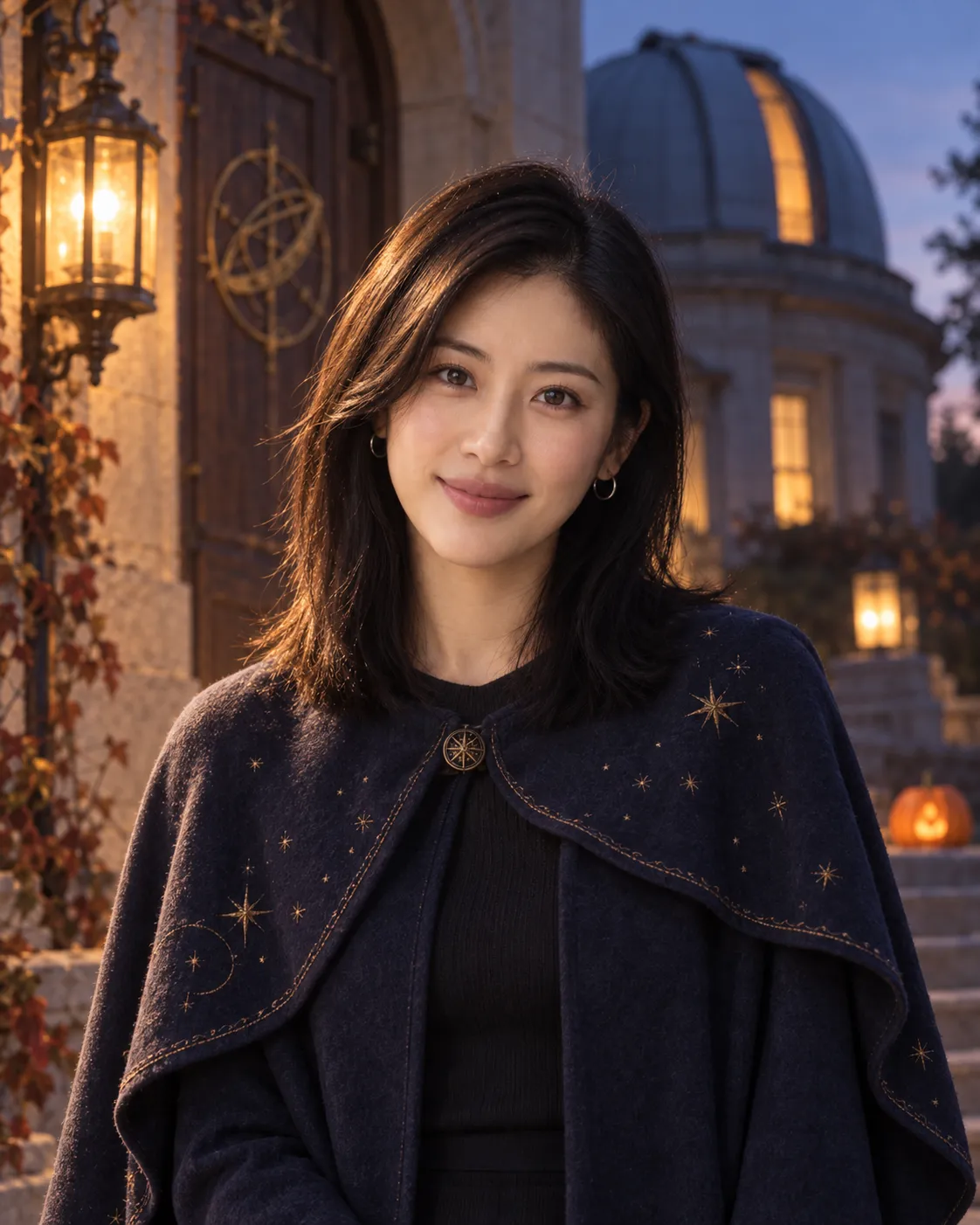
Caption: An indigo star‑patterned cloak and distant pumpkin lanterns convey the festive theme, without masks or face paint obscuring facial features.
This example uses clothing and surroundings to express a festive mood, making it easier to examine the face separately. If additional makeup is needed, it’s recommended to run another round after passing identity verification.
Template 9: Winter Greeting Card Base Image
编辑上传的人物照片,保留人物身份、发型、表情和姿势。衣服改为浅灰羊毛外套,背景为安静的冬季庭院,少量积雪与暖色窗灯,光线柔和。人物放在画面下半部分,上方留出整洁浅色区域,目标为4:5画幅。不要生成祝福语、姓名、日期、边框或Logo,文字将在后续排版中添加。
Template 10: Paper‑Cut‑Style Character Card
以上传照片中的人物为设计参考,转换为层叠彩纸制作的人物胸像卡。保留发型轮廓、分线、脸型、衣服主色和可辨认的饰物,将五官适度简化,表现纸张切边、叠层和柔和投影。米白背景,人物居中,目标为1:1画幅。不模拟真实皮肤,不添加包装、名称或配件。
When transforming styles, always verify “whether key identifying features are preserved”; do not judge paper‑cut art based on real‑photo skin standards. Nor should stylized resemblance be mistaken for complete identity.
Single‑Item Editing and Old Photo Organization
Template 11: Changing Only the Top
仅编辑上传照片中的上衣,把它改为浅蓝色棉质圆领衬衣,保持原衣服覆盖范围和褶皱走向。其余人物面部、发型、饰物、身体姿势、背景、光线和构图均参考原图保留。衣领不遮挡下颌,接缝与肩部结构自然。不改变身形,不增加口袋、图案、文字或手部动作。
Template 12: Conservatively Organizing Old Photos
整理上传的旧照片,优先保留原有脸部形状、人物位置、服装、背景与黑白影调。仅减轻可辨认的表面灰尘、轻微划痕和不均匀褪色,保留照片颗粒与年代感。对模糊的眼睛、被遮挡的五官和缺失区域不要自行补成清晰新细节。不进行上色、美容、年轻化或重新构图。
Organizing old photos may generate information not present in the original images. It’s advisable to keep the original files and compare them section by section; photographs with historical value should not treat generated details as factual history. This template represents a conservative editing approach and does not guarantee that the model will adhere to every restriction.
Complete One Verifiable Edit in PixPix
PixPix Nano Banana page publicly explains how to upload a reference image, fill out modification requests, and navigate the process of further editing or downloading once results are obtained. Below, we expand this workflow into suggested steps; specific buttons, aspect ratios, and download specifications are subject to the interface after logging in.
Confirm input. Enter PixPix, select a currently available model that supports reference‑image editing, and upload a clear photo. In Lin Yao’s case, all three branches start from the same reference bust.
Enter one template. Begin with the working headshot template. Verify that the identity description accurately corresponds to the uploaded photo, and remove any irrelevant earring, hairstyle, or clothing requirements.
Confirm the frame size and generate. Set the target frame dimensions within the limits supported by the interface. Save the prompt, model name, and actual output specifications for future review.
First check the face, then the scene. Compare the original image to assess eye spacing, nose shape, mouth corners, and jawline, followed by examining clothing edges, earrings, and background.
Only correct one issue. When character inconsistencies arise, revert to the original reference to narrow down editing scope; if only local lighting is problematic, adjust lighting accordingly. Do not add additional head turns, full-body shots, or new props in the same round of face corrections.
Create separate versions for other variations. After the working avatar has been reviewed, use the original reference photo for autumn travel shoots and holiday looks. It’s recommended to keep the prompts and results for each branch, avoiding stacking successive changes onto a single distorted image.
For example, if the face in the autumn bookstore version appears yellowish, you can try this original correction template from : :
以原始人物照片作为肤色和身份依据,保留当前书店场景、构图、开衫与耳饰,仅减轻脸部过强的黄色偏色,让面部光线恢复为柔和中性日光。不要改变眼睛、鼻形、嘴角、头发或背景色调。
Whether to use both the original image and the current result simultaneously should first be confirmed based on the reference image support method of the selected entry point. If there is no clear differentiation of responsibilities among multiple images, revert to the original image and regenerate using the fully revised prompt.
When the results deviate, which sentence should be adjusted first?
Observed issues | Suggested modifications | Next round's key inspection points |
|---|---|---|
Looks good, but doesn’t resemble the original subject | Reduce requirements for outfit changes and scenes, explicitly specify facial feature anchors, and return to the original image | Eye distance, nose shape, jawline, and corners of the mouth |
Skin looks like smooth plastic | Remove requests for flawless skin or extreme beauty enhancements, clearly preserving natural texture | Forehead, cheeks, and highlight areas |
New accessories appear after changing clothes | Separate rules for clothing range and accessory retention | Number of earrings, neckline, and hairline junction |
Two people’s features are mixed together | Mark left and right positions along with individual characteristics, reducing major pose adjustments | Relationship between number of people, faces, and clothing |
Background lighting contaminates skin tone | Specify main facial lighting, limiting colored light effects solely to the environment | Color of both cheeks |
Image looks good but cannot accommodate text | Clearly define blank spaces to avoid generating titles, allowing separate typesetting later | Blank Space and Figure Cropping |
These are troubleshooting suggestions, not definitive conclusions that a particular model will fail. If there is still a noticeable identity discrepancy, first stop expanding the style and choose a clearer reference photo instead.
Frequently Asked Questions
Can I generate a portrait without uploading a photo?
You can change the task to create a fictional character, but you should remove the requirements for “editing an uploaded photo” and “retaining the original person.” Pure text-based generation lacks your real face as a reference and cannot be used to verify a real person’s identity.
Does writing “exactly the same” guarantee no face-swapping?
No. Identity preservation is a goal that requires checking each image individually. Lighting, makeup, angles, and significant costume changes can all affect similarity, and ultimately, you must compare against the reference photo.
Do I need a long prompt every time?
No. When only changing the top, editing scope, retention settings, and material requirements are usually more helpful than a lengthy list of photography style terms. The simpler the photo task, the more focused the prompt should be.
Will writing “4K” produce a print-quality image?
That doesn’t guarantee it. After exporting, check the actual pixel count, then assess based on print size and viewing distance; increasing pixel count does not ensure that blurry facial features will be accurately restored.
How do I determine whether scene integration looks natural?
Zoom out to view the overall composition, then zoom in to examine strands of hair, the jawline, and the collar. The main facial lighting should align with the ambient light; in sunset scenes, warm edge lighting may appear, while nighttime scenes should have chiaroscuro transitions consistent with nearby lights. If the subject appears overly bright, the background too dark, or if a bright halo appears around the hairline, adjust the lighting and edge transitions first.
Before exporting, perform acceptance testing according to intended use.
Avatar: The figure resembles the subject, with reasonable cropping at the top of the head and shoulders, and clear eyes even when scaled down.
Travel Portrait: The subject’s lighting matches the background, and accessories like earrings, hair edges, and door frames appear natural.
Holiday Outfit: The clothing expresses the theme, facial features match the original photo, and any added elements do not obscure the face.
Group Photo: The number of people is correct, identities on the left and right are clear, and arms and clothing are not mixed.
File: The file size matches its intended purpose, and both the original image and each round of edits are saved separately.
Next, you can proceed from PixPix Nano Banana—choose a clear photo and start by completing a smaller-scale edit using either a working avatar or the “top-only change” template. After reviewing the results, you can then expand into autumn scenes and holiday-themed outfits.

AI Image Tool Built for E-commerce Teams
For new product launches, advertising, and promotional campaigns, use AI to generate product images, scene visuals, ad creatives, and short video assets — making content production faster.