2026 Cross-Border Independent Site BFCM Visual Asset Creation Guide: One-Stop Solutions for Homepage, Email, and Social Media Ad Graphics
Every year during the Black Friday and Cyber Monday sales season, cross-border independent websites typically need to quickly prepare a full set of promotional visual assets, including homepage banners, marketing email headers, Meta Feed ads, as well as vertical‑format materials for Stories and Reels.
Although these images may appear to differ only in size, simply cropping the same master visual repeatedly during production is not advisable. When a homepage banner is resized to fit mobile screens, products might get cut off; promotional text in email images could become too small to read clearly; and horizontal ads cropped directly into a 9:16 aspect ratio may have discount information obscured by platform buttons or interface elements.
A more reliable approach is to first create a single master BFCM visual that can be further divided and adjusted, then layout it separately according to the specific dimensions, reading contexts, and interface structures of the homepage, emails, and social media channels. While maintaining consistent product imagery, color schemes, and campaign styles, text placement, product sizes, and whitespace areas should be reorganized for each channel.
This article will use a cobalt blue thermos cup as an example to fully illustrate how to establish a BFCM visual asset workflow—from confirming campaign details and creating the master visual, to exporting Shopify homepage banners, Klaviyo email headers, Meta Feed ads, and Stories ad graphics—ensuring no mistakes in cropping, copywriting, or version confusion.
BFCM stands for Black Friday and Cyber Monday. The products, discounts, and campaign visuals shown here are used solely for demonstrating the workflow; in actual production, they should be replaced with real SKUs, approved campaign plans, and official marketing copy.
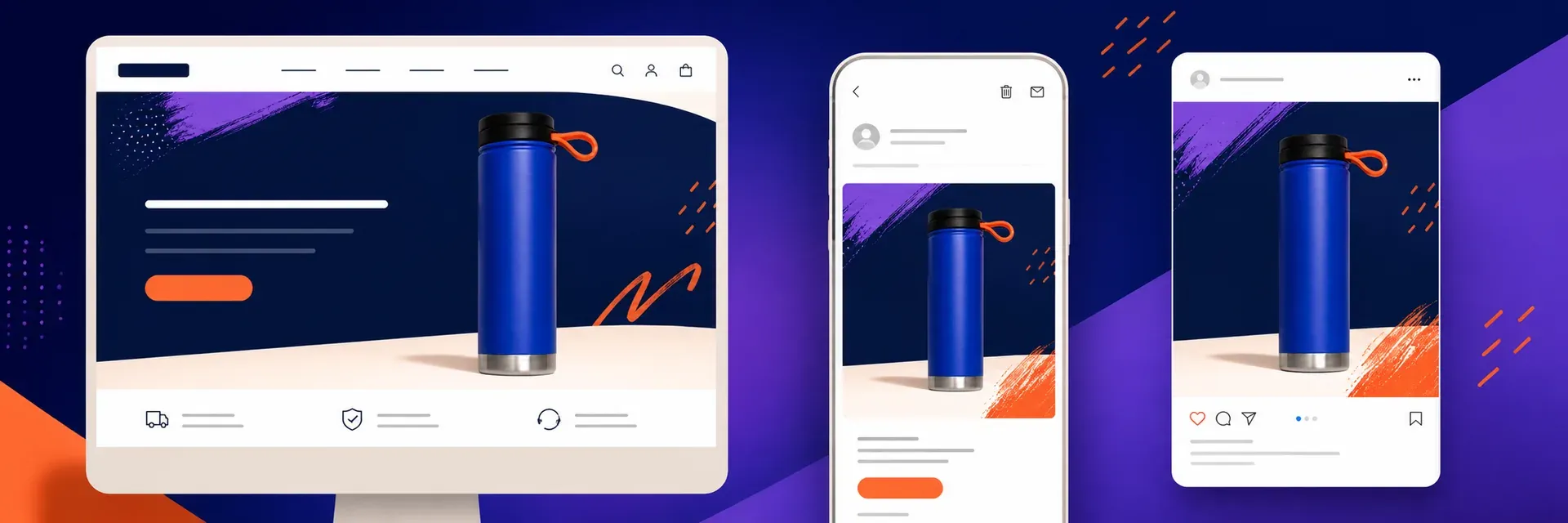
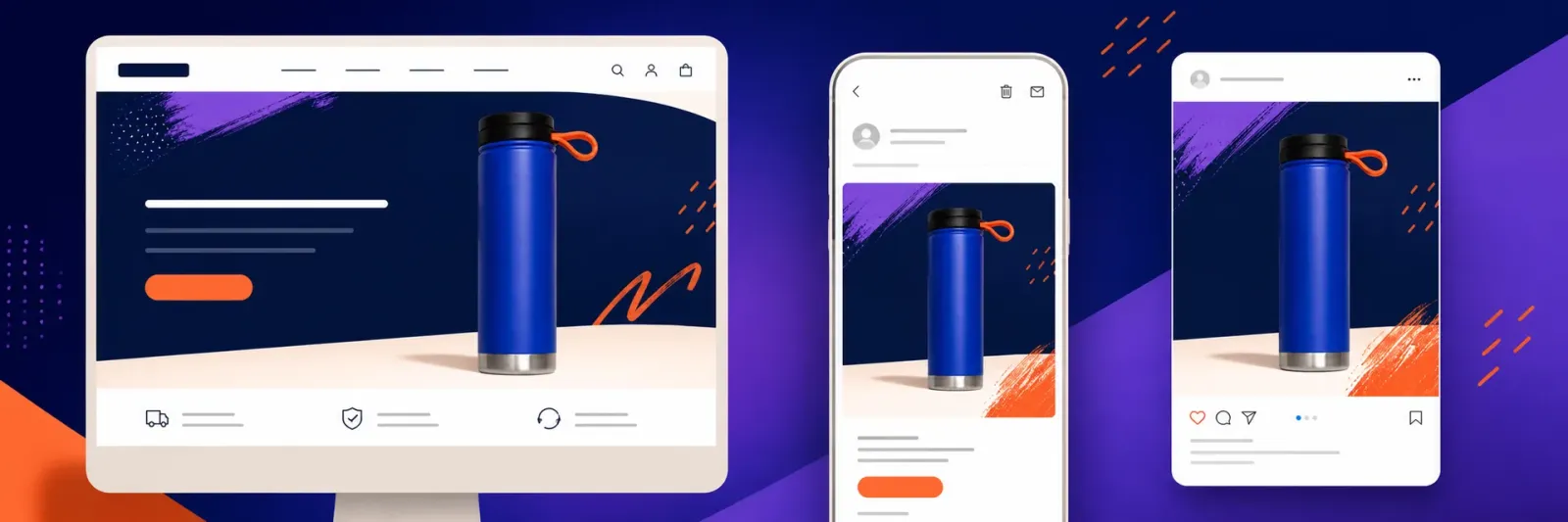
The same cobalt blue thermos cup is used across the independent site’s homepage, emails, and social media ads, with product placement, text, and whitespace carefully adjusted to suit each format.
I. What Information Should Be Finalized Before Starting BFCM Visual Asset Production for Cross-Border Independent Sites in 2026?
Before generating visuals, start by documenting all campaign details on a single page. Image‑generation tools can handle backgrounds, compositions, and proportions, but they cannot determine whether discounts are valid, which products are participating, or when the promotion ends. Leave any unconfirmed information blank—don’t let the tool guess.
Content That Must Be Confirmed | Where to Confirm This Information | How Three Channels Can Share the Same Assets |
|---|---|---|
Campaign Name and Phases | Marketing Schedule, Such as Pre‑Promotion, Official Sale, and Extension Phases | File Names and On‑Screen Text Use the Same Phase Name |
Main Featured Product | Real SKUs, Inventory, and Campaign Collection Page | Product Colors, Structure, and Accessories Must Remain Consistent Across Formats |
Discount Conditions | Approved Promotion Plan | Discounts, Thresholds, Codes, and Deadlines Must Match Word for Word |
Brand Visual Identity | Brand Colors, Fonts, and Approved Graphics | Permitted to Modify Layout Without Adopting Separate Styles for Each Channel |
Landing Page Address . | Homepage, campaign collection page, or designated product page | The product in the image matches the page that appears after clicking |
Language version | Target market and already proofread copy | Background and products can be reused; text layers are exported separately |
Whenever the campaign code or deadline changes, a new version should be created—even if the products and visuals remain unchanged. Relying on “it looks similar” to determine reusability can easily carry over old promotions into new materials.
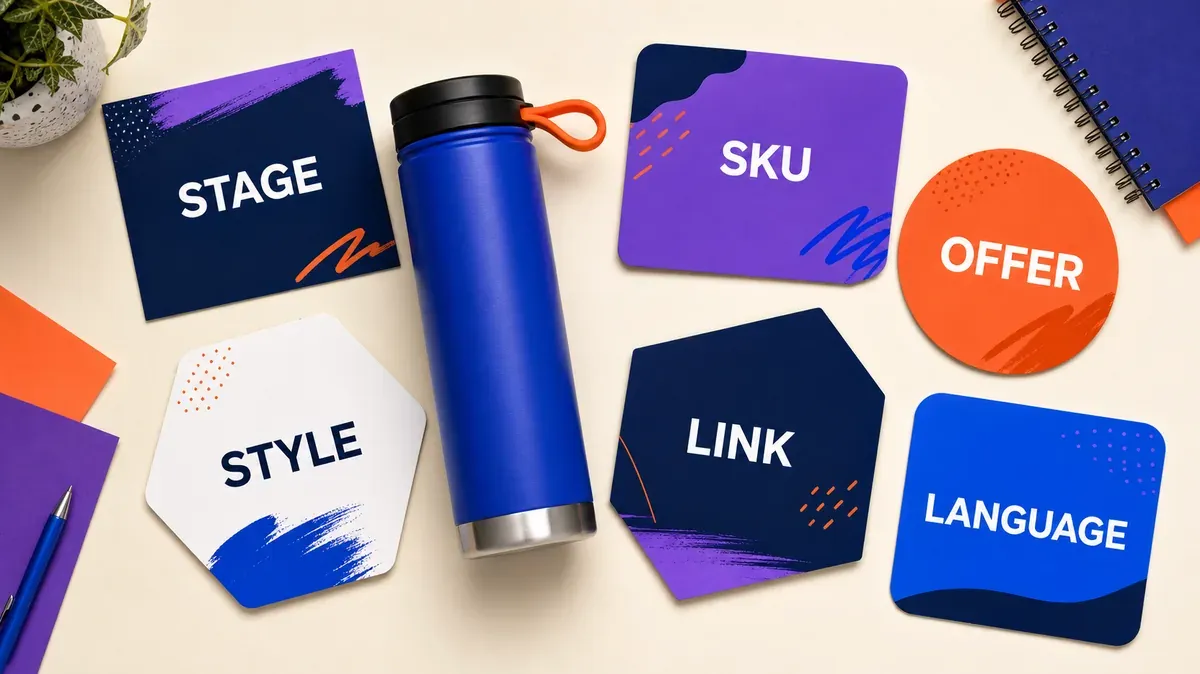
Confirm the campaign phase, SKUs, offers, brand style, landing page, and language version individually before creating the final artwork.
II. How to leave room for segmentation in the BFCM master visual for three channels
Master Visual ImageThis is the high-resolution source image used for subsequent layout and will not be published directly. The relationships among the product, background, and negative space must be preserved; text, buttons, promotional codes, and detailed terms should temporarily remain outside the product layer. When resizing, designers can move the product independently and reformat the text accordingly.
1. Which independent layers should be retained in the BFCM master visual?
Product layer:Use previously verified white‑background images or transparent‑background product shots, preserving true colors, outlines, cup lids, and handle structures.
Background layer:Only convey the campaign atmosphere—such as dark gradients, confetti, light spots, or geometric patterns—without including any fictional brand logos.
Text safe zone:Leave a clean area where you can later place homepage headlines, email subject lines, or social media taglines.
Product safe zone:Keep the cup body and key components away from the edges of the frame, allowing easy re‑framing for landscape, square, and portrait formats.
If you only have a few scattered real‑world photos, you can first use PixPix to supplement white‑background images and scene sets for the same SKU. Be sure to prepare clear front, side, and lid details. After generation, verify color, rim, handle, and bottom contours, confirming everything is correct before adding it to the master visual.
2. How can the BFCM master visual prompt avoid hardcoding channel-specific elements?
The following prompt uses an unbranded cobalt‑blue stainless steel insulated cup as an example. Both the cup and the campaign are fictional; during actual production, please replace them with real‑world photos of the corresponding SKU and approved campaign information.
任务:为跨境独立站 BFCM 活动制作可拆分的主视觉背景与商品构图。

商品:以参考图中的同一只无品牌钴蓝色不锈钢保温杯为准。圆柱杯身、黑色旋盖、橙色硅胶提环和银色杯底保持不变。

构图:商品完整可见,四周留出可重新裁切的空间。背景使用深蓝到紫色的明亮商业渐变,加入少量橙色纸屑和柔和光斑。商品与背景分离清楚。

留白:为后续活动标题、优惠条件和按钮预留干净区域,但不要在图片中生成任何文字、数字、折扣、按钮、品牌标识或倒计时。

禁止:不要改变杯盖、提环、杯底和杯身比例;不要增加配件、礼盒、人物、水花、商标或伪造标签。
This prompt deliberately omits references to “banners, emails, or vertical ads.” It generates only separable product scenes, leaving specific aspect ratios to be determined in the next step.
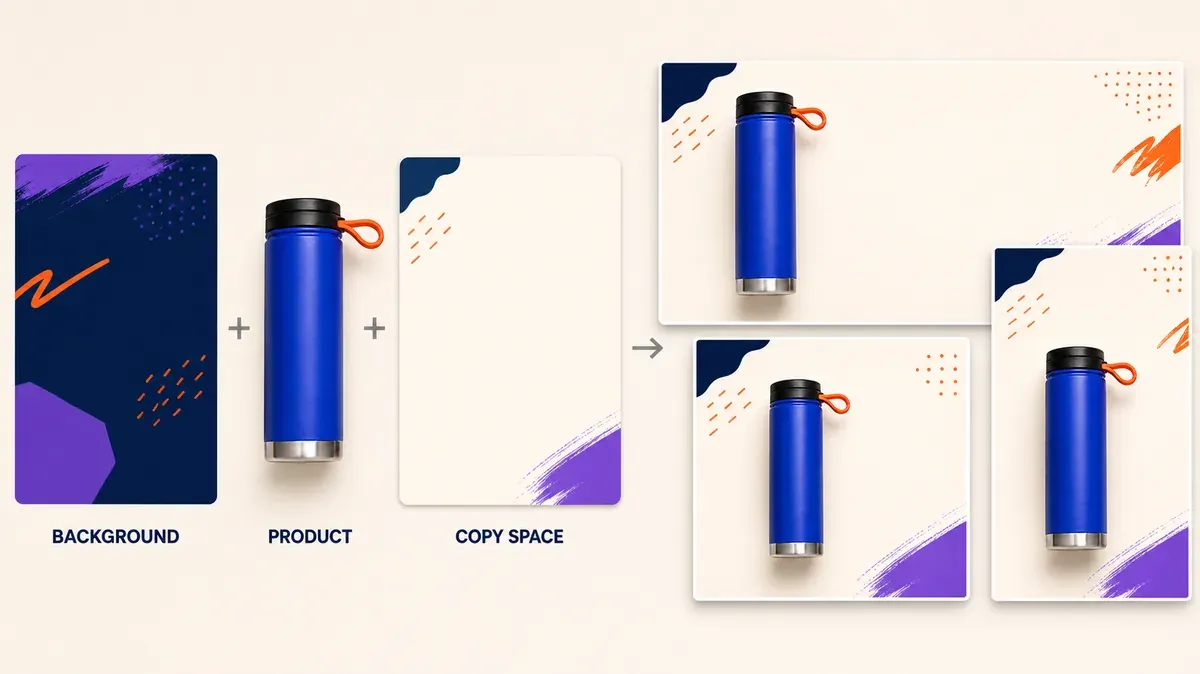
Once the background, products, and text spaces are separated, the same master visual can safely be adapted into landscape, square, and portrait formats.
III. How should BFCM homepage banners, email headers, and social media ad images be exported separately?
Homepages, emails, and social media platforms can share products, colors, and promotional information, but they should not use the same finished image. Each channel requires its own arrangement of products, text, and negative space, which should be exported separately before being placed on the actual page or reviewed in a pre‑launch preview.
1. How can Shopify BFCM homepage banners accommodate both desktop and mobile cropping?
There is no single fixed size for homepage banners that works across all Shopify themes. Different themes alter block proportions, text placement, and cropping methods, so the same image may only display part of itself on mobile devices. First open the banner section of your current theme to understand how it crops, then decide on the appropriate canvas ratio.
Place the product in a position that won’t easily get cropped, and set a focal point. Here, “focal point” refers to a positioning mark used by Shopify to prioritize keeping the main visual element in view—it doesn’t mean the product must always be centered. After testing on desktop, check the mobile preview; if the product and headline can’t both fit within the frame, create separate versions for desktop and mobile instead of repeatedly shrinking the entire image.
2. How to check the readability of Klaviyo BFCM email header images using the 600-pixel default template
Klaviyo’s default email template width is 600 pixels. The official recommendation is to use full-width images between 600–1000 pixels wide, while keeping file sizes under 1 MB; other email platforms may have different settings. For the email header, include only the product and a short headline—leave details about promotions, buttons, and countdown timers to the email editor.
Alt text helps describe the image when recipients’ email clients block images, and ensures promotional terms don’t get squeezed into tiny text on mobile devices. For example, you could write alt text like: “Cobalt-blue insulated mug – BFCM campaign header.” After exporting, test both desktop and mobile emails separately.
3. How to adapt Meta BFCM social media ad images for Feed vs. Stories
Meta recommends using a 1:1 or 4:5 aspect ratio for Feed photos, and 9:16 for Stories and Reels. When creating vertical images, avoid simply cropping the middle of a horizontal banner. Adjust the product placement, move promotional text outside the overlay area, and reserve space for the purchase button in the ad placement interface.
Whether designing square, vertical, or horizontal images, maintain consistent colors: the cobalt-blue cup body, orange handle, and deep blue-purple background. You can swap backgrounds, but never change the product color, omit the lid, or add extra accessories. Finally, verify Feed, Stories, and Reels using actual ad previews—thumbnail images in your folder won’t reveal any interface obstructions.
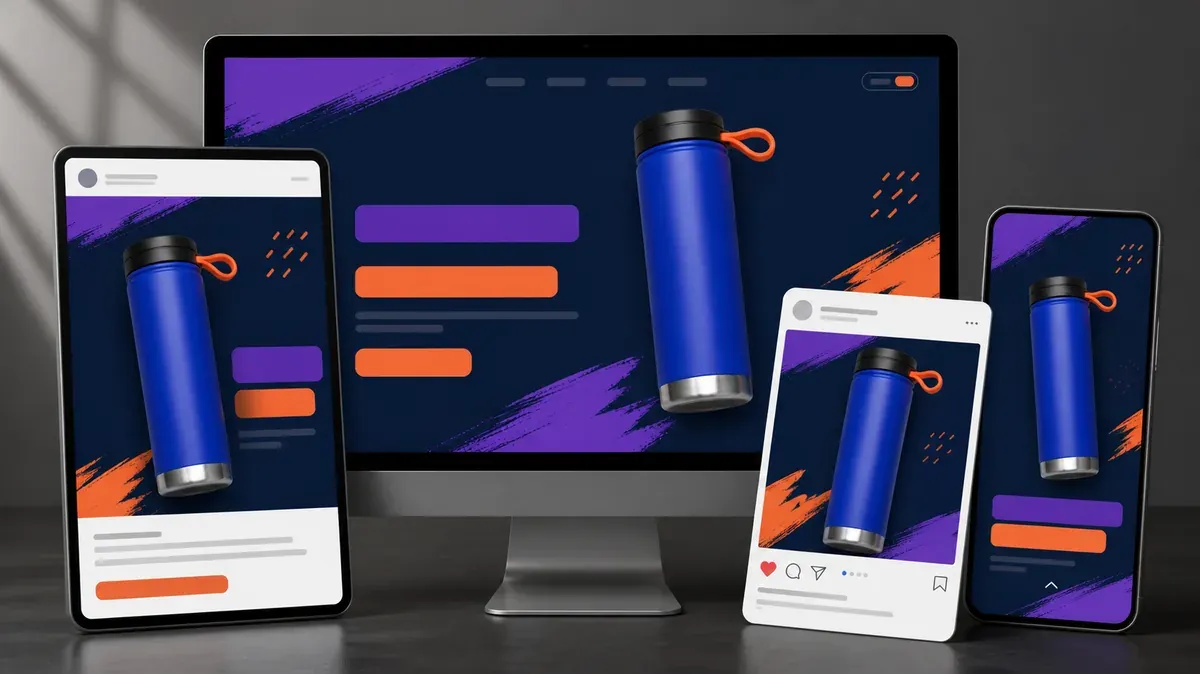
Ensure consistent layout across the homepage, emails, Feed, and Stories, with uniform colors for the product, lid, handle, and base.
IV. When BFCM multi-size cropping fails, should you enlarge the image or redesign it?
Enlarging the imageonly fills in empty space around the edges—it cannot stretch the product itself. Enlarge the image only if the original lacks sufficient white space; if text overlaps the product, the product is too small, or promotional headlines, thresholds, and detailed terms are crammed together, redesign the layout instead.
Problems encountered | How to address these issues | Why |
|---|---|---|
After converting a landscape image to portrait, the product appears complete, but there’s no background at the top or bottom | Expand the canvas to fill in the missing top and bottom background | The product’s structure and proportions remain intact |
The product has had its handle or base cropped | Move the entire product layer to reposition it, then add background | Don’t rely on generated content to infer the product’s structure |
Promotional headlines overlap the product | Reorganize text and product placement | The issue stems from the layout, not insufficient canvas space |
Promotional terms appear too small on mobile devices to read | Shorten the text on screen and move detailed terms to page components | Continuing to zoom in on the entire image will only squeeze the product . |
Vertical layouts require a completely different visual center of gravity | Reorganize the vertical layout using elements from the master image | Automatic centering and cropping cannot establish a new reading order |
When there isn’t enough background space, you can expand the canvas around the product. Upload the already verified master image, specify which side needs additional space, and lock the product’s position, proportions, colors, and structure. After generation, review the newly added background to ensure that paper scraps or light spots do not encroach on the text-safe area.
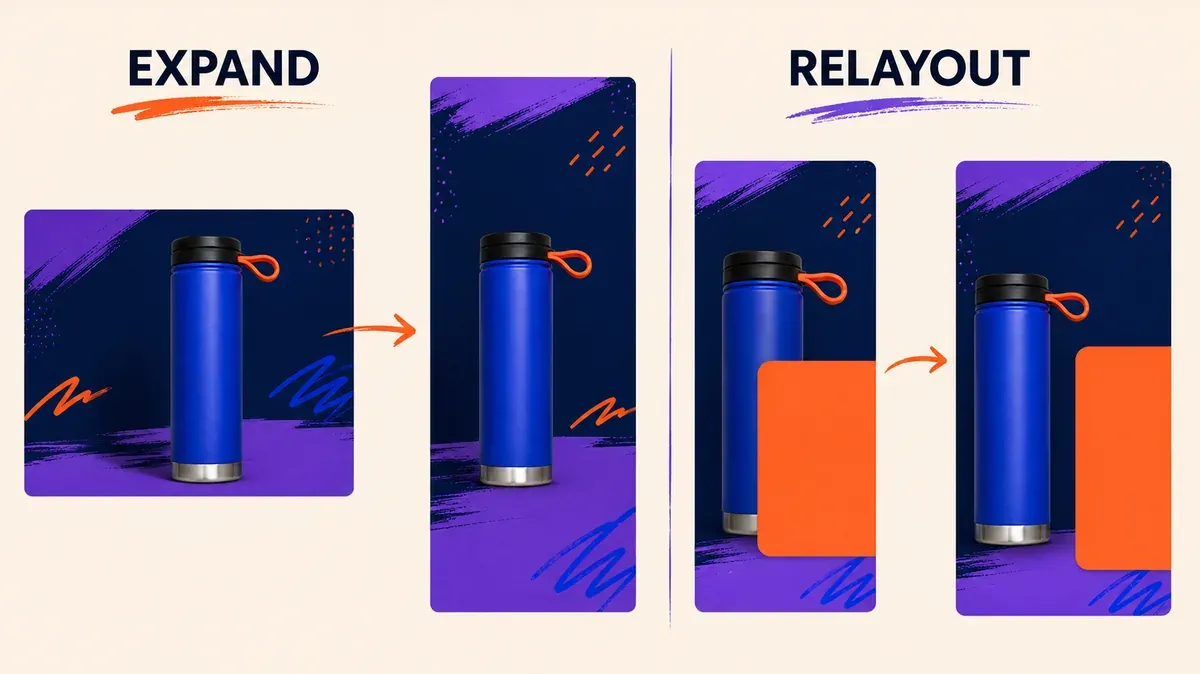
On the left side, only extend the canvas edge; on the right, rearrange the text and product placement without stretching the thermos itself.
V. How to name and deliver multi-channel BFCM visual assets without version confusion
“Black Friday Banner Final Version 2” doesn’t tell the person taking over where to place the image. File names should at least clearly indicate the campaign phase, channel, aspect ratio, language, and version, so users can determine the purpose without even opening the file.
bfcm-2026_teaser_shopify-hero_desktop_en_v03.webp
bfcm-2026_live_email-header_mobile_en_v02.webp
bfcm-2026_live_meta-feed_4x5_en_v04.webp
bfcm-2026_extended_meta-stories_9x16_de_v01.webp
Having the correct file name isn’t enough. Before delivery, open each image individually and check the following six items:
The featured product, color scheme, and accessories match the campaign page.
The discount code, minimum spend threshold, deadline, and language version all come from the same approved copywriting.
The homepage banner has been reviewed for both desktop and mobile previews, ensuring no products or headlines are cropped.
The email header image includes alternative text when the picture is closed, while buttons and detailed terms are not directly integrated into the background image.
Feed, Stories, and Reels use appropriate aspect ratios respectively, and are previewed through ad placements.
Expired phases, old promotions, and sold-out product versions are kept separate from the current delivery folder.
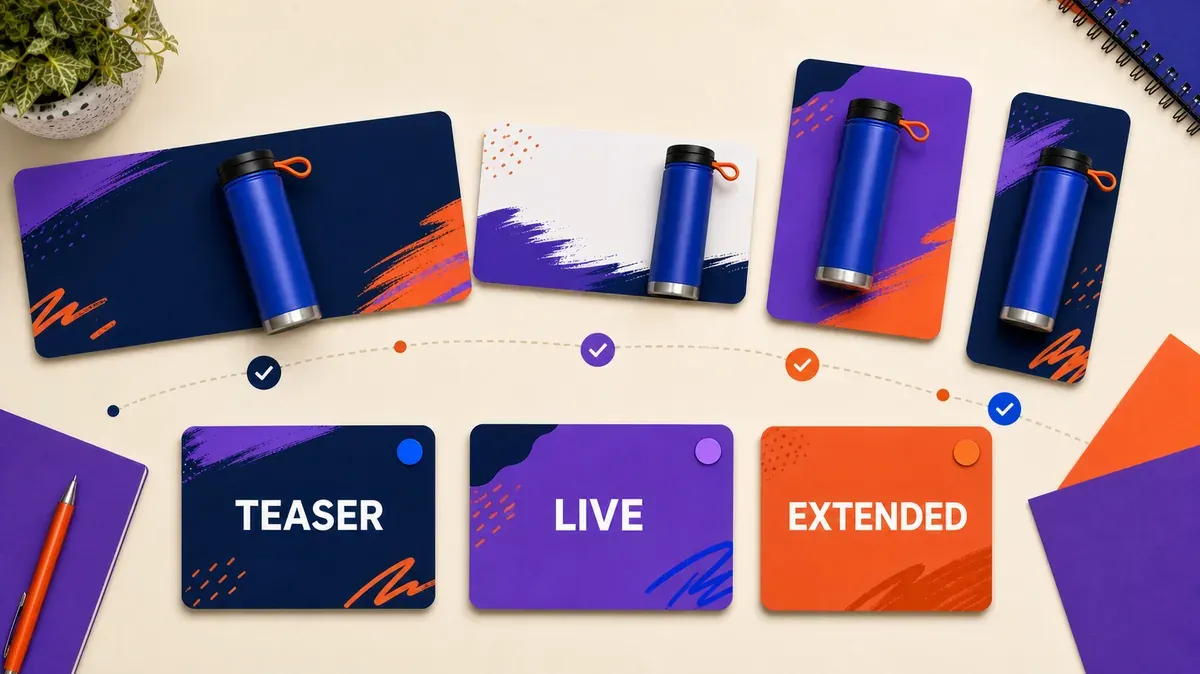
Different version tags are used for pre‑launch, official sales, and extended phases, ensuring old materials are not mixed into the current delivery.
VI. Common issues with cross‑border independent site BFCM visual assets
1. Do BFCM assets need to include all languages in one image?
Do not combine multiple languages into a single finished image. Products and backgrounds may be shared, but titles, promotional conditions, and button texts should be laid out separately for each market. Each language version must be proofread, named, and previewed independently to avoid translation length variations that could obscure products or exceed safe zones.
2. Can pre‑launch, official sales, and Cyber Monday extension phases share the same image?
You can reuse previously verified product layers and background orientations, but do not directly repurpose finished images containing outdated dates, codes, or promotions. Each phase requires its own distinct version, with fresh checks of page links, titles, detailed terms, and file names.
3. If a featured SKU sells out, can only the product in the image be replaced?
Only if the new product genuinely participates in the same promotion, and the landing page, promotional terms, and inventory have all been updated, can the product layer be replaced in the master image. After replacement, recheck all three channels to ensure no selling points, accessories, or scene cues remain exclusive to the old product.
VII. Official resources for creating multi‑channel BFCM visual assets
When verifying platform requirements, refer to the following three official resources. They correspond respectively to independent site banners, email images, and Meta ad formats:
AI Image Tool Built for E-commerce Teams
For new product launches, advertising, and promotional campaigns, use AI to generate product images, scene visuals, ad creatives, and short video assets — making content production faster.