AI Video Restoration Tutorial: PixPix for Sharpening and a Guide to Evaluating Restored Old Footage
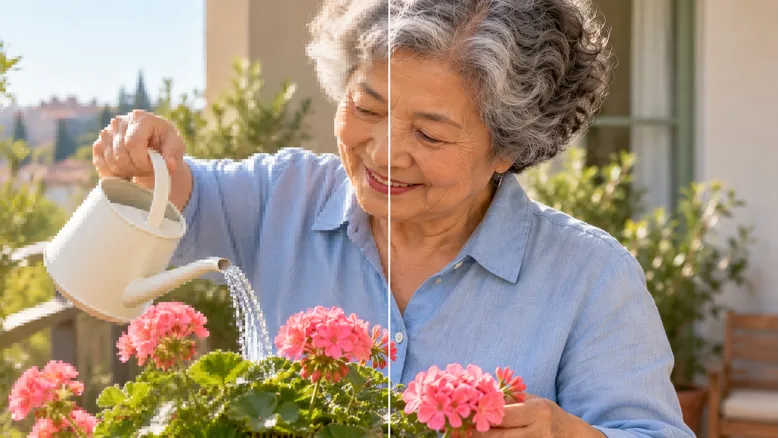
The most common misconception in AI video restoration is equating “looking clearer” with “being closer to the original footage.” In old recordings, faces, clothing textures, and the edges of flower pots may appear sharper after enhancement, but new details that weren’t present in the original material could also emerge.
This tutorial uses an original home video case—“Grandma’s Balcony”—to demonstrate how to identify quality issues, how to make test videos clearer using PixPix, and how to evaluate subjects, motion, and export results. The goal is to make older footage easier to watch while preserving the original people and events.
First, clarify: what exactly are you trying to restore?
Super-resolution, noise reduction, color grading, and creative editing address entirely different problems. Start by watching the original footage in its entirety, identify the defects most impacting usability, and then decide on your first-round processing goals.
Observed issues | Items to check | First-round processing approach |
|---|---|---|
File size is small; edges become rough when enlarged | Is there a better source file? Has it undergone multiple transfers? | Locate the original footage, then attempt clarity enhancement or enlargement |
Dark areas show noticeable graininess and compression artifacts | Do faces and clothing still retain discernible texture? | Try gentle processing and verify whether textures have been smoothed out |
Faces remain blurry when turning their heads | Could this be due to camera focus issues or motion blur? | Test challenging segments first, without assuming that increasing resolution guarantees restoration |
Color shifts and improper brightness | Was the original tone intentionally like this, or should a creative version be saved separately? | Consider color correction separately, rather than mixing it with clarity adjustments in one round |
Jaggies appear at moving edges | Is the footage interlaced, and was the transfer process handled correctly? | Confirm field order and deinterlacing procedures first, avoiding direct repeated sharpening |
If the original footage comes from tape and the current transfer shows obvious anomalies, first inspect the source of the transfer. Subsequent enhancements cannot substitute for a properly digitized recording meeting quality standards.
Original case study: First define what “Grandma’s Balcony” should preserve
Create a task card for the footage
Suppose you have a 12-second home video: Grandma stands on the balcony watering geraniums, then turns her head toward the camera. The instructional setup uses 640×480、4:3、25fps—these do not represent actual user files, nor are they recommended specifications for all videos.
Character: A roughly 68-year-old East Asian woman with short, gray-white curly hair, wearing a light blue cotton shirt and off-white trousers, without glasses.
Props: A small cream-white watering can with no inscription, a terracotta flower pot, and a cluster of pink geraniums with round leaves.
Setting: A pale green balcony door, warm gray walls, and terracotta floor tiles, with a wooden chair positioned at the rear right.
Action: Tilting the spout of the watering can, water flows onto the soil; after watering, lifting the can, the character turns her head.
Preserved elements: The facial age, hairstyle, shirt color, shape of the watering can, and the act of watering remain unchanged.
This time, we are only testing for mild softening of the image and perceptual degradation caused by compression, rather than presenting it as a comprehensive demonstration of scratch repair, black-and-white coloring, or face reconstruction.

Caption: Original home video scene setting, static instructional simulation—not an actual PixPix test.
Select a sample that includes both stillness and motion simultaneously.
Do not judge the results based solely on one clear shot of grandma facing the camera. The test clip should include the movement of the watering can’s spout, the thin stream of water, the effect of water on the leaves, and finally, the turn of the head.

Caption: Schematic illustration of the watering can, hand, and leaves as observation targets—static instructional simulation, not an actual PixPix test; cannot prove that motion has been repaired.
For this case, select several consecutive seconds from the 12-second clip that capture the aforementioned changes as a sample. The specific length will depend on the original footage's movements and the current limitations of the tool, without imposing a fixed number of seconds.
Clear photos of the person and the watering can can help humans verify the appearance, but they should not be taken as proof that a particular detail originally existed in the old recording. In particular, do not redraw the face in the video to match another age simply because the reference photo appears clearer.
First run PixPix’s clarity enhancement, then determine whether further editing is necessary.
Use the verified “Video Clarity Enhancement” entry point.
PixPix’s official online instructions introduce the “Video Clarity Enhancement” tool for uploading existing videos and improving their quality, along with the corresponding access link.
Open the PixPix Video Clarity Enhancement, upload the test clip according to the current page’s requirements, and review the available modes, output specifications, file size limits, and resource consumption. This article only verifies the public access point and official feature descriptions; it does not log in to check the full parameter panel, so it does not predefine model names, magnification levels, noise reduction sliders, or any fixed score thresholds.
For the first step, set just one goal: make the edges of people and props easier to see while preserving their original appearance as much as possible. If the page offers different intensities or modes, start with the conservative option; if there are no such settings, don’t search for non-existent buttons following tutorials from other platforms.
Since there is no input box, there is no need to forcibly write “repair prompts.”
Dedicated quality tools and generative video editing are not the same thing. The former may operate according to preset settings or parameters, while the latter typically modifies images through textual descriptions. Whether or not a prompt is needed depends on the actual input method provided by the current mode.
If you only want to improve clarity, there’s no need to change faces, backgrounds, or regenerate entire segments. First create a small sample and check whether the result still retains the original material.
Place requests such as color adjustments or lighting enhancements into separate versions.
PixPix’s Seedance 2.5 page introduces capabilities for video referencing and timestamp editing. However, these introductions cannot directly serve as guarantees for “lossless restoration of historical recordings.”
If you accept creative adjustments and the current editing mode supports the corresponding tasks, you can clearly state your needs separately—for example:
Only adjust the exposure in the balcony scene to make it slightly brighter, making the face and light-blue shirt easier to recognize. Keep the character’s age, facial features, gray‑white hairstyle, watering can, geraniums, original composition, sequence of actions, and clip duration unchanged. Preserve natural shadows, do not add new objects, and do not alter clothing colors.
This is an editing intent for testing purposes only; it is not a dedicated repair parameter, nor does it guarantee that the model will remain entirely unchanged. After editing, re‑check the characters, props, and movements; save the version intended for memory retention separately from the color‑adjusted version.
Repair acceptance: first examine the characters, then assess whether the image remains stable.
Compare at the same moment and on the same scale.
Position both the original and output clips at the same stage of action, using identical frame sizes and display scales for comparison. Any discrepancies in timing, disproportionate enlargement on the right side, or additional color grading on one side may interfere with accurate judgment.
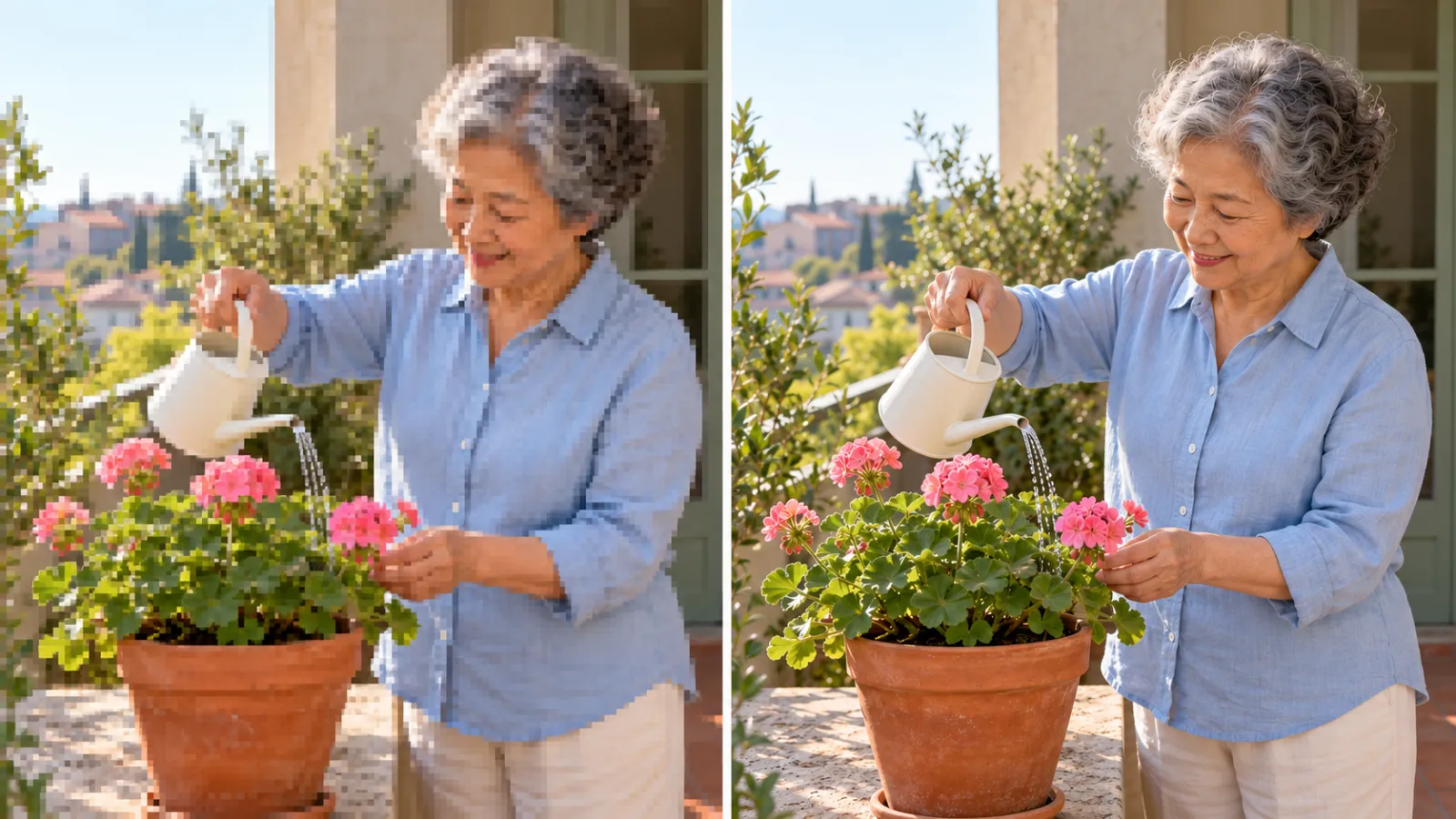
Caption: A side-by-side comparison of the low‑resolution image on the left and the high‑resolution image on the right, presented as a static instructional simulation—not actual PixPix measurements or real before-and-after results.
In this case, focus on the grandmother’s facial shape, hair outline, and shirt folds before and after she turns her head. Signs of becoming younger, skin appearing waxy, or hair strands turning into repetitive lines should not be simply dismissed as “more details.”
Zoom in on specific areas to inspect edges and textures.
Select the spout, fingers, and leaf edges for detailed examination:
Is the spout still attached to the body of the pot, and has its contour been sharpened into two distinct edges?
Are there any unintended adhesions between the fingers and the handle of the pot?
Has the water flow been rendered as a thick, bright line or intermittent white streaks?
Are the leaf veins natural, or does each leaf exhibit repeated patterns?
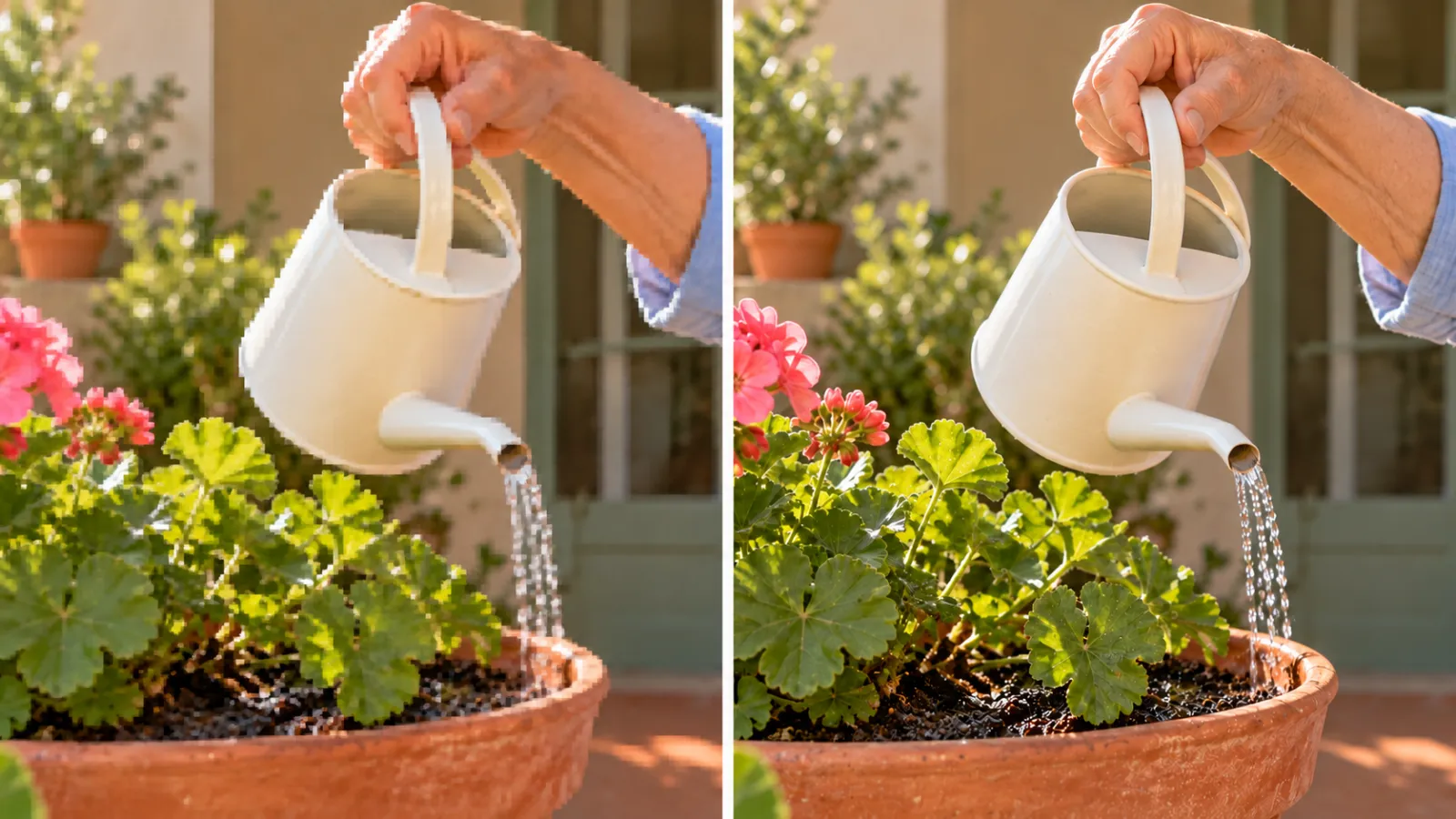
Caption: An illustrative guide to observing clarity in the same watering can and leaves, presented as a static instructional simulation—not actual PixPix measurements or real before-and-after results.
Seeing imperfections does not necessarily mean you should continue intensifying the processing. Repeated enhancements may result in harder edges and flatter skin. First compare against the original footage, then decide whether to tone down the edits, switch to another mode, or accept that some softness remains.
Play continuously to check issues invisible in single frames.
A single still image cannot prove the quality of video restoration. Play through segments such as head turns, moving the watering can, and fine streams of water from beginning to end, observing whether the face changes frame by frame, whether the background flickers, whether edges jitter, and whether sound and motion remain synchronized.

Caption: A schematic illustration of family members reviewing recorded footage, presented as a static instructional simulation—not actual PixPix measurements or product screenshots; this does not indicate that temporal continuity has been verified.
If an entire segment appears clearer than the original but the face changes every time the subject looks up, this version is still unsuitable for delivering a faithful restoration. Consider narrowing the scope of processing, selecting a different test segment, or retaining the more reliable portions of the original footage.
Decide separately on increasing resolution and boosting frame rate.
More pixels do not necessarily mean recovering more true information.
For instructional settings, if both width and height of the 640×480 image are doubled, the file size becomes 1280×960, with total pixel count quadrupling. However, this merely reflects a change in output dimensions—it does not imply that true details have increased fourfold, nor does it guarantee that the tool currently supports such magnification.
First maintain the original 4:3 composition, then choose the output based on actual viewing preferences and available tool specifications. Do not stretch the grandmother’s image just to meet 16:9 requirements, nor pass off a frame‑filled image with added backgrounds as the original recording.
Do not treat frame interpolation as a default restoration step.
Increasing frame rate may involve generating intermediate frames, which is a separate task from enhancing clarity. For this case, first verify that the output frame rate and duration match the original, then decide whether to create an even higher‑frame‑rate version.
Interlaced footage with a clear source should be processed according to its frame/field characteristics; not all frame rate changes should be treated as errors. For standard progressive material, there’s no need to directly change 25fps to 60fps just to make the numbers larger.
Save a version that allows for rollback and traceability.
Keep the original file and test only on the working copy. Do not overwrite the original file with the repaired output. Also, do not repeatedly forward the same file in chat applications before proceeding with further processing.
Version | Purpose | Records That Must Be Kept |
|---|---|---|
Original File | Identity, Composition, and Motion Reference | Original File and Known Source Information |
Test Sample | Determine Whether Further Processing Is Worth Continuing | Test Range, Mode, Specifications, Actual Consumption, and Observed Results |
Clarity Version | Make Older Footage Easier to Watch | Changes Compared to the Original and Unresolved Issues |
Creative Editing Version | Adjust Exposure or Color Separately | Editing Intent, Scope of Changes, and Review Results |
After final export, play the entire video once more to check the beginning, end, framing, audio, and duration. If further editing is needed, prioritize using the locally processed file rather than treating re-downloaded compressed copies from social platforms as new master versions.
Costs are also recorded based on actual tasks: unused test samples, repeated processing, and separate edits all count toward project expenses. Since this article does not present real-world tasks, we do not provide information on processing speed, cost per minute, or success rates.
Frequently Asked Questions
Can low-resolution videos always be restored to true high definition?
Not necessarily. The output may appear larger and easier to view, but severely out-of-focus, obscured, or missing content will not magically turn into verifiable historical details simply by choosing a higher resolution. Objectives should be set according to the quality of the source file.
Does PixPix’s video enhancement include all old‑film restoration features?
This review confirmed the official descriptions and access points for image quality enhancement, but did not verify whether it covers independent deinterlacing, film scratch repair, black-and-white colorization, or all models available on other platforms. When encountering such needs, first consult the current tool documentation and avoid blindly copying settings from other platforms.
Are watermark removal and restoration the same thing?
No. Image quality enhancement and removing visual elements serve different purposes. For family videos meant to preserve memories, dates, inscriptions, and other original markings may hold significance and should not be automatically deleted merely to achieve a cleaner image.
Can I use a clear photo to directly restore my grandmother’s face?
That would involve regenerating or editing identity‑referenced footage, which should be distinguished from versions that preserve the original recording. Clear photographs are suitable for cross‑checking but do not prove that the expressions, skin details, or movements shown in the video were genuinely newly generated.
Start with a representative test clip.
Identify the file closest to the original source, select a short sample containing both facial features and motion, and confirm the current settings in PixPix Video Enhancement before proceeding with testing.
First check whether the grandmother is still the same person as before, then assess whether the kettle, leaves, and motion appear credible. Only when you can clearly identify what has improved, what has been preserved, and what issues remain will it be easier to determine whether this version is worth advancing to subsequent editing stages.

AI Image Tool Built for E-commerce Teams
For new product launches, advertising, and promotional campaigns, use AI to generate product images, scene visuals, ad creatives, and short video assets — making content production faster.