AI Video Camera Movement Prompt Tutorial: PixPix Product Lens Control Guide
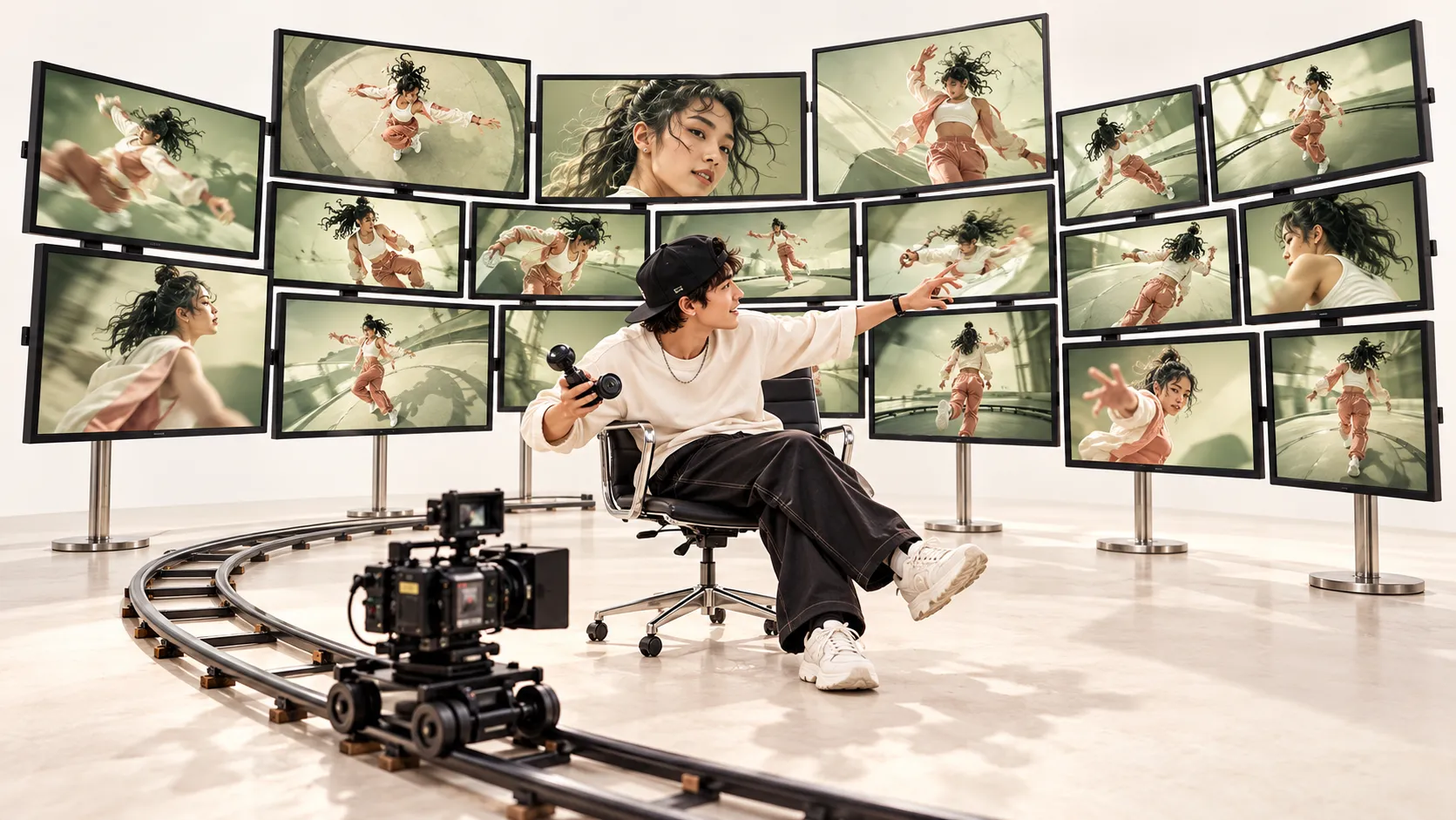
AI video camera motion control first requires addressing a specific question: What do you want the audience to clearly see by the end of the shot? Is it the texture on the product’s surface, the destination toward which a character is heading, or the environment surrounding the subject? Determine this answer first, then design the camera movement—only then will your prompts have a clear objective to evaluate.
This tutorial is aimed at creators producing product short videos and social media content. Using an original camping lamp as a central example, it walks you through material preparation, camera motion prompts, PixPix operations, and result evaluation. You can start by completing a single short shot, then assemble qualified clips into a full video.
The camping lamp featured in this article is a fictional teaching example, and the prompts represent creative concepts yet to be verified; no actual video generation was performed, nor does this article include measured model rankings. Product information was verified on October 14, 2026, and the available models and specifications are subject to those listed on the official platform.
First, assign tasks to each shot
For the same product, different shots can address distinct questions. To showcase the overall design, ensure the silhouette remains intact; to highlight materials, focus attention on surface details; and when illustrating usage scenarios, maintain the relationship between the subject and its surroundings.
Below are three shot assignments designed for the camping lamp case study—not performance rankings:
What should the audience clearly see? | Suggested shots to try | What to check at the end? |
|---|---|---|
Material of the lampshade and knob | Slow forward movement | Details become clearer, while the lamp’s outline remains undistorted |
The lamp’s position within the campsite | Slow backward movement | The environment unfolds, yet the product remains easily recognizable |
Spatial relationship between the handle and the lamp body | Small-angle lateral arc movement | The side gradually becomes visible, without the lamp spontaneously rotating |
Choose one task first. For the initial test, there’s no need to combine forward movement, panning, lifting, and zooming into a single sequence.
Distinguish between subject motion, camera position, and camera movement
Subject motion answers “How does everything in the frame move?” Camera position answers “From where are we viewing?” And camera movement answers “Where will the camera go next?” For example, if the lamp remains stationary while the camera moves forward from a level-eye perspective, these constitute a coordinated set of requirements.
Several commonly confused movements can be distinguished as follows: pushing forward means the camera approaches the subject, whereas zooming involves changing the focal length without moving the camera; panning refers to rotating the camera’s orientation in place, while tracking involves shifting the camera’s position laterally.
“Low camera position” does not necessarily equate to “upward movement.” If your goal is simply to emphasize the lamp’s silhouette, you can keep the camera low; only when you need to gradually reveal the space above should you consider lifting or tilting the camera.
Prepare an original case that runs throughout the entire video
Fix the camping lamp and scene
In this case, the camping lamp is named “Muye,” used solely as an internal project designation and not appearing as branded text on the lamp itself.
Subject: Matte forest-green metal base, milky-white cylindrical lampshade, brass-colored semicircular handle, and a round knob on the front.
Placement: The lamp stands upright on a light-colored wooden folding table, with the knob facing the camera.
Environment: A campsite during blue hour, with a beige tent positioned slightly to the right in the background and dark woods visible in the distance.
Lighting: The lampshade emits steady warm light, while the surroundings retain a cool bluish tone without any flickering.
Continuity: Throughout the shot, no characters appear, and the lamp’s position, structure, color, and lighting remain consistent.
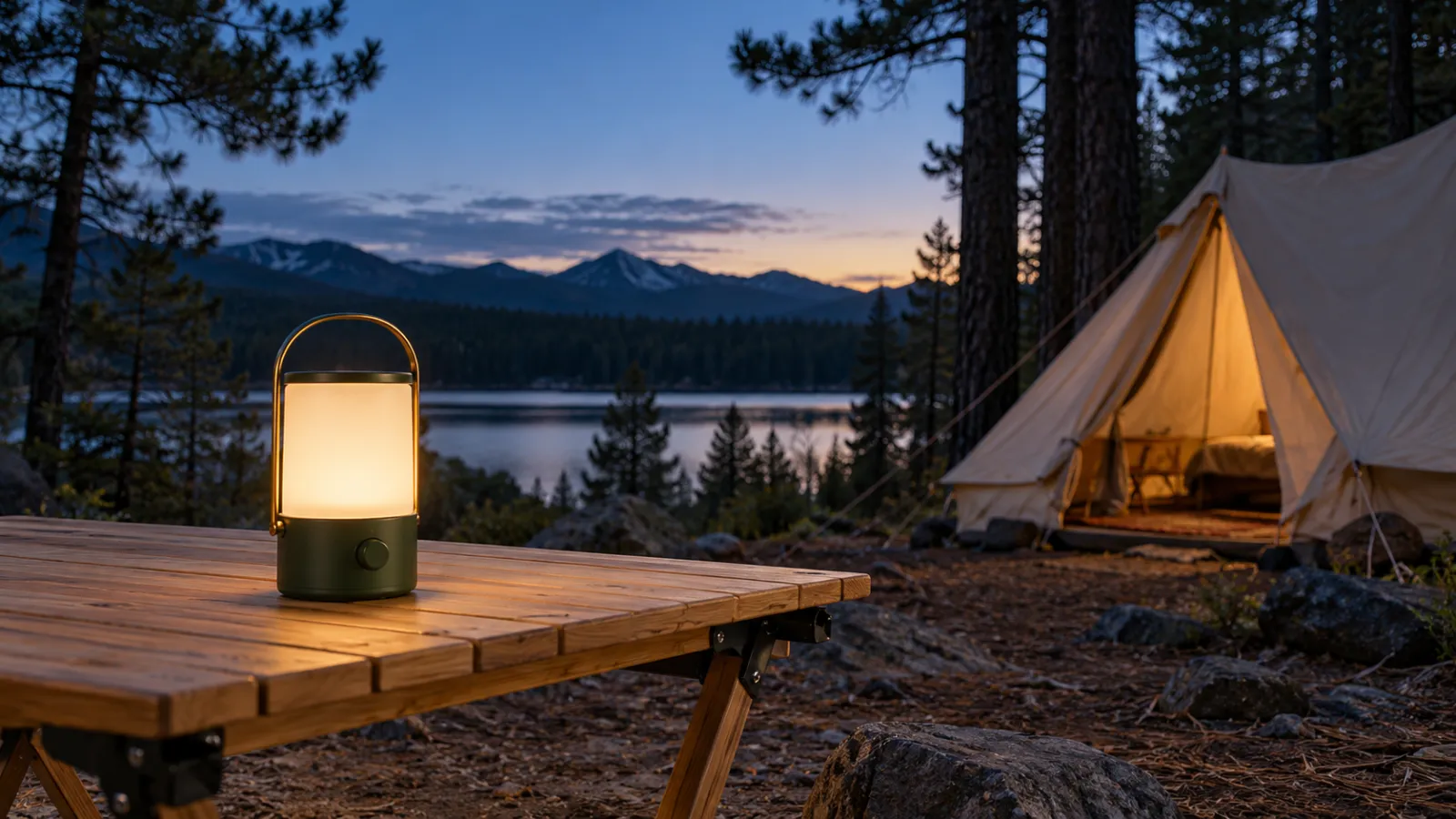
These identifying features should be included in the asset description and in the prompt for each shot. If later on a character is added picking up the lamp, a separate shot should be created, rechecking hand contact, weight, and the connection between the handle and the lamp.
Check whether the reference image supports the planned motion.
First, zoom in on the reference image to confirm that both ends of the handle, the edges of the knob, and the outline of the base are clearly visible. Leave some space around the subject to avoid cropping off the handle at the outset, as it becomes harder to preserve the complete structure later on.
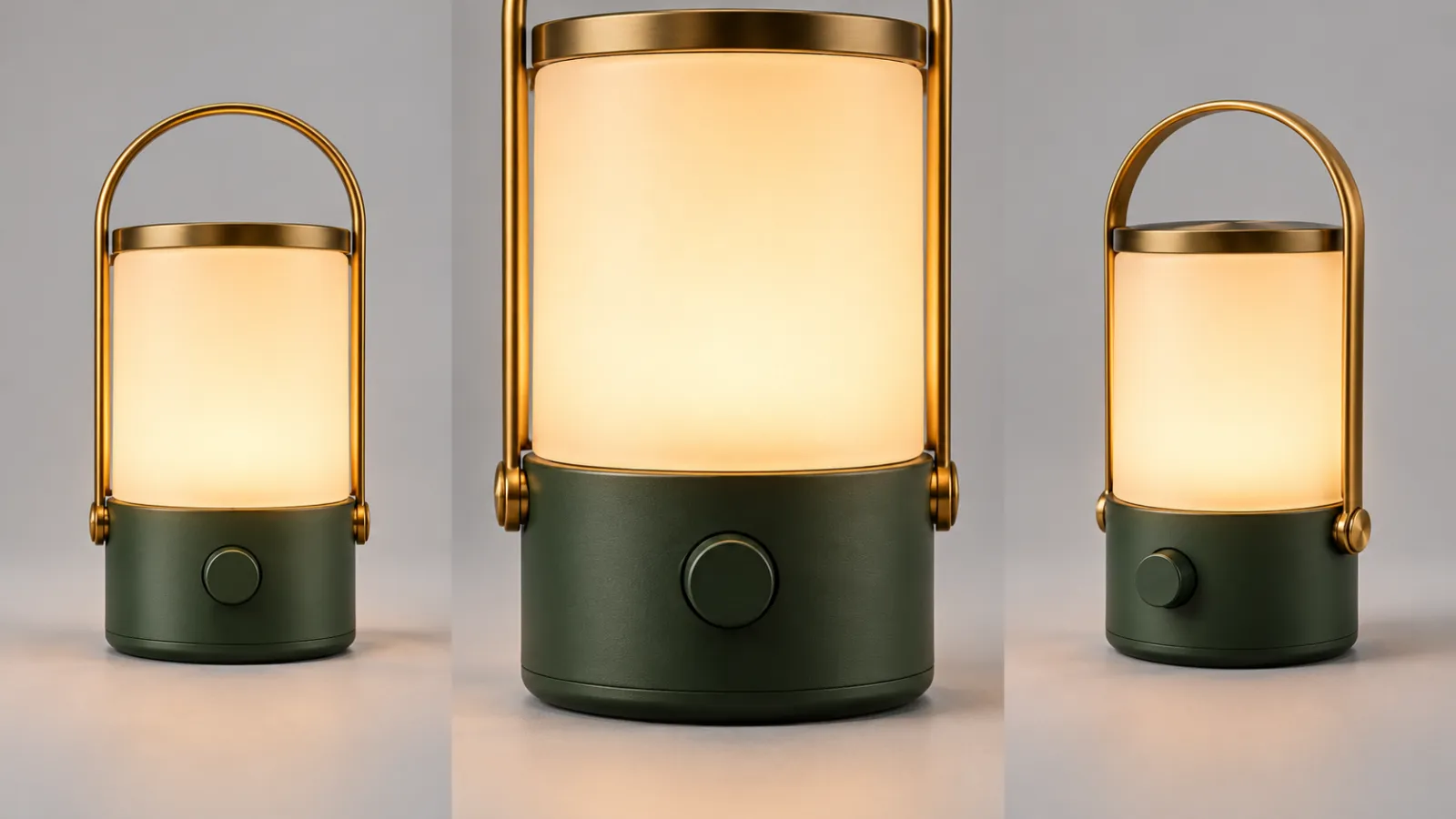
Curved movements will gradually reveal sides not shown in the original image. For real products, try to supplement photos from corresponding angles and verify how the current mode handles reference materials. When only a front view is available, it’s recommended to start with small motions; the backside generated by cannot serve as proof of the actual structure.
Readers who don’t yet have images can first refer to the PixPix Image-to-Video Tutorial, then return to this article to design their shots.
Use six pieces of information to clearly define a single shot.
This article recommends using the following prompt framework. It helps organize creative requirements but does not imply that the production platform has six corresponding parameters, nor does it guarantee strict adherence to every item.
Subject and Scene: Who is where, and which features need to be preserved.
Starting Shot: From what angle and what type of shot does it begin?
Subject Movement: Whether it remains stationary or involves only one clear action.
Camera Movement: Where it moves, and what its range and rhythm are.
Ending Shot: What is seen last, and whether it comes to a stable stop.
Continuity Requirements: How the structure, color, lighting, and props maintain consistency.
After finishing, perform a Conflict Check: If “camera position fixed” is required, do not simultaneously request “forward movement”; if you want to capture the side view of a stationary product, specify that the camera is circling rather than the product rotating.
Shot A: Close-up of the lampshade, emphasizing material texture.
Using the same camping lamp from the reference image: a forest-green metal base, an off-white cylindrical lampshade, and a brass-colored semicircular handle, with a round knob retained on the front. The lamp stands upright on a wooden table, remaining stationary throughout.
The shot begins as a medium-close-up at eye level, fully showing the lamp and a small portion of the tabletop. The camera slowly moves forward along a straight line toward the lamp—smoothly accelerating in the initial segment and gradually decelerating toward the end, finally stopping at a close-up where the lampshade and knob are clearly visible. The handle remains fully within the frame; the camera height and focal length stay constant, creating a perspective shift as the camera advances.
The warm light maintains steady brightness, while the beige tent in the rear-right corner stays in its original position. The lamp’s structure and color remain consistent. This is one continuous shot, ending with a stable frame—no cuts, no panning.
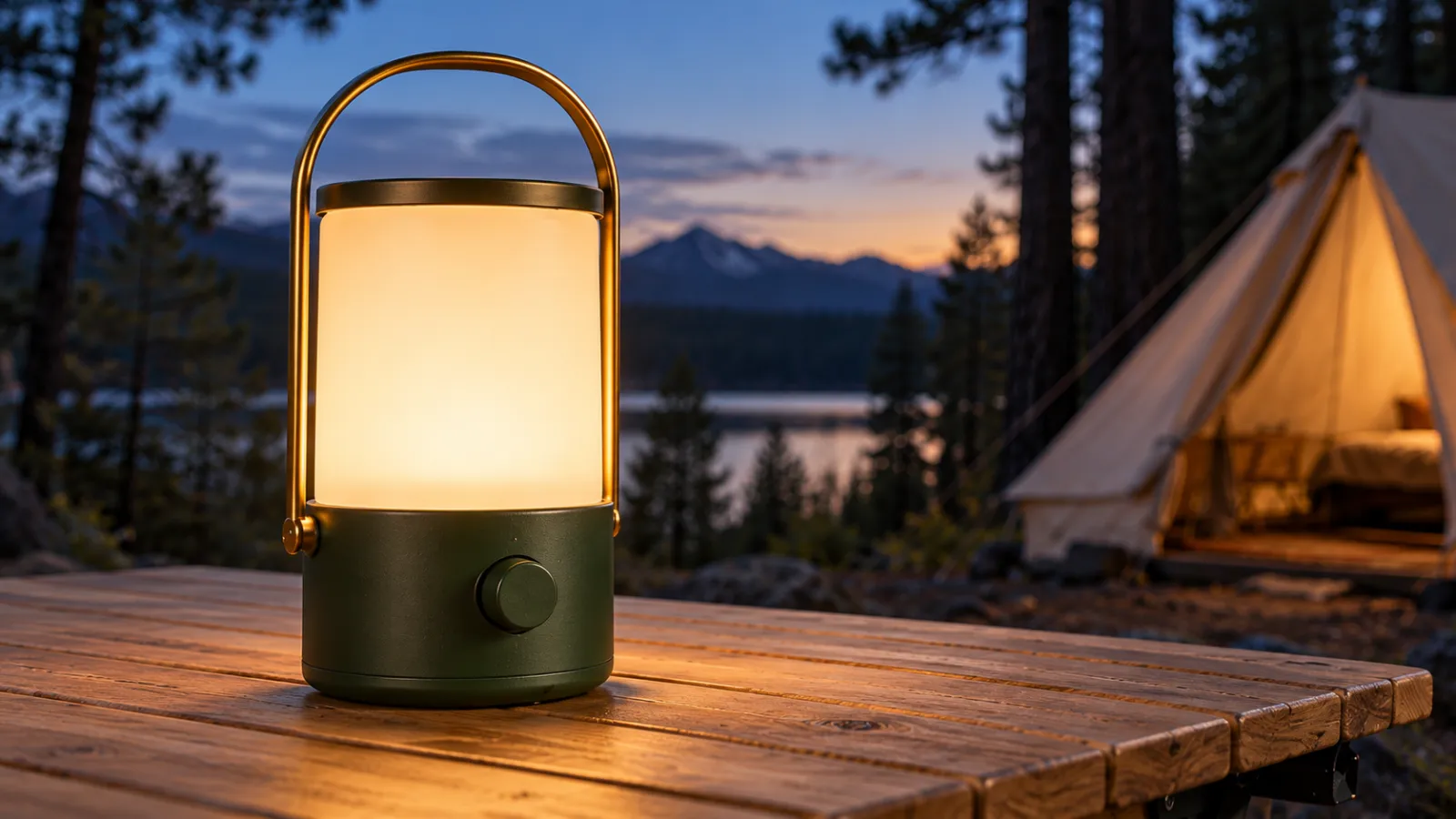
During acceptance, do not simply check whether “the product has grown larger”. Also observe whether the relative relationship between the tabletop and the tent changes as you approach, and whether the handle and knob remain attached in their correct positions. If only the entire scene is scaled up proportionally, reduce the range of motion and more clearly describe the camera’s forward movement and the relationship between foreground and background.
Shot B: Unfolding the campsite to establish the usage environment
The same forest-green camping lamp stands upright on the same wooden table, its shade emitting steady warm light without moving.
The opening shot is a close-up that captures the entire lamp. The camera remains at eye level, slowly moving backward along a straight line, gradually revealing the edge of the wooden table, the beige tent in the rear-right corner, and the distant woods. The ending presents a medium shot of the campsite, with the camping lamp positioned near the left third of the frame, still clearly identifiable. The backtracking motion is restrained, concluding with a brief pause.
The blue-toned environment maintains its relationship with the warm lighting. The shape of the handle, knob, and lampshade remains unchanged. Throughout, it is one continuous shot—no zooming, no sudden acceleration, and no additional characters.
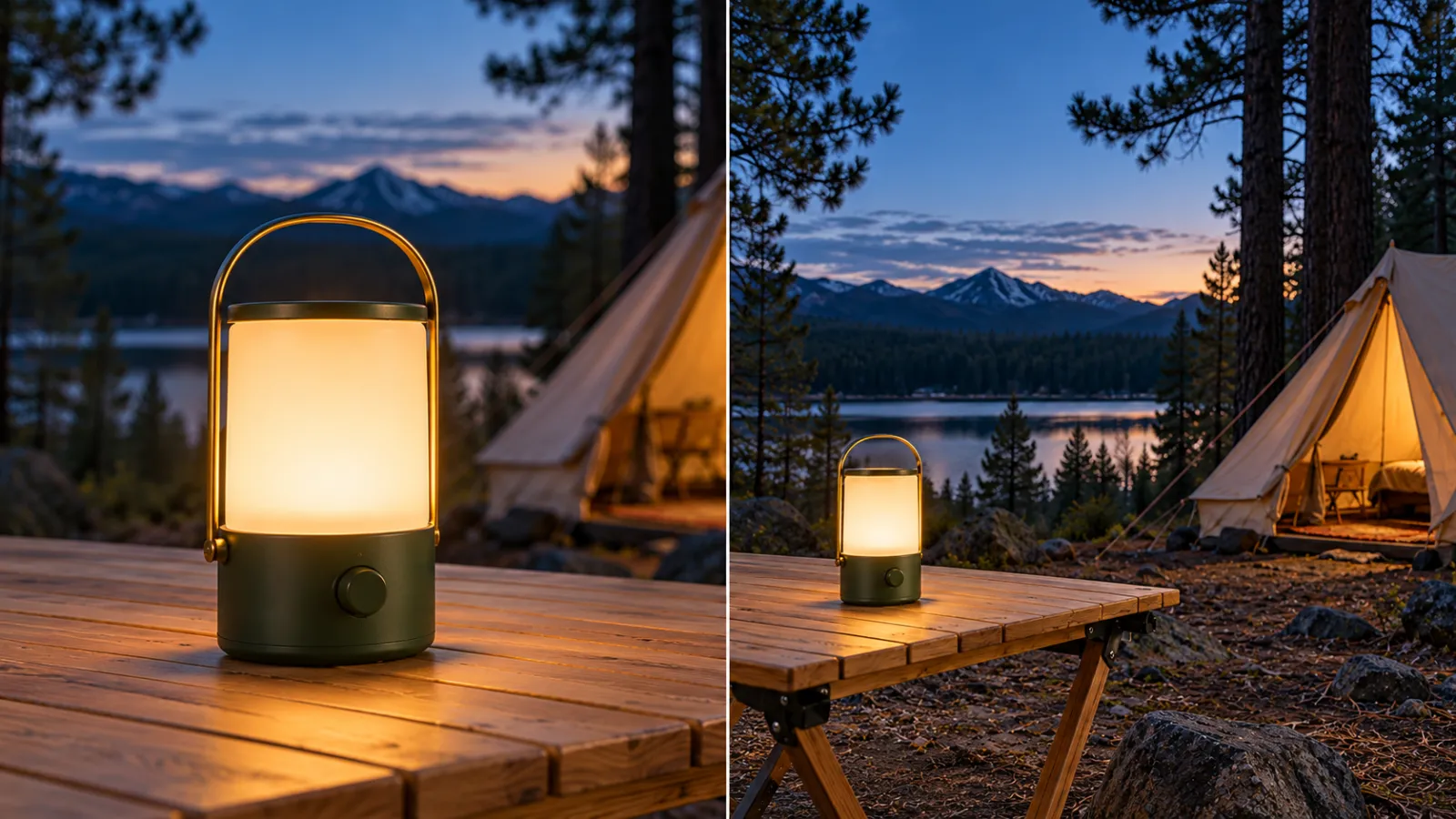
If the lamp appears too small at the end, first narrow the final shot size. The purpose of this shot is to indicate “where the lamp is placed,” without needing to show the entire campsite.
Shot C: A slight pan to reveal the three-dimensional structure
The camping lamp from the reference image remains fixed in position and orientation, with its forest-green base, off-white lampshade, and brass handle all staying unchanged; the lamp itself does not rotate.
The camera starts from a slightly left-of-center medium-close-up, slowly moving along a short arc around the lamp toward the side, gradually revealing the spatial relationship between the handle and the lamp body. The camera height and distance from the lamp remain as stable as possible, ensuring the lamp always fits completely within the frame and occupies roughly the same visual proportion. The shot ends when the front knob and one side of the lamp body become recognizable, without showing the back.
The wooden table and beige tent present a continuous spatial relationship that shifts with the viewing angle. The warm light remains steady, the background does not blur, and no new handles or knobs are added. It is one continuous shot, with no cuts.
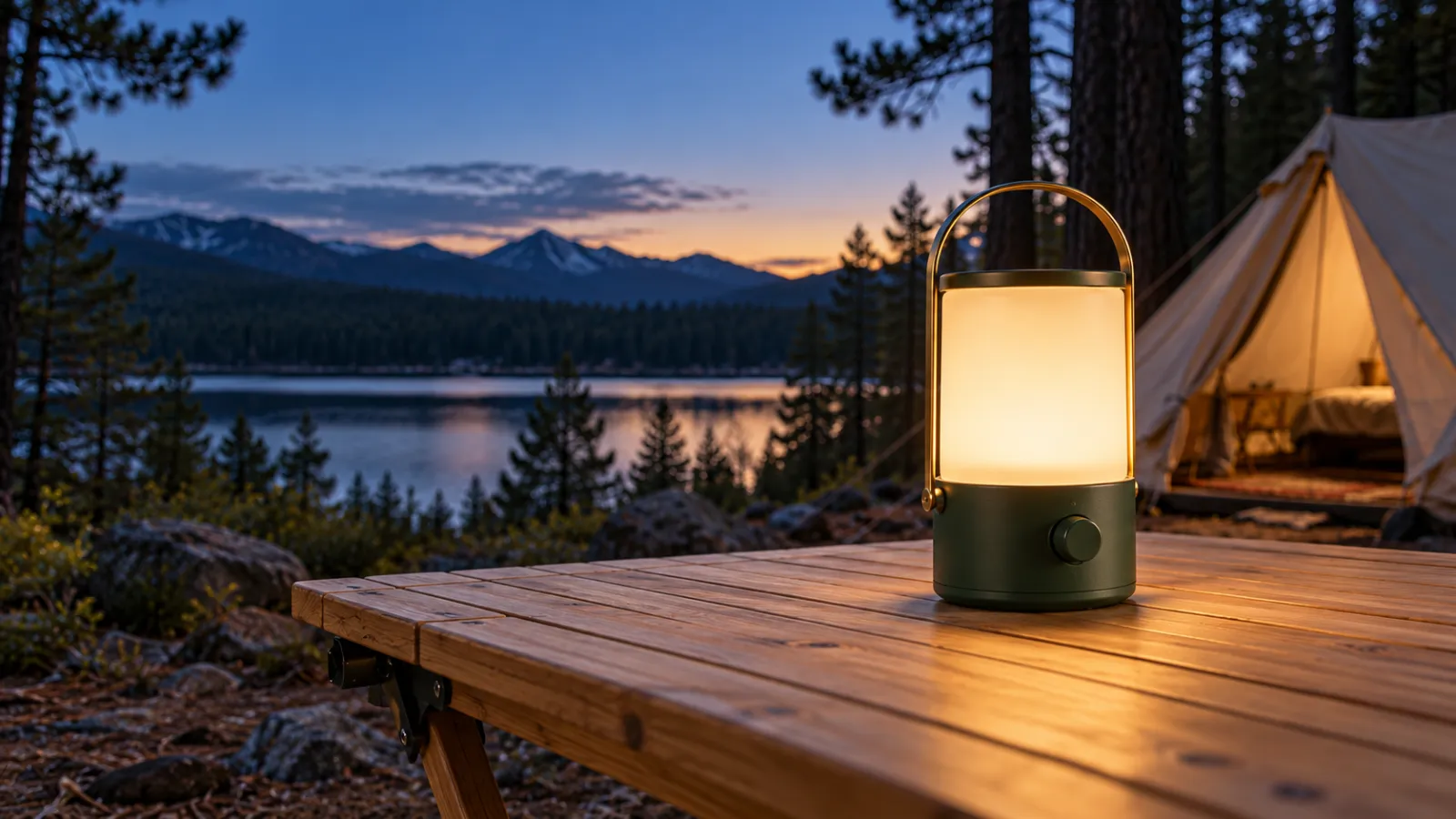
This version deliberately limits the scope of observation. If the side surfaces keep distorting, first reduce the extent of the panning motion; if the actual product’s side surfaces must be accurately represented, supplement with real-life reference footage before assessing whether this shot is suitable for delivery.
Complete the first test in PixPix
Enter the video workstation and select the task mode
Open the PixPix AI Video Workstation, log in, and review the currently available models, reference input methods, and generation options. On the public page, you can find the video generation entry point along with information about models, aspect ratios, resolutions, and durations; specific combinations available must be confirmed within your current account.
For this case, you may establish candidate options based on the official introductions below, rather than immediately determining which produces the best results:
Model | Related capabilities introduced on the official PixPix page | Tasks this article recommends prioritizing for verification |
|---|---|---|
MiniMax H3 | Reference inputs, subject consistency, and tracking, pushing, pulling, panning, lifting, and circling | Camera movement and lamp stability in a single short continuous shot |
Kling 3.0 Omni | All-modal reference, multi-shot storyboard, native audio | Subsequent versions requiring multi-shot organization or audio adjustments |
Seedance 2.5 | Multimodal reference, video extension, timestamp editing | Versions that require motion reference or further clip modifications |
Capability descriptions can be found in MiniMax H3、Kling 3.0 Omni and Seedance 2.5. The right column presents testing recommendations for this article, not comparative conclusions. Even officially demonstrated capabilities must be verified through real-world shots.
Upload a reference and first generate a shot
Select a generation mode that supports image references, add the camping lamp image, and clearly specify that this material is intended to depict the product’s fixed appearance. If the interface requires referencing materials, use the method currently displayed on the workbench, avoiding simply writing “reference image” without attaching any actual material.
First paste the prompt for Shot A. Choose the aspect ratio according to the intended delivery purpose: for landscape displays, try 16:9 first; for vertical social media posts, try 9:16 first—these are creative suggestions, not platform listing guidelines. Select the shortest duration option available under the current mode, ensuring that the motion can conclude smoothly within that timeframe.
Before generating, review the consumption and output specifications shown on the workbench. This article does not provide a uniform score, as model, mode, and specification may all affect actual resource usage.
Save the first version, then modify only one issue at a time
Record the reference file, model name, mode, complete prompt, aspect ratio, duration, resolution, and number of generations. After saving the original result, make changes only to the factor most impacting the shot’s task.
For example, if the lamp structure is stable but moves too quickly, adjust only the speed and range of motion; if the knob drifts, first reduce the difficulty of the movement or improve the reference material. Do not simultaneously change images, switch models, and rewrite the entire prompt, otherwise it will be difficult to determine which change caused the outcome.
If you need to compare models side by side, use identical inputs, prompts, aspect ratios, durations, resolutions, and generation counts that are mutually supported. Any conditions that cannot be aligned should be noted separately, without drawing broad rankings based on them.
Accept the shot according to its intended task, then decide how to proceed with modifications.
Play the video from beginning to end, then pause to examine the opening, mid-motion, and conclusion. Static keyframes allow checking structural integrity, while continuous playback helps identify jitter, acceleration, and flickering.
Identified issues | Prioritize inspection of | What to revise in the next version |
|---|---|---|
The lens movement direction is incorrect | Are subject actions and camera movements being mixed up | Separate the two, retaining only one primary camera movement |
The lamp appears larger, yet lacks spatial variation | Is the result closer to the image scaling? | Clearly move the camera position forward, while keeping the desktop and background observable. |
The light fixture rotates on its own. | Has “detour” been mistakenly written as “rotational display”? | Fix the orientation of the light fixture, clearly specifying that the camera moves along an arc. |
Handle or knob deformation. | Check whether reference details are clear and whether perspective changes are too drastic. | Improve references or reduce the range of motion. |
Warm lighting flickers, and the environment changes color. | Have requirements such as brightness variations or day–night transitions been added? | Stabilize the lighting conditions and remove irrelevant changes. |
Still moving at the end, making seamless transitions difficult. | Has a final shot been specified? | Add deceleration, stabilization, and the final composition. |
These adjustments are troubleshooting steps rather than guarantees of success. If a shot still fails to preserve the product’s structure after multiple iterations, consider switching to a fixed shot or using live-action footage for parts that must be presented with precision.
Frequently Asked Questions
If I specify focal length and aperture values, will they become actual photographic parameters?
If the workbench only accepts this type of text, it should be regarded as visual intent, and one cannot conclude from this that the model has performed accurate optical simulation. To emphasize the lampshade, simply add “the lampshade is sharp, while the tent is slightly blurred”; to illustrate the campsite layout, ensure both foreground and background remain identifiable. Whether these intentions are realized ultimately depends on the outcome.
Can the entire motion path be locked by using only the first and last frames?
PixPix’s H3 page lists the first and last frames as the prescribed method for defining the start and end compositions. However, constraints on the starting and ending points do not equate to a fixed trajectory in between.You still need to describe the movement path and verify whether there are detours, deformations, or abrupt switches during transitions.
Is it better to use Chinese prompts or English prompts?
This article did not conduct a bilingual comparison test. You can begin with the language you can check most accurately; the key is to clearly define who is moving, where they’re moving, and where they finally stop. If testing another language, keep all other conditions consistent and avoid introducing new movements simultaneously.
To make three shots appear as part of the same sequence, what should be kept constant?
Fix the structure of the camping lamp, the material of the tabletop, the position of the tent, and the relationship between the blue-toned ambiance and warm lighting, while maintaining a consistent aspect ratio. Before editing, compare the color and shape of the lamps across the three shots side by side. Once the main elements are aligned, then consider the pacing of the movement and the transitions between shots.After ensuring consistency in the main subject, proceed to refine the rhythm of motion and the connections between shots.
Start with an acceptable shot
Prepare clear reference materials for the camping lamp, and on the PixPix video workbench first test Shot A. Ensure viewers can clearly see the lampshade and knob at the end, then verify whether the lamp is intact, the motion is smooth, and it comes to a stable stop.
Once this shot meets the criteria, try expanding the campsite or adding minor detours. With each additional change, retain the previous version as a baseline for comparison—only then can you gradually develop a camera movement approach tailored to your specific product.

AI Image Tool Built for E-commerce Teams
For new product launches, advertising, and promotional campaigns, use AI to generate product images, scene visuals, ad creatives, and short video assets — making content production faster.